
How to boost mobile hotspot speed for pc often comes down to two things people overlook: your signal quality at the phone, and how efficiently your laptop negotiates Wi‑Fi with that hotspot. The good news is you can usually get a noticeable improvement without buying anything, if you diagnose the bottleneck instead of randomly flipping settings.
If your hotspot feels fast on your phone but slow on your laptop, that gap is a clue, it often points to Wi‑Fi band choice, laptop power settings, congestion, or a hotspot configuration issue. If it’s slow on both devices, you’re likely fighting a cellular problem like weak coverage, deprioritization, or a plan limit.
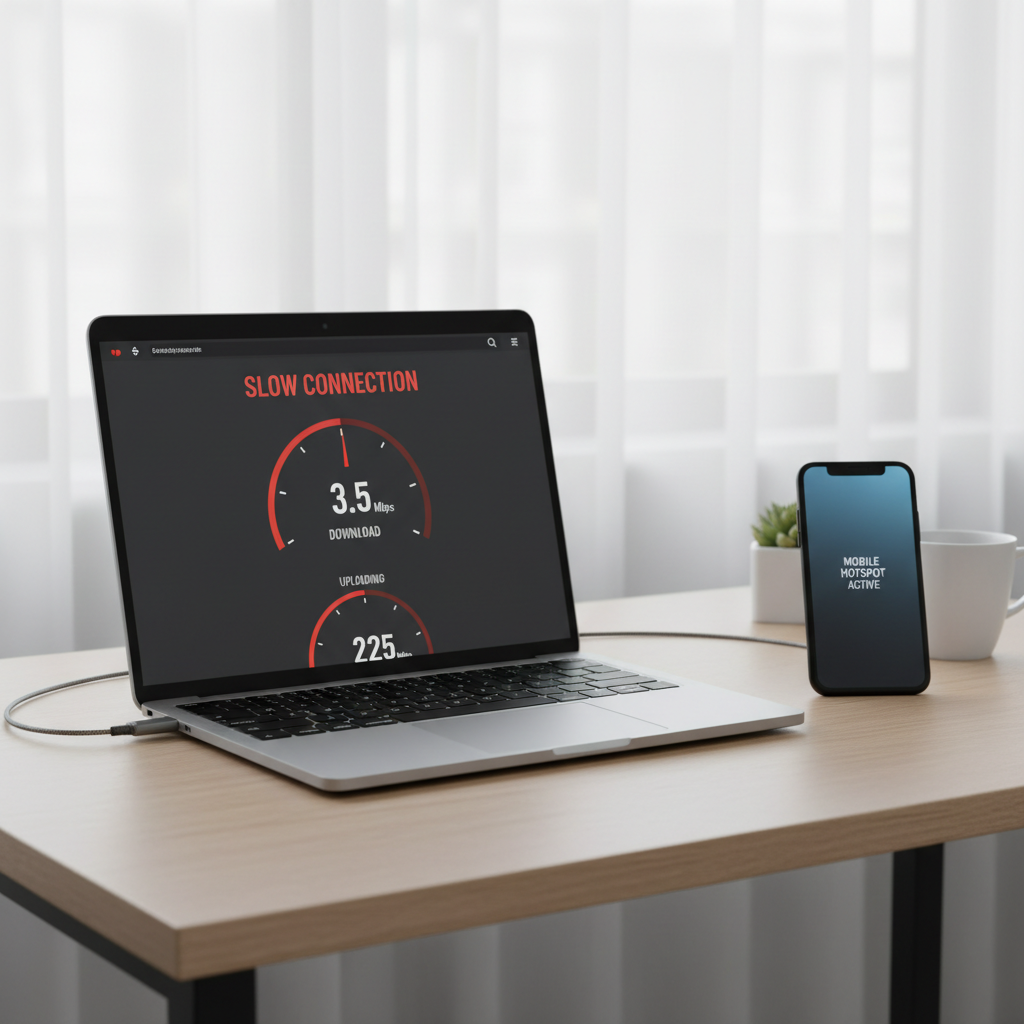
This guide stays practical: how to test where the slowdown starts, what settings actually matter on iPhone/Android and Windows/macOS, and which “boost” tricks are mostly noise. You’ll also get a quick table of fixes by symptom so you can move fast.
Start with a 5-minute reality check (so you don’t chase the wrong fix)
Before you tweak anything, isolate whether your limiting factor is cellular, Wi‑Fi, or laptop behavior. This is the part most people skip, then end up with a “fix” that only works by coincidence.
Do these three checks
- Check speed on the phone itself: run a speed test on cellular (not Wi‑Fi). If cellular is slow, hotspot won’t magically beat it.
- Check speed on the laptop while connected: run the same test. If the laptop is much worse than the phone, focus on Wi‑Fi band, interference, or laptop settings.
- Try a second device: connect a tablet or another laptop. If one laptop is uniquely slow, it’s likely that device, driver, or power profile.
According to the Federal Communications Commission (FCC), real-world mobile broadband performance varies by location, network congestion, and device capabilities, so testing in your exact spot matters more than any generic “expected speed.”
Why your hotspot to laptop is slow: the common culprits (in plain English)
When people search how to boost mobile hotspot speed for pc, they’re usually dealing with one of these scenarios. You don’t need all fixes, you need the right one.
- Weak cellular signal: fewer “bars” often means lower modulation and more retransmits, which feels like random slowness.
- Network congestion or deprioritization: many plans slow hotspot first when a tower is busy, even if normal phone data feels okay.
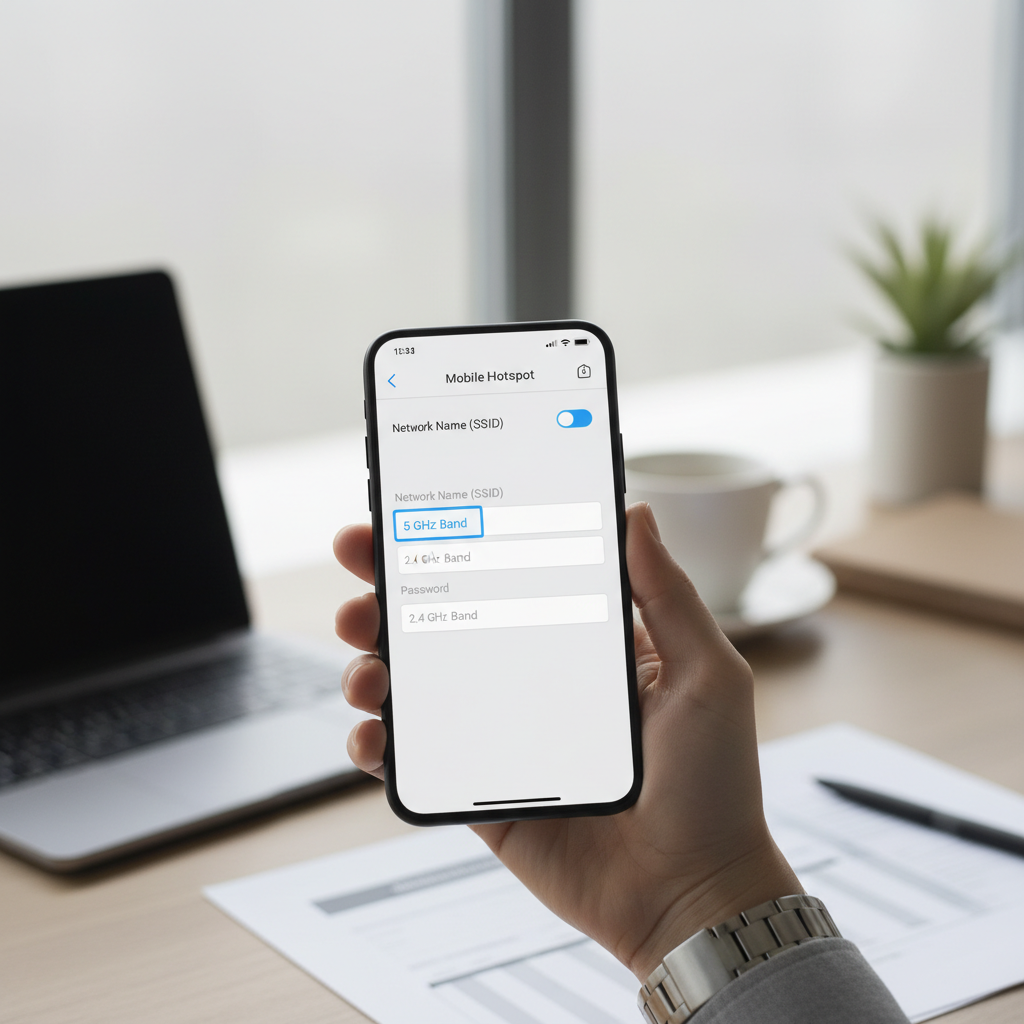
- Wrong Wi‑Fi band: 2.4 GHz travels farther but gets crowded; 5 GHz is faster but shorter range.
- Hotspot channel interference: apartments, hotels, and offices can crush throughput even with a strong signal.
- Laptop power saving: some laptops throttle Wi‑Fi performance when on battery or in “Power Saver.”
- VPN, proxy, or security inspection: these can add latency and lower throughput, especially on hotspot links.
- Background traffic: cloud backup, OS updates, Steam, OneDrive, iCloud, Dropbox, they quietly eat hotspot.
Quick fix table: symptom → likely cause → what to try
If you want a fast path, use this table to pick a direction, then jump to the matching section.
| What you notice | Likely cause | Try this first |
|---|---|---|
| Phone speed is slow too | Cellular coverage or congestion | Move 10–20 feet, change rooms, try near a window, toggle Airplane mode |
| Laptop is much slower than phone | Wi‑Fi band/channel or laptop settings | Switch hotspot to 5 GHz, forget/reconnect network, update Wi‑Fi drivers |
| Fast for 1–2 minutes then crawls | Background updates or thermal throttling | Pause updates/sync, plug in laptop, let phone cool, remove phone case |
| Good download, terrible video calls | Latency/jitter from congestion or VPN | Disable VPN, switch to 5 GHz, try USB tethering |
| Works well in one location, bad in another | Local interference or tower load | Change hotspot placement, rotate phone, try different time of day |
Step-by-step: improve cellular performance before you touch the laptop
If your phone’s cellular connection is the limiter, laptop tweaks won’t help much. This section is where “boost” becomes realistic: better signal quality usually means fewer errors, fewer retransmits, and steadier throughput.
Placement and signal tricks that actually work
- Move the phone, not the laptop: keep the phone higher, closer to a window, and away from metal surfaces.
- Keep it cool: hotspots can heat phones; heat can trigger throttling. Charging plus hotspot plus direct sun is a common slowdown combo.
- Toggle Airplane mode: this forces a reconnect, sometimes landing on a less congested sector.
- Try 5G vs LTE: if 5G is unstable in your spot, locking into LTE can feel faster because it’s consistent. Many phones don’t expose “lock LTE” anymore, but you can often disable 5G in cellular settings depending on model and carrier.
According to Apple Support, Personal Hotspot performance can depend on carrier network conditions and how many devices connect, so a “perfect” setup can still vary by time and place.
Make the hotspot Wi‑Fi link faster (band, password, channel, device limits)
This is where many “my phone is fine but my PC is slow” cases get solved. If you only do two things, do these: switch to 5 GHz when possible, and reduce interference.
Choose the right band: 2.4 GHz vs 5 GHz
- Use 5 GHz when your laptop is within the same room, it often improves speed and reduces interference.
- Use 2.4 GHz when you need range through walls, but expect more crowding in apartments, hotels, and coffee shops.
Basic hotspot settings that help more than people expect
- Rename the hotspot SSID so you can easily “Forget” and reconnect cleanly when testing changes.
- Use WPA2/WPA3 (default), avoid weird legacy modes if your phone offers them.
- Disconnect extra devices, even idle devices can create chatter or pull updates.
On iPhone, “Maximize Compatibility” can force 2.4 GHz in many cases, which helps older devices connect but can reduce speed. On Android, many models expose a band toggle and sometimes a hotspot timeout; keep the timeout off during testing so the radio doesn’t sleep.
Tune your Windows PC or Mac so it stops throttling hotspot performance
If you’re still wondering how to boost mobile hotspot speed for pc after changing hotspot settings, the laptop is the next most common choke point, especially on older Wi‑Fi adapters or aggressive power saving profiles.
Windows: the few settings worth checking
- Switch to “Best performance” on battery: Power mode affects network behavior on some systems.
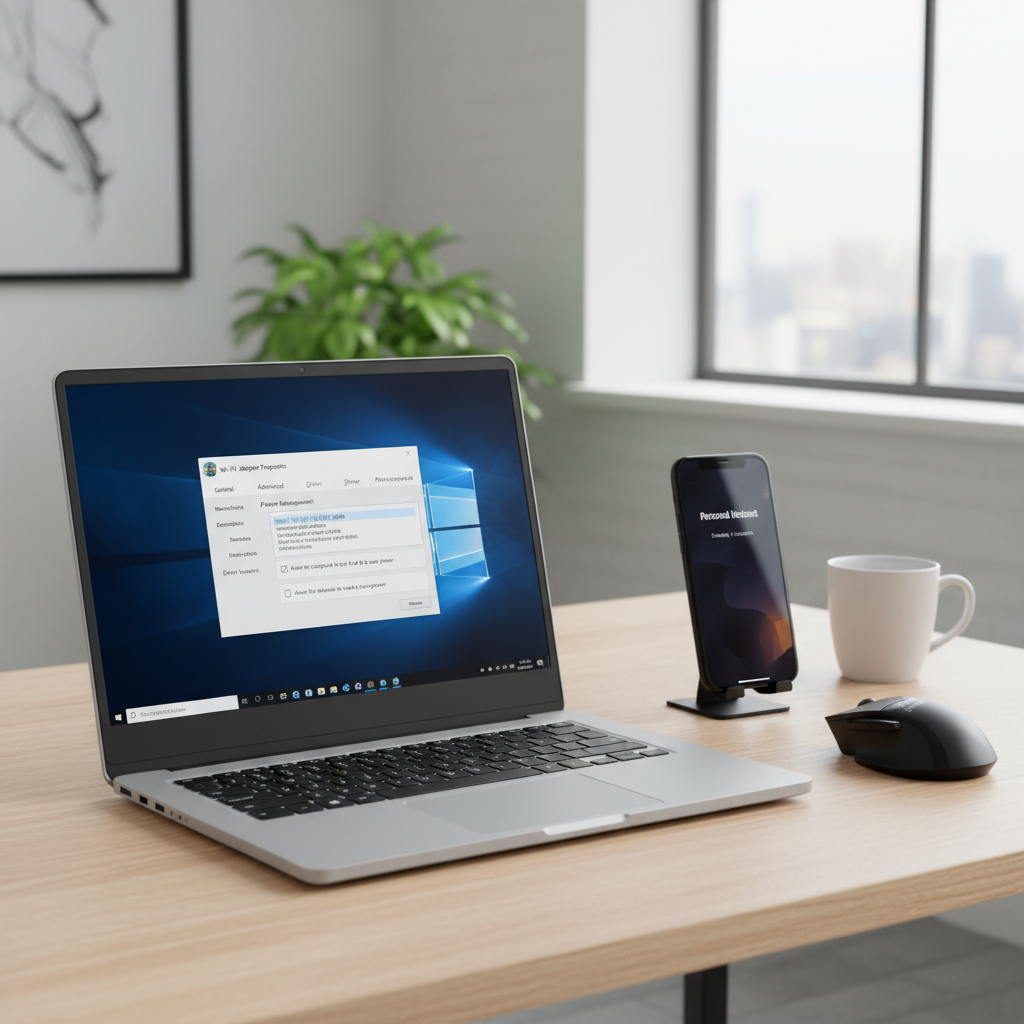
- Disable Wi‑Fi power saving: in Device Manager → your Wi‑Fi adapter → Power Management, uncheck “Allow the computer to turn off this device to save power” when you need stability.
- Update Wi‑Fi adapter drivers: use your laptop maker’s support page or Intel/Realtek vendor drivers, not random driver sites.
- Forget and reconnect: Windows can cling to a poor negotiation state; a fresh connection can restore expected throughput.
macOS: quick checks
- Forget the hotspot network and reconnect, especially after changing bands on the phone.
- Disable VPN temporarily to test, many “slow hotspot” reports are really VPN overhead or routing issues.
- Close bandwidth hogs: iCloud Drive sync and App Store updates can quietly saturate the uplink.
According to Microsoft Support, power settings and driver updates can affect network stability and performance, so it’s reasonable to treat “slow hotspot” as a device configuration issue when only one PC struggles.
When Wi‑Fi still disappoints: USB tethering and other practical upgrades
Wi‑Fi hotspot is convenient, but it’s also the most interference-prone option. If you need reliability for work calls, remote desktop, or uploads, consider a different link type.
- USB tethering: often lower latency and fewer drops because it avoids Wi‑Fi congestion, it can also charge the phone at the same time, which may increase heat, so keep an eye on temperature.
- Bluetooth tethering: usually slower, but can be stable for light browsing when Wi‑Fi is noisy.
- Dedicated hotspot device: helpful if you do this daily, these devices often manage heat and antennas better than phones, but plan rules still apply.
- Travel router + USB tether: a niche but solid setup, one phone USB-tethers to a small router, the router handles Wi‑Fi for your laptop.
Mistakes that feel productive but rarely boost speed
Some tips get repeated because they’re easy to say, not because they change throughput in a meaningful way.
- Installing “internet booster” apps on Windows: many are just toggling settings you can change yourself, some add risk.
- Constantly switching DNS: DNS can help with slow site lookup, it rarely fixes a slow hotspot pipe.
- Running multiple speed tests back-to-back: carriers and apps sometimes adapt or cache, you want spaced tests and real tasks like a large file download.
- Ignoring plan limits: if your plan caps hotspot or deprioritizes after a threshold, no setting will override that. Your carrier support can clarify terms for your line.
Key takeaways and a simple action plan
If you want the clean path: test phone speed first, then fix signal and heat, then set the hotspot to 5 GHz when your laptop is close, then make sure your PC isn’t throttling Wi‑Fi. That sequence avoids wasted effort and usually gets you the quickest win.
Try this today: switch your hotspot to 5 GHz, place your phone near a window, plug in your laptop and set it to a higher power mode, then retest. If the laptop is still far behind the phone, move to USB tethering for the sessions where stability matters.
FAQ
- Why is my mobile hotspot fast on my phone but slow on my laptop?
That pattern usually points to the Wi‑Fi link between phone and laptop, not the carrier. Try 5 GHz, forget/reconnect, and check laptop power saving and driver updates. - How to boost mobile hotspot speed for pc without buying anything?
Start by improving signal placement and reducing heat, then switch hotspot band to 5 GHz when nearby, pause background updates on the PC, and disable Wi‑Fi power saving during important work. - Is 5 GHz always better for hotspot speed?
Often yes at short range because it’s less crowded, but it can drop faster through walls. If you’re far from the phone, 2.4 GHz may be steadier even if peak speed is lower. - Does a VPN slow down hotspot internet?
It can. VPN encryption and routing may add overhead and latency, and some VPN servers get congested. Turn it off briefly to test, then decide if the tradeoff is worth it. - Will USB tethering be faster than Wi‑Fi hotspot?
In many cases it feels faster because latency is lower and interference disappears, but raw speed still depends on cellular conditions. It’s a strong option for calls and uploads. - Why does hotspot speed drop after a while?
Common reasons are phone heat throttling, background updates kicking in, or network congestion changing over time. Cooling the phone and controlling background traffic usually helps. - Can my carrier limit hotspot speed even if my phone data is fine?
Yes, depending on plan terms and network management. If your phone browsing feels okay but tethering is consistently capped, checking plan hotspot policies with your carrier is worth the time.
If you’re trying to work from a hotspot regularly, it can help to treat it like a tiny network: pick the right band, keep devices cool, and standardize a quick test routine so you can spot whether the issue is your PC, your phone, or the tower that day.