
how to fix wifi not showing up on laptop usually comes down to one of three things: the laptop radio is off, the network stack is stuck, or the Wi‑Fi adapter/driver is misbehaving.
If you’re staring at a missing Wi‑Fi icon, an empty network list, or only seeing Airplane Mode, it’s frustrating because you can’t even start troubleshooting “the internet” when the laptop won’t detect wireless networks at all.
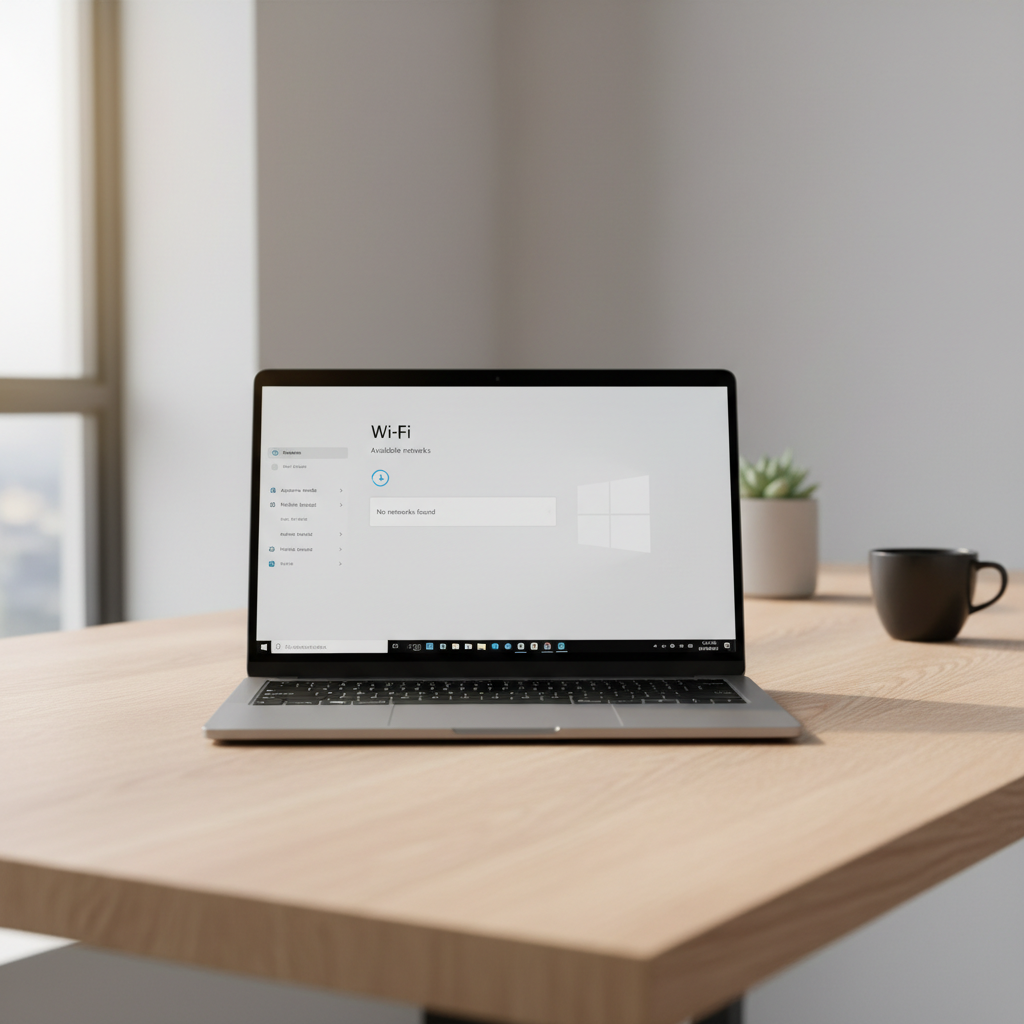
This guide focuses on practical fixes for Windows 10/11 and common laptop setups, with quick checks first, then deeper steps if the Wi‑Fi adapter disappears or refuses to scan. I’ll also point out where macOS and Chromebooks differ so you don’t waste time in the wrong menu.
Start with the quick checks that solve the “invisible Wi‑Fi” problem
Before drivers and command lines, make sure you’re not fighting a simple toggle. A lot of “no Wi‑Fi networks found” reports end right here.
- Airplane Mode: Turn it off, then wait 10–20 seconds and re-open the network list.
- Hardware Wi‑Fi switch / function key: Many laptops use Fn+F2/F5/F12 or a side switch. If the Wi‑Fi light is off, that’s a clue.
- Restart both ends: Reboot the laptop, then power-cycle the router (unplug 20–30 seconds). This clears hung radios more often than people expect.
- Check other devices: If your phone also can’t see the network, the router may be down or broadcasting only on a band your laptop can’t use.
Key point: if you can’t see any Wi‑Fi networks (not just yours), the issue is typically on the laptop side, not your internet service.
Figure out which situation you’re in (a fast diagnosis table)
Different symptoms point to different fixes. Use this to avoid random trial-and-error.
| What you see | What it often means | Best next step |
|---|---|---|
| Wi‑Fi toggle missing in Settings | Adapter disabled, driver failing, or Windows service stuck | Device Manager + Network reset |
| Wi‑Fi toggle exists, but no networks appear | Radio stuck, bad driver, router band mismatch, or location issue | Restart WLAN service + update driver |
| Only your network missing, others show | Hidden SSID, 5 GHz/6 GHz mismatch, channel/security setting | Check router settings + band compatibility |
| Wi‑Fi shows “No hardware installed” | Adapter not detected, BIOS/UEFI setting, hardware fault | BIOS check + professional repair if persistent |
Windows fixes that usually restore the Wi‑Fi list
If you’re on Windows 10/11, these steps cover the common “Wi‑Fi not showing up” paths without getting too exotic.
1) Make sure the adapter is enabled (Device Manager)
Open Device Manager → expand Network adapters.
- If you see an adapter like Intel/Realtek/Qualcomm with a down arrow, right-click → Enable device.
- If you see a yellow warning triangle, the driver is likely corrupted or incompatible.
- If your wireless adapter is missing entirely, skip ahead to the BIOS/hardware section.
2) Restart the WLAN AutoConfig service
This service controls Wi‑Fi scanning and connections.
- Press Win+R → type services.msc
- Find WLAN AutoConfig → Restart
- Set Startup type to Automatic if it isn’t already
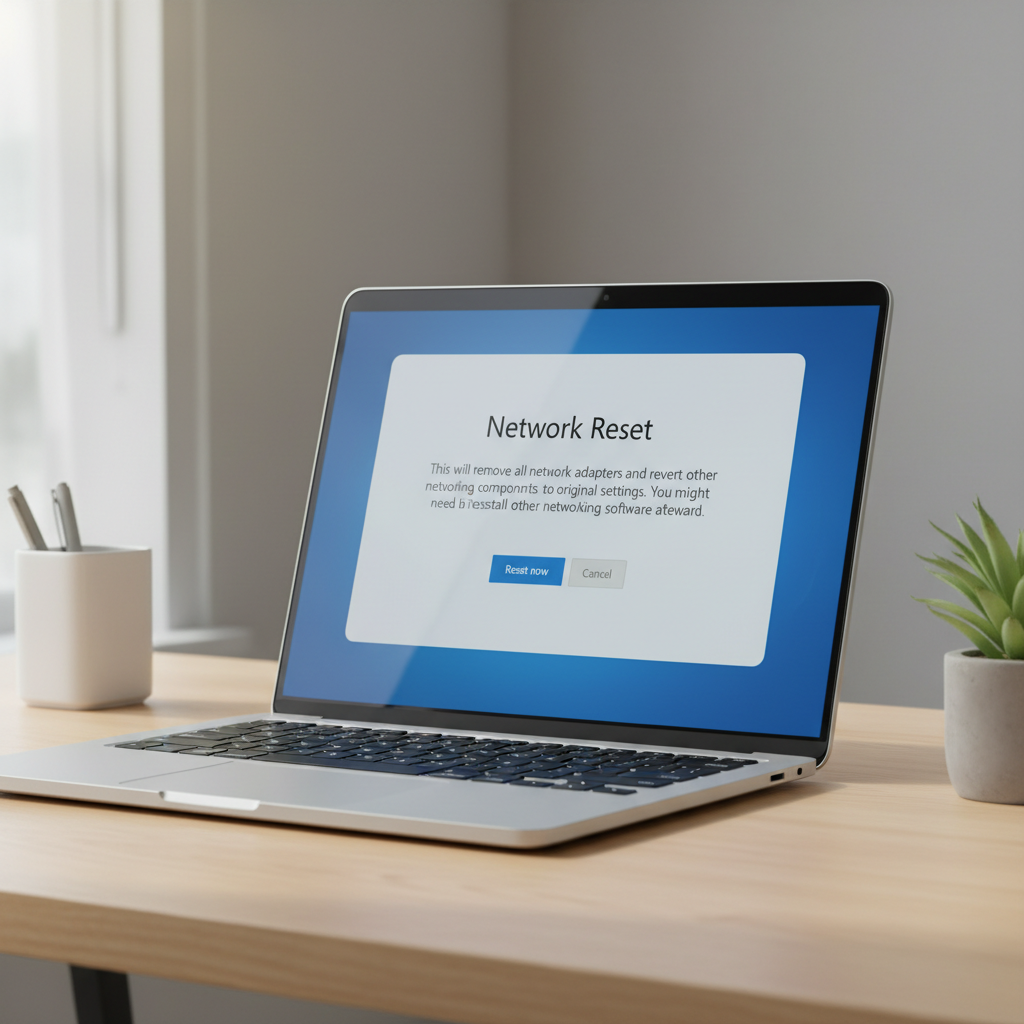
3) Run Network reset (a clean slate for the Wi‑Fi stack)
Go to Settings → Network & internet → Advanced network settings → Network reset.
This can fix situations where the Wi‑Fi list won’t populate due to a broken Winsock/stack, but it also removes saved networks temporarily, so have your Wi‑Fi password handy.
4) Use safe command-line repairs (if you’re comfortable)
Open Command Prompt as Administrator and run:
- netsh winsock reset
- netsh int ip reset
- ipconfig /flushdns
Restart afterward. This is often helpful when VPN tools, security suites, or previous driver installs leave the network stack in a weird state.
Driver and update issues: when “it worked yesterday” turns into missing Wi‑Fi
Driver problems are a top cause when the Wi‑Fi option vanishes after an update or after the laptop wakes from sleep repeatedly.
- Update via Windows Update: Settings → Windows Update → check optional updates. Sometimes the OEM driver is published there.
- Update via manufacturer: Dell/HP/Lenovo tools often provide a more stable Wi‑Fi package than generic updates.
- Roll back the driver: Device Manager → adapter properties → Driver → Roll Back Driver (if available). This is worth trying if the issue began right after a Windows update.
- Reinstall the adapter: Device Manager → uninstall device (optionally check “delete driver software”), reboot, then reinstall from the manufacturer if Windows doesn’t recover it cleanly.
According to Microsoft Support, keeping device drivers current and using built-in network troubleshooters can resolve many Wi‑Fi connectivity and detection problems, especially after updates.
Router and compatibility gotchas (when only your network is missing)
If the laptop shows nearby networks but not yours, stop blaming the laptop for a minute. This is where router settings matter more than people think.
- 2.4 GHz vs 5 GHz vs 6 GHz: Older laptops may not see 5 GHz (or 6 GHz Wi‑Fi 6E). Try enabling 2.4 GHz temporarily or using a dual-band SSID name you can identify.
- Hidden SSID: If the router hides the network name, you must add it manually in Windows (Add a new network) and the laptop won’t “discover” it in the list.
- Security modes: WPA3-only configurations can block older adapters. Mixed WPA2/WPA3 often restores visibility without sacrificing too much security, depending on your needs.
- Channel width/channel selection: Some adapters struggle with certain channel widths or DFS channels on 5 GHz. Auto settings usually work, but “auto” can still land on an awkward channel in crowded areas.
If you have access to the router admin page, check the wireless settings and confirm the SSID broadcast is enabled, and that at least one band matches your laptop’s capabilities.
macOS and Chromebook notes (if you’re not on Windows)
Most of this article is Windows-focused, but the same logic applies elsewhere: toggle, service/stack, then drivers/firmware.
- macOS: Try turning Wi‑Fi off/on, then reboot. If networks still don’t appear, create a new network location or reset network settings cautiously. Apple’s support steps often start with safe mode and removing Wi‑Fi preference files, but that’s a deeper path best followed directly from Apple guidance.
- Chromebook: Toggle Wi‑Fi, restart, and check for ChromeOS updates. If a specific network is missing, forget the network and re-add. If Wi‑Fi hardware seems absent, Powerwash can help, but only after backing up data.
According to Apple Support, restarting and ensuring software is up to date are common first-line steps for Wi‑Fi issues, with additional network configuration resets used when basic steps fail.
Common mistakes that waste time (and what to do instead)
- Spending an hour on ISP troubleshooting when no Wi‑Fi networks show at all. Instead, confirm the adapter exists and the WLAN service runs.
- Installing random “driver booster” tools. Many cases get worse due to mismatched drivers. Prefer the laptop maker or the Wi‑Fi chip vendor.
- Assuming it’s “the router” because your home network is missing. If other networks are visible, check band/security/SSID settings before replacing hardware.
- Ignoring power settings. If Wi‑Fi disappears after sleep, check Device Manager → adapter → Power Management and consider unchecking “Allow the computer to turn off this device to save power.”
When to get professional help (or at least escalate)
If you’ve tried the toggles, confirmed the adapter in Device Manager, reset the network stack, and installed a known-good driver but the laptop still can’t detect Wi‑Fi networks, you may be dealing with firmware or hardware.
- BIOS/UEFI settings: Some systems allow disabling wireless radios at firmware level.
- Physical failure: A failing Wi‑Fi card or antenna connection can present as intermittent visibility or complete absence.
- Managed devices: Work/school laptops may have policies that disable Wi‑Fi features. In that case, IT support is the right path.
If you suspect a hardware fault, it’s usually safer to consult the laptop manufacturer support or a qualified repair shop, especially if the device is under warranty.
Practical “do this now” checklist
- Turn off Airplane Mode, toggle Wi‑Fi, restart the laptop
- Check Device Manager: Wi‑Fi adapter present and enabled
- Restart WLAN AutoConfig, then run Network reset if needed
- Update or roll back the Wi‑Fi driver using official sources
- If only your SSID is missing, verify router band and security settings
Takeaway: most cases resolve once the adapter is re-enabled, the WLAN service is restarted, or the driver is corrected, the rest are usually router compatibility or rare hardware issues.
FAQ
Why is my Wi‑Fi option completely missing on my laptop?
That usually points to an adapter that’s disabled, not detected, or has a driver failure. Check Device Manager first, then try a network reset and a manufacturer driver install.
How do I fix Wi‑Fi not showing up on laptop after a Windows update?
Try rolling back the Wi‑Fi driver in Device Manager if the option is available, or install the latest Wi‑Fi driver from your laptop maker. Updates can occasionally swap in a generic driver that doesn’t behave well with your hardware.
My laptop shows other networks but not my home Wi‑Fi, what should I do?
Look at router settings: band (2.4/5/6 GHz), hidden SSID, and WPA mode are the big ones. A common fix is enabling 2.4 GHz or using WPA2/WPA3 mixed mode, depending on the router and device support.
Can a VPN or antivirus cause Wi‑Fi networks to not appear?
It can, especially if it installs network filters or drivers. If the issue began after installing security or VPN software, temporarily disabling it, resetting Winsock, or removing the software can help narrow it down.
What if Device Manager doesn’t show any wireless adapter?
That can mean a BIOS setting disabled wireless, the driver is severely broken, or the hardware isn’t being detected. Check BIOS/UEFI options and install the correct driver package; if it still doesn’t appear, consider professional diagnostics.
Does “Network reset” delete anything important?
It mainly clears network settings and saved Wi‑Fi profiles. You may need to reconnect to Wi‑Fi and re-enter passwords, and VPN connections might need to be set up again.
How do I know if my laptop supports 5 GHz or 6 GHz Wi‑Fi?
Check the Wi‑Fi adapter model in Device Manager and look up its specifications on the chip vendor or laptop manufacturer site. In many situations, if it’s 2.4 GHz-only, your laptop simply won’t see a 5 GHz-only SSID.
If you’re trying to fix a laptop where Wi‑Fi disappears repeatedly, it may help to list your exact model, Windows version, and Wi‑Fi adapter name before changing more settings, that way you can follow a cleaner path and avoid driver guesswork.
If you need a more hands-off route, consider contacting your laptop manufacturer support with the adapter model and any Device Manager error codes, you’ll usually get faster, more accurate driver guidance than generic “update everything” advice.