
how to speed up a slow windows 11 pc usually comes down to a few practical fixes: trim what starts with Windows, clean up storage, update drivers, and confirm your hardware isn’t the real bottleneck.
If your laptop takes forever to boot, apps “hang” for seconds, or File Explorer feels sticky, it’s not just annoying, it also makes you waste time chasing the wrong “optimizer” tools. The good news is Windows 11 already includes most of what you need, if you know where to look.
This guide focuses on fixes that actually move the needle for everyday PCs, not vague “tune-up” advice. You’ll get a quick way to diagnose the cause, a short list of high-impact changes, and a realistic point where upgrading hardware makes more sense than tweaking settings.
Start with a quick diagnosis (so you don’t waste time)
Before changing a dozen settings, spend five minutes identifying what’s actually slow: CPU, memory (RAM), storage, or background apps. Most Windows 11 slowdowns fall into one of these buckets.
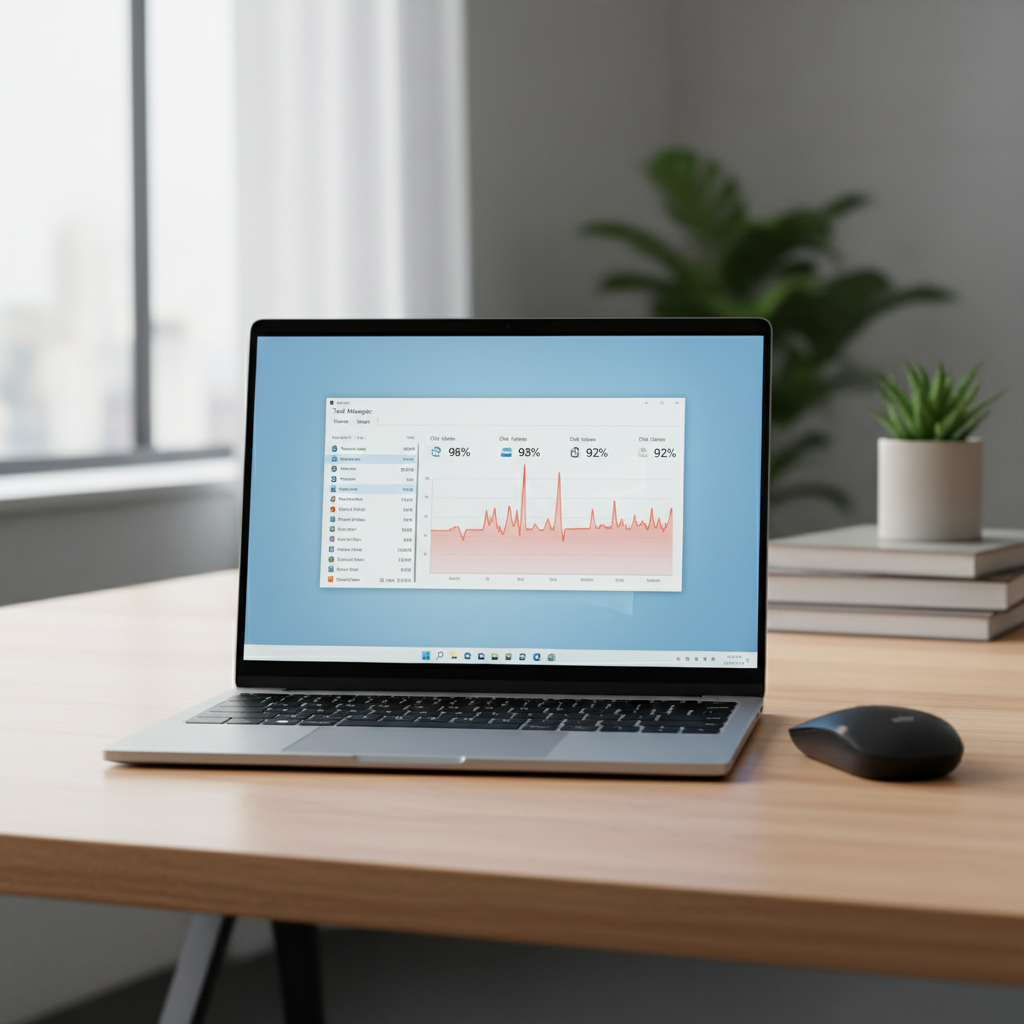
Fast check: Task Manager
Press Ctrl + Shift + Esc to open Task Manager, then look at CPU, Memory, and Disk on the Processes tab.
- CPU stuck above ~80% at idle often means an app, browser tabs, or a runaway background process.
- Memory above ~80% means you’re paging to disk, which feels like stuttering and app delays.
- Disk at 100% on a mechanical drive (HDD) is a classic reason Windows “freezes” during simple actions.
Fast check: what your PC is really running
- Open Settings > Apps > Startup to see what launches at boot.
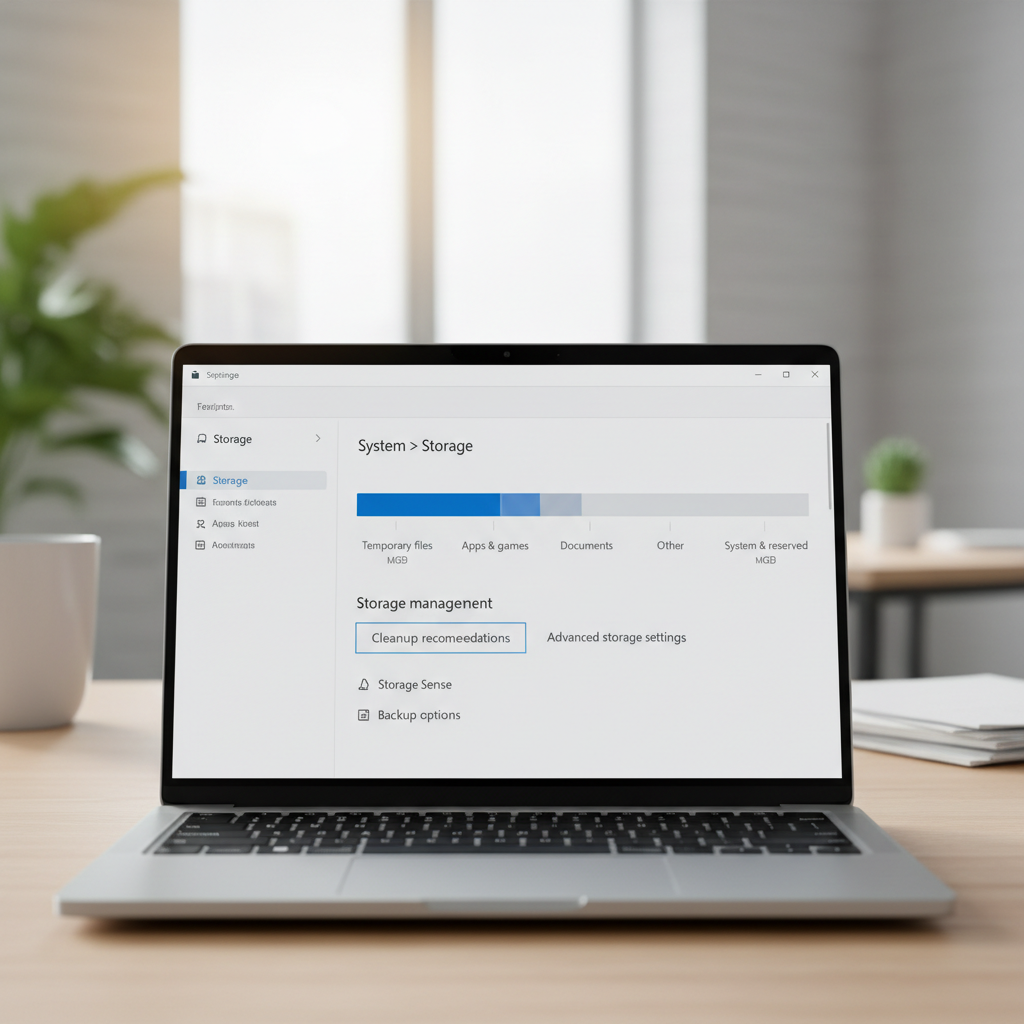
- Open Settings > System > Storage to see what’s consuming space.
- Open Windows Update to confirm updates aren’t mid-download or repeatedly failing.
Fix the most common culprit: too many startup and background apps
In many homes and offices, the biggest reason people search how to speed up a slow windows 11 pc is simple: years of apps adding “helpers” that run all the time. You don’t notice until the machine feels heavy.
Turn off non-essential startup items
Go to Settings > Apps > Startup and disable anything you don’t truly need the moment you sign in.
- Good candidates to disable: game launchers, chat apps you rarely use, vendor “update assistants,” coupon extensions tied to desktop apps.
- Be cautious: security software, touchpad/keyboard utilities on laptops, audio drivers.
If you’re unsure, search the startup item name and confirm it’s not a driver or security component. It’s better to disable one or two items, reboot, and judge the difference than flip everything at once.
Clean up storage the right way (without sketchy “cleaners”)
Low free space can slow updates, make caching less effective, and increase background thrash. This matters more if your system drive is small.
Use built-in cleanup tools
- Open Settings > System > Storage, then run Temporary files cleanup.
- Turn on Storage Sense so Windows auto-cleans temporary files and Recycle Bin on a schedule.
- In the Start menu, search Disk Cleanup and run it as an extra pass (still useful).
Remove apps you don’t use
Go to Settings > Apps > Installed apps and uninstall what’s clearly unnecessary. This also reduces background services and update checks.
Know what to avoid
- “Registry cleaners” and miracle “PC booster” suites often create more problems than they solve.
- Deleting random folders under C:\Windows or Program Files is a fast route to broken apps.
According to Microsoft support guidance, built-in storage tools like Storage Sense are the recommended way to manage temporary files and disk space on Windows.
Updates and drivers: boring, but they matter
Updates won’t magically turn an old PC into a new one, but they can fix performance bugs, stability issues, and driver conflicts that feel like “slowness.”
Do Windows Update checks in this order
- Settings > Windows Update and install pending updates.
- Click Advanced options and review Optional updates (especially drivers), but don’t install everything blindly.
- Reboot after major updates, even if Windows doesn’t nag you.
Graphics and chipset drivers (where performance gains often hide)
If your PC struggles with animations, video calls, or multi-monitor setups, update graphics drivers from the device maker (Intel, NVIDIA, AMD) or your PC manufacturer. Chipset drivers can matter on desktops and some laptops, because they affect power management and storage behavior.
If you’re unsure which driver route is safest, start with your OEM support page (Dell/HP/Lenovo, etc.), then move to component vendors only if you’re troubleshooting a known issue.
Windows 11 settings that reduce “lag” fast
Some settings don’t increase raw performance, but they reduce the “feel” of slowness, especially on modest hardware. These are worth trying because they’re reversible.
Visual effects: keep it simple
- Search “Adjust the appearance and performance of Windows”.
- Select Adjust for best performance, or manually disable heavy effects while keeping font smoothing.
Power mode: don’t leave performance on the table
On laptops in particular, Windows can prioritize battery over responsiveness.
- Go to Settings > System > Power & battery.
- Set Power mode to Best performance when plugged in (use Balanced on battery if you prefer).
Browser reality check
For many people, the “slow PC” is actually a heavy browser session. Close unused tabs, remove suspicious extensions, and try enabling sleeping tabs in your browser settings. This alone can reduce RAM pressure.
When hardware is the bottleneck: use this upgrade decision table
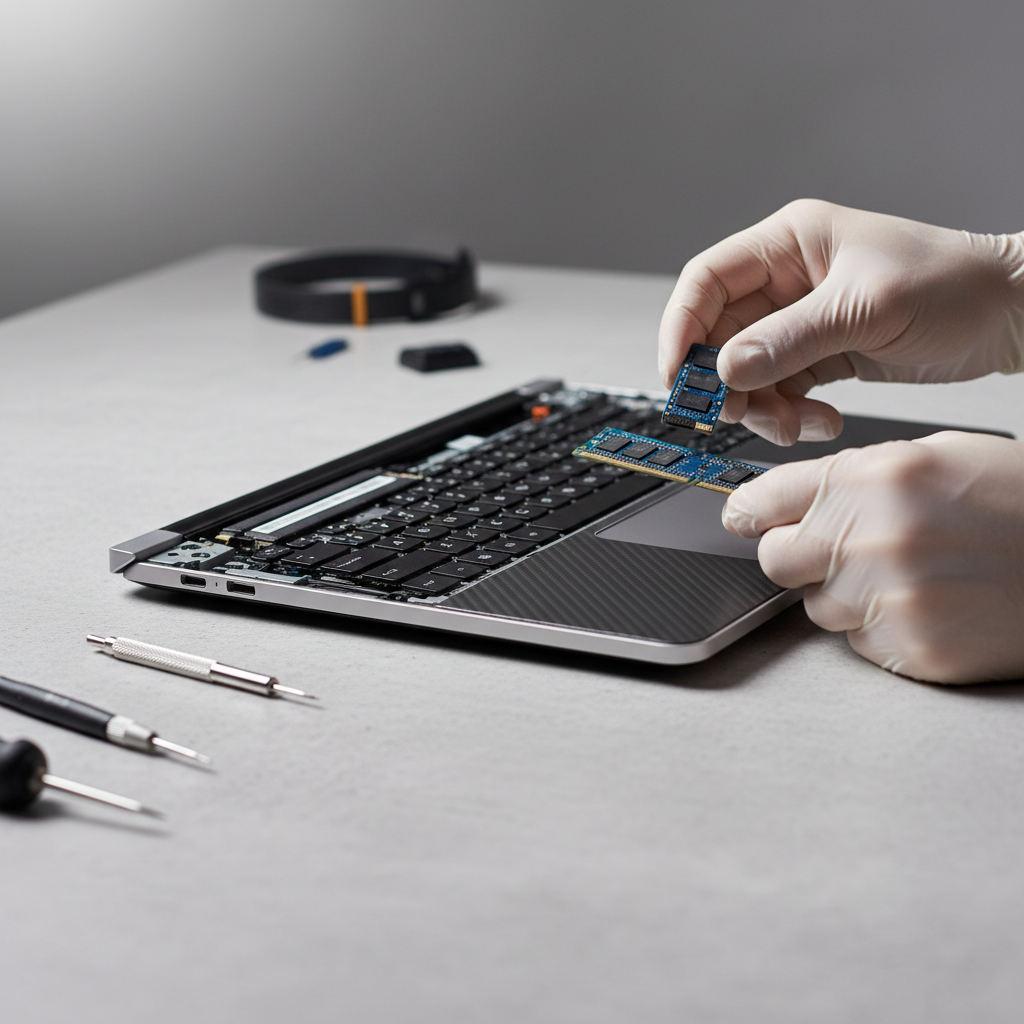
Sometimes the most honest answer to how to speed up a slow windows 11 pc is that settings tweaks won’t beat physical limits. The two upgrades that usually change day-to-day speed most are an SSD and more RAM, assuming your device supports them.
Upgrade decision table
| Symptom | What you’ll see | Most likely fix |
|---|---|---|
| Boot and app launches take forever | Disk near 100%, especially on HDD | Move to an SSD (often the biggest jump) |
| Stuttering when multitasking | Memory consistently high, frequent paging | Add RAM (common targets: 16GB for general use) |
| Sluggish with many background apps | High CPU at idle | Reduce startup apps, check malware, consider CPU limits |
| Slow file transfers | Old drive, nearly full storage | Free space, SSD, check drive health |
On some thin laptops, RAM or storage might be soldered and not upgradeable. In that case, your “upgrade” decision becomes external storage, reducing workload, or replacing the device sooner than you wanted.
A practical 30-minute tune-up checklist (do this in order)
If you want a simple plan you can run today, this sequence tends to deliver quick wins without getting overly technical.
- Reboot (sounds basic, but clears stuck updates and runaway processes).
- Disable obvious startup apps in Settings.
- Run Storage cleanup and turn on Storage Sense.
- Update Windows, then reboot again.
- Update graphics driver if UI feels choppy or video calls lag.
- Switch power mode to Best performance while plugged in.
- Check Task Manager again to confirm CPU/RAM/Disk pressure dropped.
Key takeaway: if Disk usage stays pegged at 100% during normal tasks on an older machine, you’re likely fighting an HDD limitation more than a settings issue.
Common mistakes that make Windows 11 feel slower
- Installing multiple “optimizer” tools that run at startup and compete for resources.
- Ignoring a failing drive: repeated freezing, clicking sounds, or frequent file errors deserve immediate backups.
- Letting security scans stack up: schedule them, don’t run three different scanners at once.
- Chasing tiny tweaks while keeping 30 browser tabs and heavy apps open all day.
According to CISA (Cybersecurity and Infrastructure Security Agency), keeping software updated is a key part of basic cyber hygiene, and in practice it often prevents the kind of instability that users interpret as “my PC is slow.”
Conclusion: get it responsive first, then decide on upgrades
If you’re working through how to speed up a slow windows 11 pc, aim for the high-impact basics: cut startup clutter, reclaim storage, update Windows and core drivers, then reassess in Task Manager. If the machine still crawls under normal use, it’s often a storage or RAM limit, and an SSD upgrade (when possible) is usually the most noticeable improvement.
Pick one action from the 30-minute checklist, do it now, then restart and test the same task again, opening the same apps, loading the same sites. That quick before-and-after tells you more than any “tweak list” ever will.