
how to find saved passwords on iphone is mostly about knowing where Apple hides the Passwords manager, and which method fits your iOS version and situation.
If you’re trying to log into an app, set up a new device, or help a family member who forgot a login, it’s easy to waste time bouncing between Safari, an app’s “Forgot Password” link, and random notes. The good news, iOS already keeps a clean vault for passwords and passkeys, and it’s built into Settings and the Passwords app.
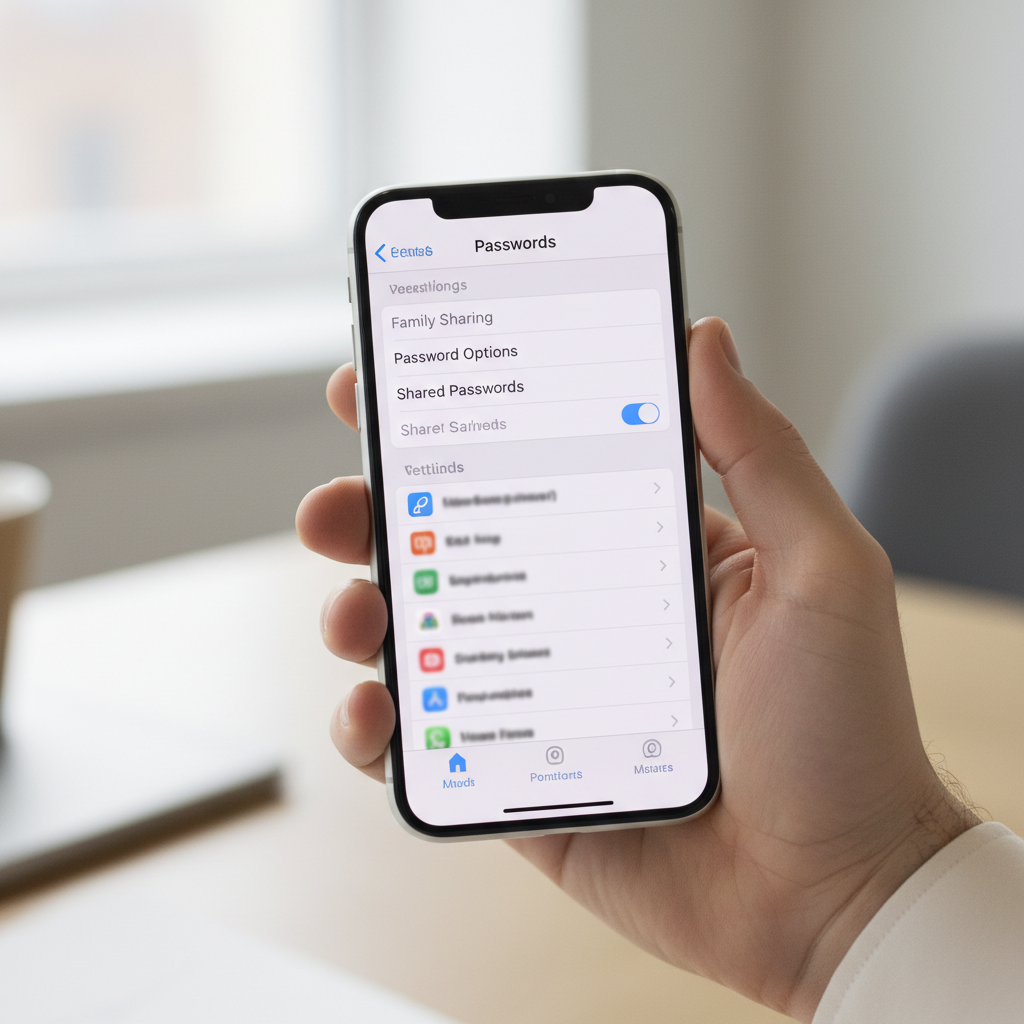
One quick heads-up, Apple’s password storage can include iCloud Keychain, app logins saved via AutoFill, and even Wi‑Fi passwords you’ve used before, but not every password on your life automatically ends up there. This guide helps you find what’s saved, confirm whether it’s syncing, and what to do if it’s missing.
Where iPhone actually stores saved passwords (and why it matters)
When people say “saved passwords on iPhone,” they usually mean one of these buckets, and the steps differ a bit.
- iCloud Keychain / Passwords: website and app credentials saved through Apple AutoFill, plus passkeys.
- Safari saved logins: typically the same vault, just surfaced through Safari prompts.
- Third-party password managers: 1Password, Bitwarden, LastPass, etc, these won’t show up unless you enabled them in AutoFill.
- Wi‑Fi passwords: not listed as plain text in a simple menu, sharing uses nearby device workflows.
Why this matters: if a password wasn’t saved through Apple’s AutoFill, it might not exist in the Apple vault, even if you “used it on the phone.” That’s the most common mismatch.
How to find saved passwords on iPhone (iOS 17 and newer)
On newer iOS versions, Apple pushes you toward the dedicated Passwords experience. This is the fastest route for most people.
Method A: Use the Passwords app
- Open Passwords (search from the Home Screen if you don’t see it).
- Authenticate with Face ID, Touch ID, or your device passcode.
- Use Search to find a website, app name, or saved account label.
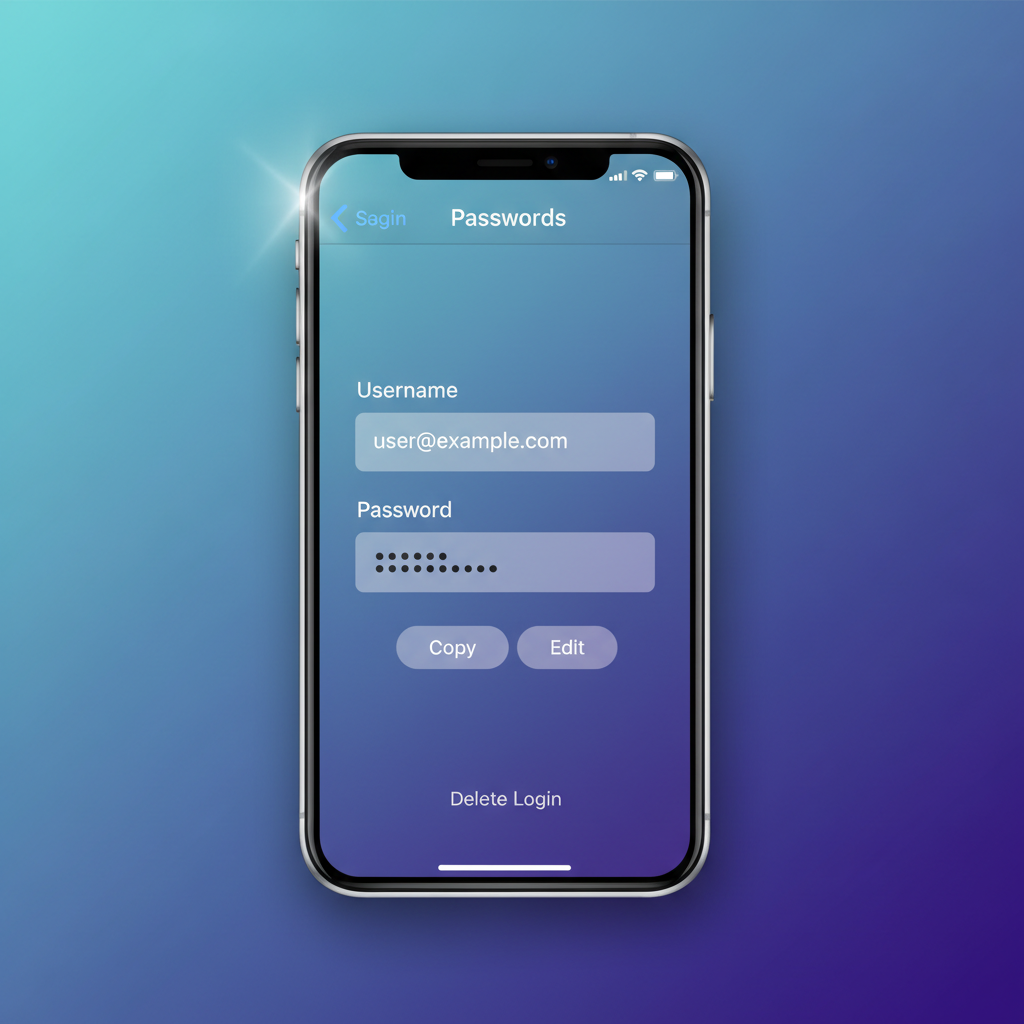
- Tap an entry to view username, password, and related details.
Method B: Go through Settings
- Open Settings → Passwords.
- Authenticate, then browse or search.
According to Apple Support... saved passwords and passkeys can be viewed and managed from the Passwords interface after you authenticate, and Apple uses device authentication to protect access.
How to find saved passwords on iPhone (older iOS versions)
If you’re on iOS 15 or iOS 16, you can still get to the same vault, it’s just less “app-like.” The usual path is:
- Settings → Passwords (or Passwords & Accounts on some older builds)
- Authenticate, then search or scroll the list
On very old devices, the naming can vary, but the idea stays the same: you’re looking for the Passwords list that requires Face ID/Touch ID/passcode to open.
Quick self-check: why you can’t find a saved password
Before you assume it’s gone, run through this checklist. It saves a lot of frustration.
- Was it ever saved? If you tapped “Not Now” on the save prompt, it won’t be there.
- Different Apple ID? If you changed Apple IDs, the Keychain content may not match.
- iCloud Keychain off? Without syncing, another device might have it but this iPhone won’t.
- Saved in a third-party manager? It won’t appear in Apple Passwords unless you check that app.
- Work/school device restrictions? Managed devices sometimes block viewing or saving credentials.

When this check points to syncing, the next section is where you fix it.
Fixes when saved passwords are missing (sync, AutoFill, and search tricks)
If how to find saved passwords on iphone turns into “I swear it used to be here,” it’s usually one of these.
Confirm iCloud Keychain is enabled
- Go to Settings → your Apple Account name → iCloud.
- Find Passwords & Keychain (or similar wording) and make sure it’s on.
Confirm AutoFill is configured
- Go to Settings → General → AutoFill & Passwords.
- Enable AutoFill Passwords.
- Check which providers are allowed, for example Passwords and/or a third-party manager.
Search using “domain thinking”
A login might be saved under a domain you don’t expect, for example accounts.google.com rather than “Gmail.” Try searching the company name, the domain, and common variations.
Viewing, copying, sharing, and editing passwords safely
Once you locate an entry, you have a few practical options, and each has a “do it safely” version.
- Copy password: use the built-in copy option, then paste into the target app.
- Show password: helpful if you’re typing on another device, but avoid doing this in public spaces.
- Edit: update the password after a reset so AutoFill doesn’t keep pushing the old one.
- Delete: only if you’re sure you won’t need it, deletion can affect other synced devices.
If you’re sharing access with a partner or coworker, it’s usually better to use a proper sharing method (like a password manager’s shared vault) rather than texting a password. According to NIST... sending secrets over insecure channels increases exposure risk, so pick a controlled sharing path when you can.
Common tasks: Wi‑Fi passwords, app logins, and passkeys (what to expect)
This is where expectations get messy, so here’s a quick map of what you can and can’t do from the Apple vault.
| Item | Where to look | What you can do |
|---|---|---|
| Website passwords | Passwords app / Settings → Passwords | View, copy, edit, delete |
| App passwords | Passwords app / AutoFill prompts | View, copy, update after resets |
| Passkeys | Passwords app (Passkeys section if available) | Manage sign-in method; often no “password” to view |
| Wi‑Fi password | Wi‑Fi settings and sharing flows | Often share to nearby Apple devices; direct viewing varies by iOS and setup |
Passkeys deserve one sentence of clarity: many services won’t give you a readable password because there isn’t one in the traditional sense. You still sign in, it just happens through device authentication.
If you’re trying to retrieve a Wi‑Fi password for a non-Apple device, you may need to use your router’s admin page or ask the network owner, since iOS workflows vary and don’t always reveal plain text.
Practical steps to tighten security after you find passwords
Finding credentials is only half the job. If you discovered you’ve been reusing old logins, take ten minutes and reduce future pain.
- Turn on two-factor authentication where available, especially for email and banking.
- Update weak or reused passwords, then immediately edit the saved entry so AutoFill stays accurate.
- Review security recommendations in the Passwords interface if your iOS version offers it.
- Lock your device well: Face ID/Touch ID plus a strong passcode matters, because your vault sits behind it.
According to Apple Support... features like Face ID/Touch ID and a device passcode help protect access to sensitive data stored on the device, including saved passwords.
Key takeaways (so you can do this fast next time)
- Passwords live in Apple’s Passwords/Settings vault, not inside each app.
- Authentication is required, so Face ID/Touch ID/passcode issues will block access.
- Missing entries usually mean it wasn’t saved, it’s under a different Apple ID, or Keychain syncing is off.
- Passkeys can replace passwords, so you may not always find a viewable secret.
Conclusion: find it, confirm it’s synced, then secure it
If your goal is simple, how to find saved passwords on iphone comes down to opening Passwords (or Settings → Passwords), authenticating, then searching by site or domain. If what you need isn’t there, check iCloud Keychain and AutoFill settings before you start resetting accounts.
Pick one action today: open the Passwords list and update one reused login, or enable syncing so the next time you switch devices, you don’t have to hunt again.
FAQ
How do I see my saved passwords on iPhone without Face ID or Touch ID?
You can typically use your device passcode instead. If you can’t authenticate at all, you won’t be able to view the vault, and you may need account recovery steps through Apple or the service you’re trying to access.
Why are some app passwords not showing in Passwords?
Many apps rely on in-app sign-in flows or third-party managers, so the credential may never have been saved to Apple AutoFill. It’s also common for the login to be stored under a web domain rather than the app name.
Can I export saved passwords from iPhone?
Some Apple ecosystems allow export through related settings on other devices, but options vary by iOS/macOS version and policy restrictions. If you need regular export and sharing, a dedicated password manager may fit better.
Is it safe to keep passwords saved on my iPhone?
In many cases it’s reasonably safe when your device has a strong passcode and biometric unlock, because access requires authentication. If you’re in a higher-risk situation, consider additional controls like a password manager with separate master password and secure sharing.
How do I find saved Wi‑Fi passwords on iPhone?
iOS can often share Wi‑Fi access with nearby Apple devices through built-in prompts, while direct viewing depends on your setup and iOS version. For non-Apple devices, checking the router label or admin settings is often more reliable.
What’s the difference between passwords and passkeys on iPhone?
Passwords are shared secrets you can usually view and copy, passkeys are a modern sign-in method tied to your device authentication. With passkeys, you often won’t see a traditional password because the service doesn’t use one.
What should I do if I think someone accessed my saved passwords?
Change critical passwords right away, enable two-factor authentication, and review your Apple Account security settings. If you’re dealing with financial or identity risks, consider contacting the service provider or a security professional for guidance.
If you’re managing logins for a family, a small team, or multiple devices, and you want less “Where did we save that?” chaos, using one consistent setup, either Apple Passwords with iCloud Keychain or a trusted third-party manager with sharing, usually makes the day-to-day much smoother.