
how to fix app not installed error android usually comes down to one of a few practical issues: the APK is incompatible, the file is corrupted, Android blocks the install for security reasons, or an older app signature is getting in the way.
It’s frustrating because the message is vague, and Android doesn’t tell you which part failed. The good news is you can narrow it down quickly if you check the right things in the right order, instead of reinstalling randomly and hoping it works.
This guide walks you through a fast diagnosis, a short checklist you can run in two minutes, and fixes that match the most common real-world scenarios, including Play Store installs and sideloaded APKs.
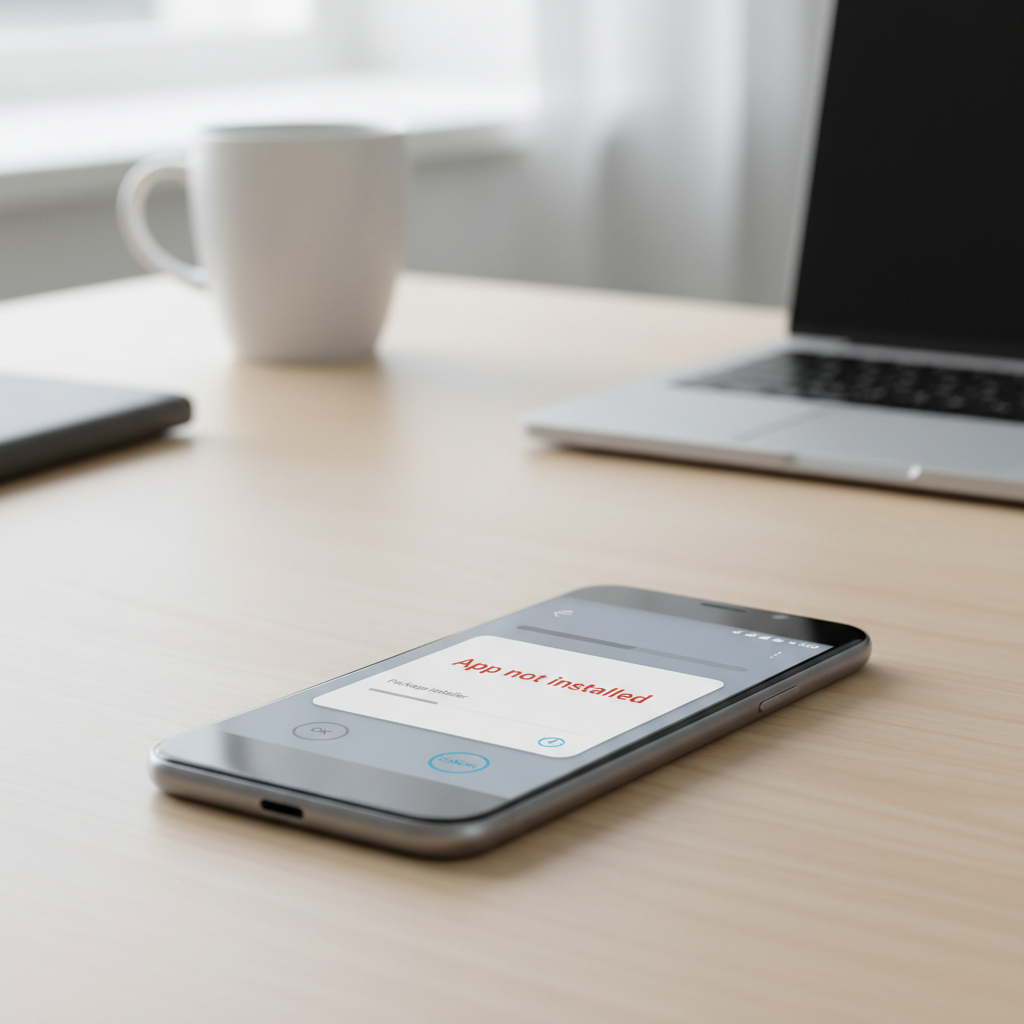
Quick diagnosis: what the error usually means
Android uses “App not installed” as a catch-all when the package installer can’t finish. In practice, most cases fall into these buckets:
- Incompatible app: wrong Android version, wrong CPU architecture (ARM vs x86), or device restrictions.
- Corrupted download: incomplete APK, bad split APK set, or modified file.
- Signature conflict: you have a previous version installed with a different signing key.
- Permission/security blocks: Play Protect or “Install unknown apps” restrictions.
- Storage or system limits: not enough space, or system WebView/installer components misbehaving.
According to Google (Android security guidance and Play Protect documentation), Android may block installs from unknown sources or apps flagged as potentially harmful, even when the file looks fine.
2-minute self-checklist before you change anything
Run these checks once, because they often reveal the answer immediately:
- Where are you installing from? Play Store, Galaxy Store, a browser download, a file manager, or a PC transfer.
- Do you already have this app installed? Or a “similar” version (beta, mod, work profile copy).
- How much free space is left? Aim for a few GB free, not just a few hundred MB.
- Is the app split? If you downloaded multiple files (APKS/XAPK), a single APK install may fail.
- What Android version are you on? Some apps require newer versions.
If you’re doing a sideload, also verify the source. If you don’t trust it, stop here and use the Play Store version instead.
Common causes and the fix that matches each one
Here’s a practical map from “likely cause” to “what to do,” without guesswork.
1) Not enough space (or storage is “lying”)
- Delete a few large items (videos, offline maps, podcasts) and try again.
- Clear temporary storage: Settings → Storage → Free up space (wording varies by device).
- Restart the phone to release stuck cache and installer processes.
On some devices, the installer needs extra working space beyond the app size. If you’re right on the edge, installs fail even though Storage claims you have “enough.”
2) The APK is incompatible with your device
- Check the app’s minimum Android version (Play Store listing or developer notes).
- If you used an APK site, confirm the variant matches your CPU (most US phones are ARM64).
- Prefer the Play Store build when possible, because it auto-selects the correct variant.
If the app depends on features your phone lacks (some camera, NFC, telephony constraints), you may never get it to install cleanly, and that’s not you doing something wrong.
3) Signature conflict (the “same app” signed differently)
This is one of the most common reasons sideloads fail. If an app is already installed and you try to install a build signed with a different key, Android blocks it.
- Uninstall the existing app, then install the new one.
- If you need to keep data, check whether the app offers cloud sync or an export feature first.
- If it’s a work app (MDM/Intune), ask your admin, because uninstalling may remove managed data.
For many users, this is the moment where they realize they have a Play Store version installed, and they’re trying to install a random APK “update.” Those don’t mix well.
4) Play Protect or “Install unknown apps” is blocking
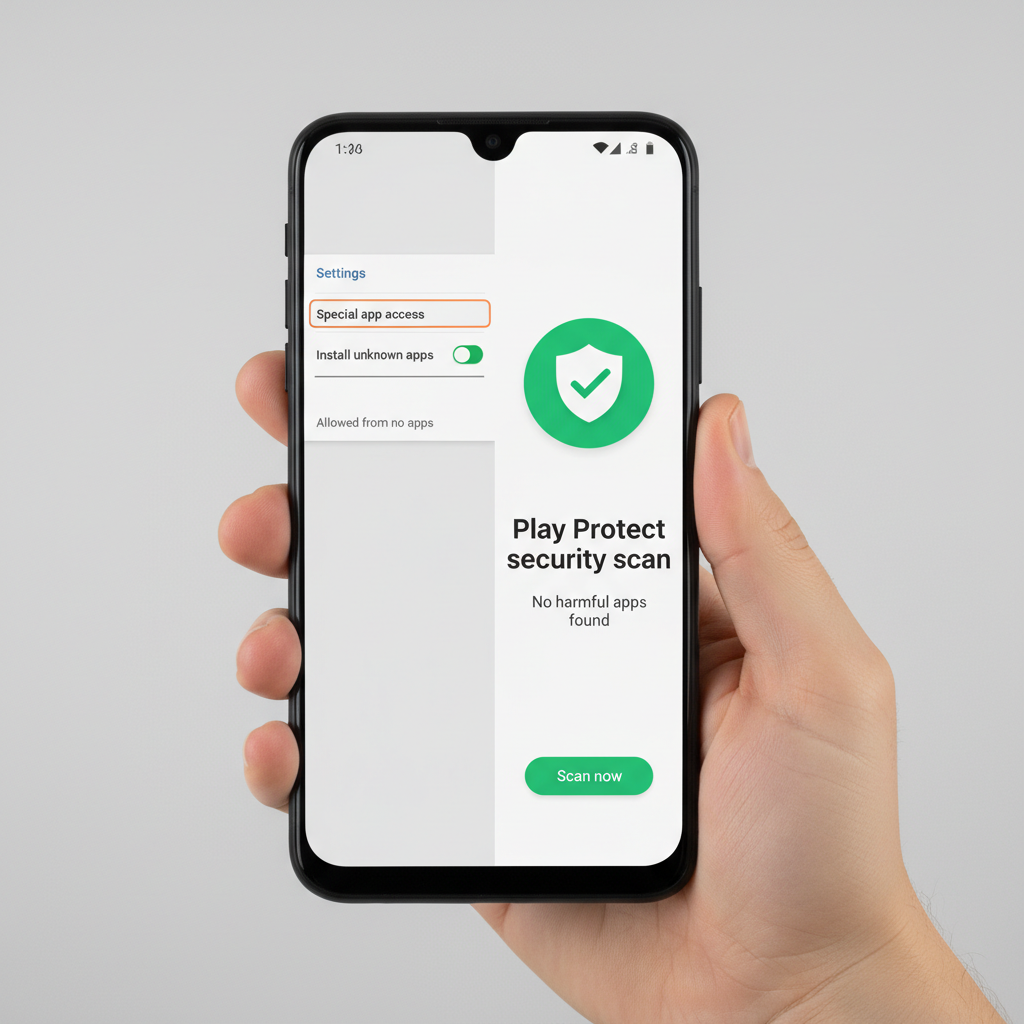
- Enable installing from that specific source: Settings → Security/Privacy → Install unknown apps → select your browser or file manager → allow.
- Open Play Store → Play Protect and review blocks or warnings.
- If Play Protect flags the app, consider stopping. If you proceed anyway, you accept the risk, and in some cases you should consult a professional IT/security person.
According to Google, Play Protect scans apps for harmful behavior and can prevent installation. That’s not always perfect, but it’s a meaningful signal.
5) Corrupted download or wrong file type (APK vs split packages)
- Re-download the file using a stable connection, and avoid “download accelerators.”
- If the file is .apks or .xapk, you typically need a split installer tool; a normal package installer may fail.
- Try downloading from the official developer site or Play Store to reduce corruption and tampering risk.
Many “App not installed” reports are just broken downloads. It’s boring, but it’s real.
Play Store vs APK sideload: the steps differ
When people search how to fix app not installed error android, they often mix two different install paths. Here’s a quick comparison that helps you pick the right fix.
| Where you install | Most common cause | Fast fix |
|---|---|---|
| Google Play Store | Store cache/account sync issue | Clear Play Store cache, retry, switch network |
| Samsung Galaxy Store / OEM store | Store services bug | Update store app, clear cache, reboot |
| Browser download (APK) | Unknown sources blocked, corrupted APK | Allow install for browser, re-download |
| File manager install | Signature conflict, split APK format | Uninstall old version, use correct installer |
Step-by-step fixes that work most of the time
If you want a simple path without overthinking it, do these in order and stop when it installs.
Fix path A: for Play Store installs
- Restart your phone.
- Switch Wi‑Fi ↔ cellular, then try again.
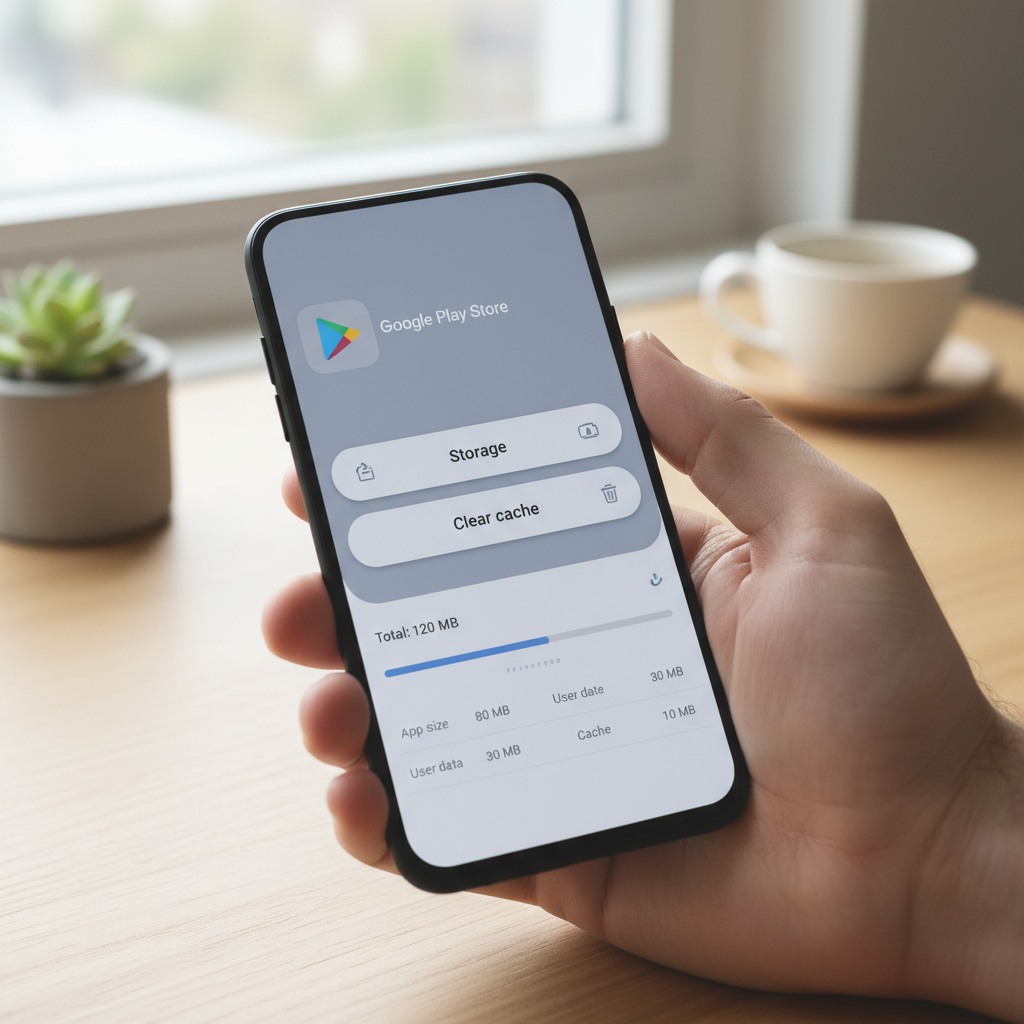
- Settings → Apps → Google Play Store → Storage → Clear cache (and if needed, Clear storage).
- Settings → Apps → Google Play services → Storage → Clear cache.
- Check for system updates and Play system updates (Security/Privacy menus vary).
If none of that works, temporarily remove and re-add your Google account can help, but it’s disruptive, so I’d treat it as a later step.
Fix path B: for APK installs (sideloading)
- Confirm you’re installing the correct file type (single APK vs split package).
- Enable “Install unknown apps” for the app doing the install (browser or file manager).
- Delete the downloaded file, re-download it, then try again.
- Uninstall any existing version of the same app if you suspect a signature mismatch.
On modern Android versions, you can allow unknown installs per-app, which is safer than enabling a global switch.
Common mistakes that waste time
- Downloading “latest APK” without checking architecture, then blaming the phone.
- Installing over a different signature and expecting Android to “just update it.”
- Using unofficial modded APKs and assuming the error is harmless, in reality it can be a security block.
- Clearing everything at once (factory reset thinking) when a cache clear or uninstall would do.
If your goal is simply to use the app, the least risky route is still the official store. Sideloading has legitimate uses, but it also introduces more failure points.
When it’s time to get extra help
If you’ve tried the relevant path (Play Store or APK) and you still hit the same message, you may be dealing with a device policy or deeper system issue.
- Work/school phone: Mobile Device Management can block installs. Talk to your IT admin.
- Repeated failures across many apps: could be a storage or OS integrity problem, consider a repair shop or your carrier support.
- Security warnings: if Play Protect flags the file and you’re unsure, it’s reasonable to stop and consult a security professional.
Key takeaways (save this)
- how to fix app not installed error android is usually about compatibility, signature conflicts, security blocks, or a bad download.
- Decide early whether you’re troubleshooting Play Store or APK sideload, the fixes differ.
- If you suspect a signature mismatch, uninstalling the existing app is often the cleanest fix.
- When security tools warn you, treat it as meaningful information, not an annoyance.
Conclusion
Most “App not installed” situations look mysterious but aren’t. Pick the install path you’re on, check compatibility and space, and then address the two big repeat offenders: corrupted files and signature conflicts.
If you want an easy next step, try the 2-minute checklist, then follow Fix path A or B based on where the install comes from, and stop as soon as the install succeeds to avoid unnecessary changes.
FAQ
Why does Android say “App not installed” with no details?
Android often hides the underlying installer reason behind a generic message. Compatibility, signatures, and security blocks are common triggers, so narrowing the scenario matters more than the wording.
How do I fix app not installed error android when installing an APK?
Start by enabling “Install unknown apps” for the source app, then re-download the APK, and check if an older version is already installed. If it’s a split package format, a standard installer may not work.
Will clearing cache delete my apps or photos?
Clearing cache typically removes temporary files only. Clearing storage/data for an app can reset that app, so do cache first, and read the screen labels carefully.
What if the app installs but won’t update later?
That often points to a Play Store version and a sideloaded version fighting each other, or a signing mismatch between builds. Keeping one “source of truth” (store or official APK channel) helps.
Can Play Protect block safe apps?
It can happen, especially with new or uncommon APK sources. Treat the warning as a prompt to verify the source, not as proof either way.
Is “App not installed” caused by my Android version being too old?
Yes, in many cases. If the app requires a newer Android release, it may fail to install or won’t appear in the Play Store for your device.
Do I need to factory reset to fix this?
Usually no. Most fixes are smaller: free space, correct APK variant, uninstall conflicting versions, or clear Play Store cache. A reset is more of a last resort when many apps fail to install.
If you’re trying to install a specific app and you’re not sure whether it’s a compatibility issue, a signature conflict, or a split APK problem, it can be easier to share your Android version, device model, and install source with a tech support pro or your carrier so you don’t spend hours on trial-and-error.