
how to fix corrupted sd card without formatting usually comes down to two priorities: stop making things worse, then repair access (or recover files) with the least-risk steps first.
If your SD card suddenly says “needs to be formatted,” shows 0 bytes, turns RAW, or devices can’t read it, it’s tempting to hit Format just to “make it work.” But formatting often makes recovery harder, and it rarely addresses the original cause, like file-system errors, a bad adapter, or the write-protect switch behaving oddly.
This guide walks you through practical fixes that aim to keep data intact, plus a quick decision checklist and a few reality checks, because not every “corrupted” card is fixable at home.
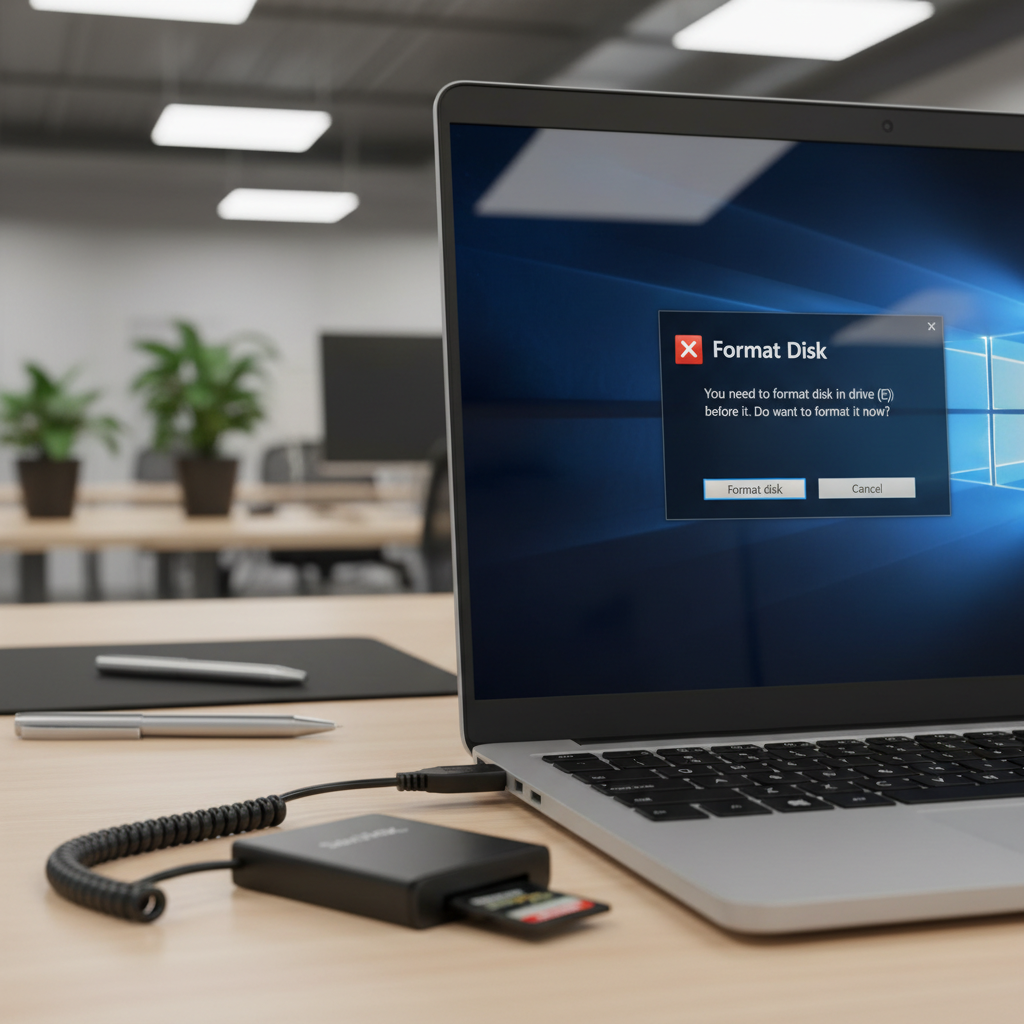
Before you touch anything: protect the data first
When an SD card is acting up, every extra write can reduce your odds of a clean recovery. So treat it like fragile evidence.
- Stop using the card immediately (no more photos, no more transfers to it).
- Do not format even if Windows/macOS suggests it.
- If the card has a physical lock switch (on SD adapters), set it to LOCK to prevent accidental writes.
- Use a reliable card reader instead of plugging into a camera, drone, or dash cam for troubleshooting.
According to CISA (Cybersecurity and Infrastructure Security Agency), keeping backups is a key part of data resilience. If you can still read any files, copy them to another drive right now before you attempt repairs.
Why SD cards get “corrupted” in real life
“Corruption” is a catch-all message. The fix depends on what actually broke, and sometimes the card itself is failing.
- Unsafe removal: pulling the card while a device is writing, or yanking the reader without ejecting.
- Power loss: dead camera battery mid-write, car turning off during dash cam recording.
- File-system damage: directory tables get messy, the card shows as RAW, or a device can’t mount it.
- Adapter/reader issues: the SD card is fine, the cheap reader is not.
- Counterfeit or worn-out flash: symptoms include random missing folders, very slow reads, repeated corruption.
One small but common detail: if the card works in one device but not another, you may be dealing with compatibility or a reader problem, not “true” corruption.
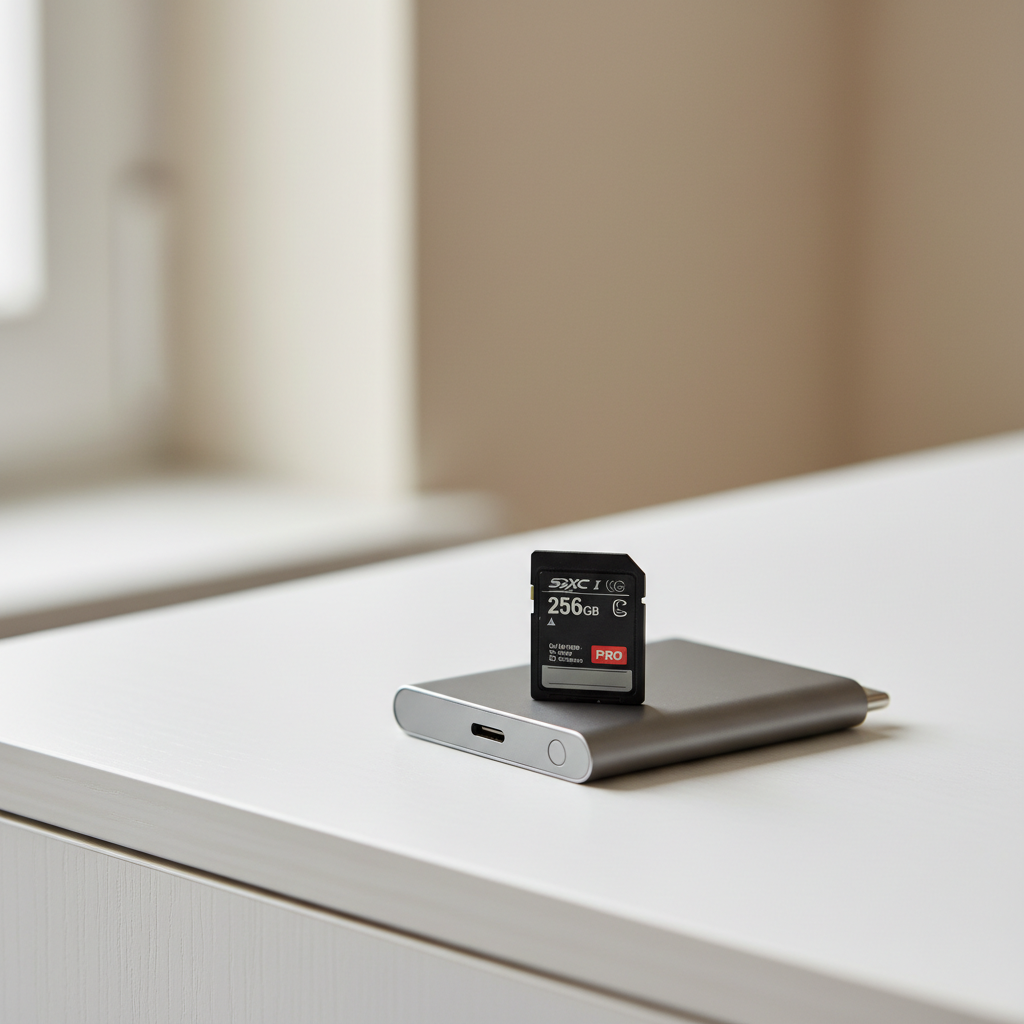
Quick self-check: which situation are you in?
Use this as a fast sorting step. It prevents you from running random tools that don’t match the symptom.
- Card shows up with a drive letter (Windows) or in Disk Utility (macOS), but you can’t open it → try file-system repair.
- Card does not show up at all (no disk detected) → try a different reader/port/computer; hardware issue is more likely.
- Asks to format / shows RAW / “You need to format the disk” → prioritize recovery, then attempt repair.
- Some files open, others error → copy what you can first, then repair.
- Read speed is extremely slow or card disconnects randomly → stop repair attempts and move to recovery/pro help sooner.
Fix options without formatting (start low-risk)
Below is a practical order that many people find safer: check the easy stuff, then run built-in repairs, then move to recovery workflows.
1) Rule out the “it’s not the card” problems
- Try a different card reader (name-brand helps) and a different USB port.
- Try a second computer if possible.
- If you use a microSD in an SD adapter, swap the adapter.
- Inspect contacts for dirt; gently clean with a dry microfiber cloth.
If the card suddenly becomes readable with a new reader, copy everything off and replace the reader anyway.
2) Windows: run CHKDSK (file-system repair)
If the card appears as a drive letter in File Explorer, Windows can sometimes rebuild file-system structures without wiping the card.
- Open Command Prompt as Administrator.
- Run: chkdsk X: /f (replace X with the SD card drive letter).
- If errors persist, you can try: chkdsk X: /r (slower, checks for bad sectors).
What to watch: if CHKDSK reports many bad sectors or gets stuck for hours, that can point to failing flash memory. At that point, recovery-first is usually smarter than “fixing.”
3) macOS: First Aid in Disk Utility
Disk Utility can repair directory issues on many removable drives.
- Open Disk Utility → View → Show All Devices.
- Select the SD card (device level) → click First Aid.
If First Aid fails with repeated errors, avoid rerunning it endlessly. Repeated repair writes can be counterproductive when the card is unstable.
4) If the card mounts but files won’t copy: copy strategically
This is where people lose time. Drag-and-drop often fails on damaged cards, so go smaller and more selective.
- Copy the most important folders first (DCIM, project folders).
- Copy in small batches, skipping files that hang.
- Save to an internal drive or another external drive, not back onto the SD card.
If you need deeper recovery, use a reputable recovery tool that can scan the card read-only and export to another drive. Be picky: avoid sketchy “one-click miracle” utilities.

What to do when Windows says “You need to format the disk”
This prompt usually appears when Windows can’t read the file system. Formatting may make the card mount again, but it also changes file-system structures and can reduce recovery success.
A more careful path looks like this:
- Step 1: Check if the card is visible in Disk Management (it may show as RAW).
- Step 2: Attempt recovery or at least copy any readable files.
- Step 3: Only after data is safe, decide whether to format to reuse the card.
If the SD card contains irreplaceable files and it’s not mounting anywhere, you might skip “fixing” entirely and focus on recovery options first.
Decision table: symptom → best next move
This table is the shortcut most people wish they had before trying random commands.
| Symptom | Likely cause | Try first (no format) | When to stop |
|---|---|---|---|
| Drive letter appears, can’t open folders | File-system errors | Windows CHKDSK / macOS First Aid | If repair loops or reports many bad sectors |
| Prompts to format, shows RAW | Damaged partition/file system | Recover files to another drive, then repair | If card disconnects or scan never completes |
| Not detected on any device | Reader/port issue or dead card | New reader, new port, another computer | If still invisible everywhere |
| Very slow, frequent disconnects | Failing flash memory | Copy essentials in small batches | If copying causes repeated freezes |
Common mistakes that make recovery harder
- Formatting “just to see if it works.” It can, but it adds risk when data matters.
- Running too many repair tools back-to-back. If the card is unstable, repeated writes can accelerate failure.
- Recovering files back onto the same SD card. That overwrites recoverable data.
- Assuming the camera is the problem. Sometimes yes, but readers and adapters cause a surprising number of false alarms.
- Ignoring overheating. If the reader or card gets hot, stop and let it cool; heat can worsen instability.
When it’s time to get professional help
If the SD card holds business-critical footage, legal evidence, or once-in-a-lifetime photos, “DIY until it works” is not always the cheapest strategy.
- The card is not detected in Disk Management (Windows) or Disk Utility (macOS) across multiple computers.
- The card repeatedly disconnects during reads, even with different readers.
- You hear unusual device behavior (for example, the reader constantly reconnects) and every scan fails.
In these cases, a reputable data recovery lab may be able to help, but outcomes vary by damage type. If you’re unsure, consider contacting a professional before more attempts.
Key takeaways (so you don’t overthink it)
- Protect first: stop writing to the SD card, avoid formatting prompts.
- Repair second: CHKDSK (Windows) or First Aid (macOS) can fix many file-system problems.
- Recover when needed: if the card is RAW or unstable, recovery-first often saves more files.
- Know the limit: repeated disconnects and extreme slowness often signal hardware failure.
FAQ
Can I fix a corrupted SD card without formatting if it shows as RAW?
Sometimes, yes, but the practical approach is usually to recover files first, because RAW often means the file system can’t be interpreted. After recovery, you can decide whether repair attempts or formatting for reuse makes sense.
Does CHKDSK delete files on an SD card?
CHKDSK aims to repair file-system structures, but it can move damaged items into fragments or “found” files if entries are broken. If the data is critical, copying what you can before running repairs is a safer routine.
Why does my SD card work on my camera but not on my PC?
Many cases come down to the reader, adapter, or USB port rather than the card itself. Another common issue is the PC expecting a different file system, especially if the device formats cards in a specific way.
What if my SD card says it’s write-protected but the switch is off?
That can happen with worn adapter switches or when the card controller reports a protected state due to errors. Try a different adapter/reader first; if it persists, prioritize copying data off.
Is it safe to run Disk Utility First Aid multiple times?
If it succeeds once, great. If it fails repeatedly with similar errors, rerunning it many times can add unnecessary writes. At that point, shifting to recovery is often the more conservative call.
Can I fix corruption by changing the drive letter in Windows?
Changing a drive letter can help when there’s a conflict, but it won’t repair a damaged file system. It’s worth trying only if the card is healthy-looking in Disk Management but doesn’t appear correctly in apps.
How do I prevent SD card corruption from happening again?
Eject cards properly, avoid letting devices die mid-write, use quality cards from reputable sellers, and keep a backup workflow. For high-write uses like dash cams, cards rated for endurance tend to hold up better.
Wrap-up: a sensible next step
If you’re trying to figure out how to fix corrupted sd card without formatting, start by stopping all writes and testing with a better reader, then run CHKDSK or First Aid only if the card is detected and stable. If the card is RAW or keeps disconnecting, shift to recovery-first and avoid repeated repair loops.
If you want the most time-efficient route, make a quick plan: attempt a safe copy, run one built-in repair, then decide whether recovery software or a lab makes more sense for the value of your files.
If you’re dealing with a stubborn card and you’d rather not guess, consider using a reputable SD card recovery tool that supports read-only scanning and exports to another drive, it’s often a more straightforward path than trial-and-error repairs.