
how to fix keyboard not typing certain letters usually comes down to one of two buckets: software (settings, drivers, layout) or hardware (debris, worn switch, damaged membrane). The trick is figuring out which bucket you’re in before you start reinstalling things or ordering a replacement.
If you’ve ever had only a few keys fail, then mysteriously work again after a reboot, that’s a clue. If the same letters never register no matter what app you’re in, that’s a different clue. This guide focuses on fast, low-risk checks first, then moves into deeper fixes when you’ve narrowed the cause.
I’ll also call out the common time-wasters, like “clean reinstall everything” when a simple keyboard layout change is the real culprit. Along the way you’ll get a quick self-test checklist, a decision table, and a few practical next steps for Windows, macOS, and Chromebook.
Quick diagnosis: software issue or hardware issue?
Before you touch drivers, do one simple test: try typing in two different places, for example a browser address bar and a plain text editor. If the letters fail everywhere, focus on OS-level causes or hardware.
Then do a second test: try an external keyboard (USB or Bluetooth). This one step often saves 30–60 minutes of guessing.
Fast self-check list (2 minutes)
- Restart the device (yes, really). Intermittent input services can hang.
- Test in another app (Notes/TextEdit, Notepad, Google Docs).
- Toggle Caps Lock, try Shift on both sides, try Ctrl/Command combos.
- Plug in an external keyboard: do the missing letters work there?
- If it’s a laptop, test in the login screen (before opening your usual apps).
Decision table: what your symptoms usually mean
| What you see | More likely | Best next step |
|---|---|---|
| Only certain letters fail across all apps | Debris or key mechanism wear | Physical cleaning, then external keyboard test |
| Letters fail only in one app | App shortcut conflict or input setting | Check app hotkeys, reset app preferences |
| Wrong characters appear (e.g., Z types Y) | Keyboard layout/language changed | Fix input language and layout |
| External keyboard works, laptop keyboard doesn’t | Laptop keyboard hardware or ribbon cable | Clean, then service/repair if persistent |
| Issue started after update | Driver/firmware/input service | Driver rollback/update, OS troubleshooting |
Fix common settings that block certain letters
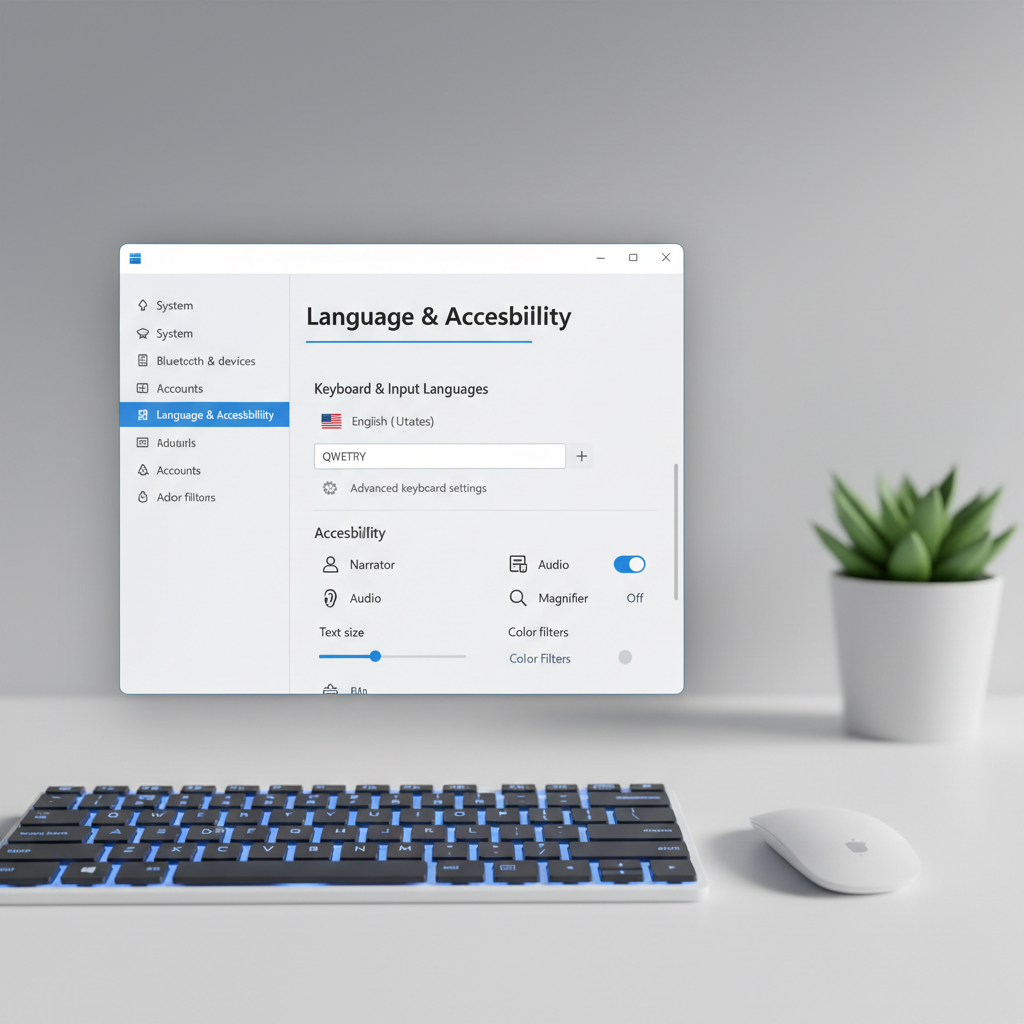
It sounds too simple, but keyboard layout and input language changes are a top cause of “some letters don’t type right,” especially when the “missing letters” are actually turning into other characters.
Windows 11/10: layout, language, accessibility
- Keyboard layout: Settings → Time & language → Language & region → pick your language → Keyboard → confirm the correct layout (US vs UK matters).
- Input switch hotkey: If Alt+Shift or Win+Space changes layouts, you may be flipping layouts without noticing.
- Filter Keys: Settings → Accessibility → Keyboard → turn off Filter Keys if enabled (can reduce repeats or ignore quick presses).
macOS: input sources and modifier keys
- System Settings → Keyboard → Input Sources: confirm U.S. layout (or your intended one).
- System Settings → Keyboard → Keyboard Shortcuts: check for custom shortcuts that may “eat” certain keystrokes inside specific apps.
Chromebook: keyboard input and language
- Settings → Advanced → Languages and inputs: verify the intended keyboard input method.
- If keys output unexpected symbols, remove extra input methods you don’t use.
Driver and firmware fixes (when specific letters stop registering)
If you’re searching how to fix keyboard not typing certain letters after an update, drivers are worth checking. It’s not always the driver, but it’s common enough that you shouldn’t skip it.
According to Microsoft Support, Device Manager can be used to update, uninstall, or roll back device drivers when hardware behaves unexpectedly.
Windows: update, reinstall, or roll back the keyboard driver
- Open Device Manager → Keyboards → right-click your keyboard device.
- Try Update driver (best if you suspect a missing patch).
- If the issue began right after an update, try Roll Back Driver (if available).
- If things look stuck, try Uninstall device, then restart so Windows re-detects it.
Key point: if an external keyboard works fine on the same PC, that leans away from system-wide driver issues and toward laptop hardware or connector issues.
macOS: what “drivers” usually means on a Mac
On macOS, you typically don’t manage keyboard drivers manually. If letters fail only on the built-in keyboard, focus on input sources, Safe Mode testing, and hardware checks.
- Restart and test in Safe Mode (this can help isolate third-party extensions).
- Run Software Update to pick up keyboard/firmware fixes Apple ships via macOS updates.
Physical fixes: cleaning and key mechanisms without making it worse
When certain letters don’t type, physical causes are often boring: crumbs, skin oils, dust, or a worn mechanism that no longer travels correctly. The good news is you can do a safe first-pass cleaning without disassembling anything.
According to Apple Support, cleaning should be done with care and without introducing moisture into openings, and compressed air can be used with controlled technique for keyboards.
Safer cleaning steps (laptops and external keyboards)
- Power down, unplug, and if possible disconnect the battery (or at least shut down fully).
- Hold the device at an angle, use compressed air in short bursts, sweeping across affected keys.
- Use a soft brush to lift debris around key edges.
- For keycaps that are designed to be removed (many mechanical keyboards), remove and clean gently, then reseat.
Avoid: flooding keys with liquid, using a vacuum that can pull keycaps, or prying laptop keycaps unless you’re sure your model supports safe removal. Many laptop key hinges snap easily, and that turns “a few keys not working” into an actual repair.

Targeted fixes by device type (Windows laptop, MacBook, desktop, mechanical)
This is the part most guides skip: the “right” fix depends on what you’re typing on, and the same symptom can have different causes.
Windows laptop keyboards
- If external keyboard works, prioritize cleaning, then check if the issue appears in BIOS/UEFI typing fields when available. If it fails there too, hardware becomes more likely.
- Inspect for swelling battery (trackpad bulge, chassis flex). If you suspect swelling, stop using the device and consider professional help.
- If letters fail after liquid exposure, even “a tiny spill,” corrosion can develop over time. You may need a technician to inspect the keyboard assembly.
MacBook keyboards
- If only certain keys fail, try cleaning and testing in Safe Mode. If Safe Mode doesn’t change anything, hardware moves up the list.
- If your Mac supports an external keyboard and that works reliably, you can keep working while you decide on repair options.
Desktop + external keyboard
- Try a different USB port, preferably a direct port on the PC rather than a hub.
- If wireless, replace batteries or recharge, then re-pair Bluetooth.
- On some keyboards, stuck function layers (Fn) or macro profiles can remap keys; reset to default profile if available.
Mechanical keyboards
- If you have hot-swappable switches, swapping a suspect switch with a known-good one is a clean test.
- If multiple letters in the same area fail, look for PCB issues or a loose cable rather than individual switches.
When to escalate: repair, replacement, or professional diagnostics
If you’ve done the basic software checks, verified layout settings, cleaned carefully, and the same letters still won’t register, you’re probably past “quick fix” territory.
- Seek repair help if: keys remain dead in the login screen, the issue persists across user accounts, or the keyboard stopped working after a drop or spill.
- Consider replacement if: it’s an older external keyboard with repeated failures and cleaning doesn’t help.
- Get professional diagnostics if: you suspect internal connector issues, battery swelling, or liquid damage. These cases can involve safety risk or hidden corrosion, and a technician can assess without guesswork.
Key takeaways (so you don’t over-fix it)
- Test with an external keyboard early, it separates OS issues from built-in keyboard hardware fast.
- Wrong letters often point to layout/input source, not broken keys.
- For dead keys, gentle cleaning is the first physical step; aggressive prying causes more damage than it solves.
- If the problem follows a spill, assume it may worsen over time and plan for inspection.
Practical next steps (a simple 15-minute plan)
If you want a straightforward flow, use this and stop when the issue clears.
- Minute 0–3: Restart, test in two apps, then test at the login screen.
- Minute 3–7: Plug in an external keyboard and compare behavior.
- Minute 7–10: Check input language/layout and accessibility keyboard settings.
- Minute 10–15: If still failing, do a careful compressed-air clean and re-test.
If you reach the end and it still looks like hardware, you’ve already done the safe steps. From there, repair or replacement is usually a better use of time than piling on more software tweaks.
Conclusion
When you’re trying to figure out how to fix keyboard not typing certain letters, the biggest win is narrowing the cause fast: confirm whether the problem is tied to software settings, drivers, or the physical keyboard itself. Most people either skip the external keyboard test or jump straight into reinstalls, and both choices waste time.
Start with the quick checks, fix layout/input issues if characters look “wrong,” then move to drivers and careful cleaning. If keys stay dead across apps and screens, treat it as likely hardware and consider professional diagnostics, especially after spills or impact.