
how to check if pc is 64 bit windows 11 is usually a quick task, but it matters more than people expect, especially when an installer refuses to run or a driver page offers multiple downloads that look almost identical.
If you grab the wrong version, you can waste time troubleshooting “this app can’t run on your PC” messages, or you might install a driver that simply won’t work right. The good news is Windows 11 gives you a few reliable places to confirm what you have.
Below, you’ll get a couple fast checks, a deeper “what does 64-bit even mean” explanation in plain English, and a small decision checklist so you can pick the right download the first time.
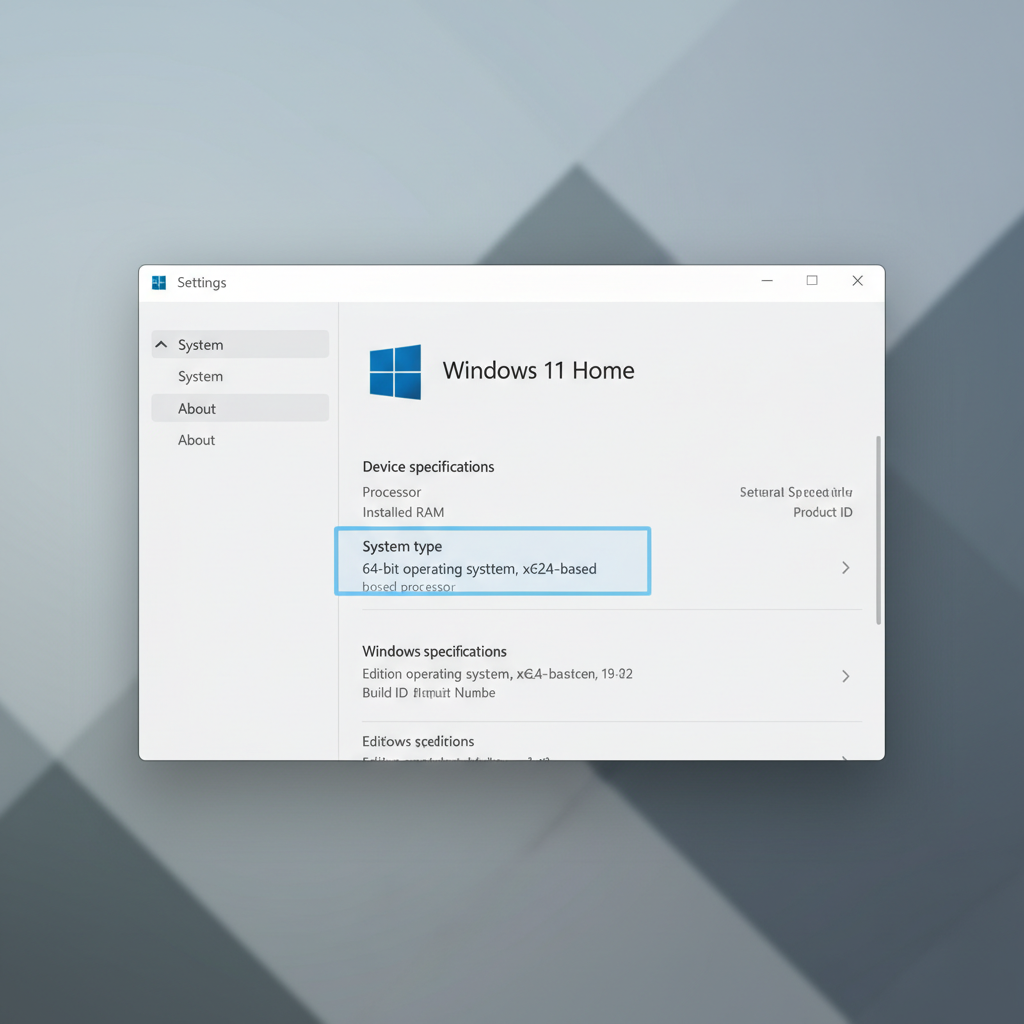
Quick answer: the 10-second check in Settings
The simplest way to confirm your system type is in Windows Settings. This is what most IT teams will ask you to check first.
- Open Settings
- Go to System → About
- Find System type
You’ll see something like “64-bit operating system, x64-based processor”. That’s the combination most Windows 11 PCs have. If you see 32-bit OS, that’s rare on Windows 11, and it usually points to a very specific setup or older hardware.
What “64-bit Windows 11” actually means (and why you care)
People often mix up three similar-looking terms: Windows edition (Home/Pro), Windows version (11), and system type (64-bit vs 32-bit). For installation and compatibility, the system type is the one that decides what runs.
In practical terms, a 64-bit operating system can typically use more memory and run 64-bit apps. Many modern tools, security products, and creative apps ship as 64-bit only, so confirming this avoids “wrong file” headaches.
According to Microsoft..., Windows 11 requires a 64-bit processor and doesn’t support 32-bit processors. That’s why most people checking this on Windows 11 will end up confirming 64-bit, but it’s still worth verifying before you download firmware, drivers, or virtualization tools.
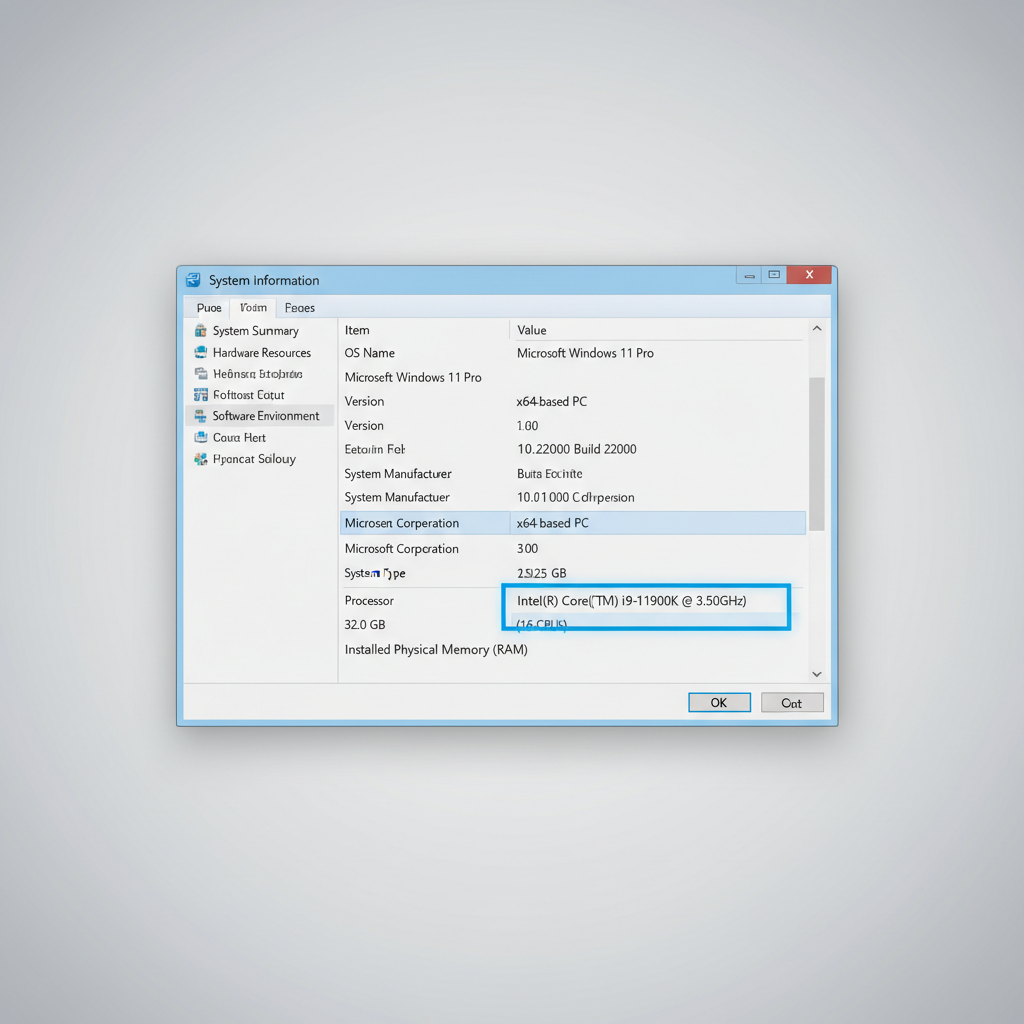
Method 1 (most reliable): System Information (msinfo32)
If you want a second confirmation, use System Information. It’s built in, and it tends to be clearer than some other screens.
- Press Windows + R
- Type msinfo32 and press Enter
- Look for System Type
Common results you may see:
- x64-based PC: you’re on a 64-bit CPU (most common)
- ARM-based PC: Windows 11 on ARM (still 64-bit, but drivers/apps can differ)
If your goal is downloading software, note whether you’re x64 or ARM, because many vendors offer separate installers.
Method 2: Command line checks (PowerShell / Command Prompt)
If you’re comfortable with a quick command, this is handy for remote support, scripting, or just avoiding extra clicks.
PowerShell
- Right-click Start → Terminal (or search PowerShell)
- Run: [Environment]::Is64BitOperatingSystem
If it returns True, your Windows installation is 64-bit.
Command Prompt
- Open Command Prompt
- Run: systeminfo
- Find the line for System Type
This is also a good time to check the OS Name and OS Version lines, so you don’t accidentally troubleshoot the wrong device or VM.
Use this quick checklist to avoid downloading the wrong file
Before you click a download button, take 30 seconds and match what you’re installing to what your PC actually is.
- System type says “64-bit operating system” → choose x64 installers (unless you’re on ARM)
- System type shows ARM → prefer ARM64 builds when offered, otherwise check vendor guidance
- Driver page offers multiple options → match Windows 11 + your architecture (x64 vs ARM64)
- App mentions 32-bit only → it may run on 64-bit Windows, but drivers/plugins might not
Key point: “64-bit Windows” doesn’t automatically mean every installer labeled “Windows” will work. Architecture and driver signing can still matter, especially for older peripherals.
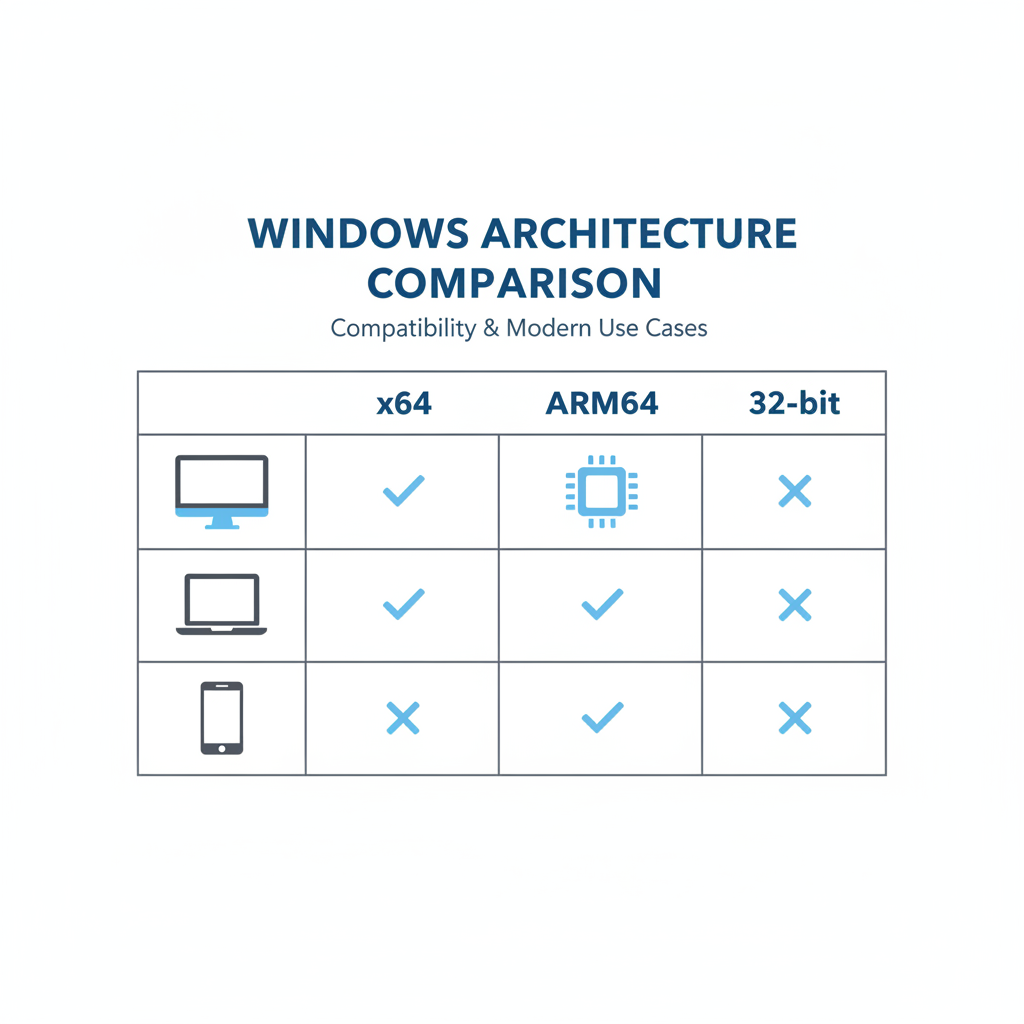
Table: What you’ll see and what it means
Here’s a simple mapping of the common labels you’ll run into while figuring out how to check if pc is 64 bit windows 11 and choosing downloads.
| Where you see it | Typical label | What to download |
|---|---|---|
| Settings → System → About | 64-bit OS, x64-based processor | x64 apps/drivers |
| System Information (msinfo32) | x64-based PC | x64 apps/drivers |
| System Information (msinfo32) | ARM-based PC | ARM64 apps/drivers when available |
| Download pages | x86 / 32-bit | Only if vendor specifically says it’s needed |
Common gotchas (where people misread the result)
A few patterns show up again and again when someone thinks they’re not on 64-bit Windows 11, or they keep installing the wrong thing.
- Confusing 64-bit with “Windows 11 Pro”: Pro vs Home is about features, not architecture.
- Mixing x64 and ARM64: both are 64-bit, but drivers can be very different.
- Looking at “Program Files (x86)” and assuming Windows is 32-bit: 64-bit Windows keeps that folder for 32-bit apps.
- Assuming every old printer/scanner driver works: older devices may have limited Windows 11 support even if your OS is correct.
If you’re troubleshooting an install error, capture a screenshot of the System type line and the exact installer name you downloaded. That combination usually reveals the mismatch quickly.
When to get extra help (IT, manufacturer, or Microsoft support)
If you confirm 64-bit Windows 11 and things still won’t install, the issue often isn’t the system type. It can be policy restrictions on a work device, missing prerequisites, or a driver that the manufacturer never updated for Windows 11.
- Work or school PC: your org may block installs; check with IT before changing security settings.
- Drivers/firmware: for BIOS updates, storage drivers, and Wi-Fi drivers, it’s safer to follow the PC maker’s official instructions.
- ARM devices: if you’re on ARM and a tool has no ARM64 build, ask the vendor about compatibility instead of forcing random installers.
According to Microsoft..., using official support channels and trusted download sources helps reduce the risk of installing unwanted software, especially when you’re hunting for drivers.
Conclusion: confirm the system type, then match the download
If you were searching how to check if pc is 64 bit windows 11, the fastest answer is Settings → System → About, and the most detailed confirmation is msinfo32. Once you know whether you’re x64 or ARM64, downloads become a lot less guessy.
Action step: Open the About page now, note the exact “System type” wording, then use that exact label when choosing your next installer or driver.