
How to fix sd card not detected on phone usually comes down to three buckets: the phone can’t read the card (software), the phone can’t “see” the card (hardware/slot), or the card itself has issues (format, corruption, or failure). The good news is you can narrow it down in minutes without random tapping.
If your SD card holds photos, downloads, maps, or even app data, “not detected” is more than an annoyance, it can quietly break camera saves and cause storage warnings. And the longer you keep reinserting or formatting blindly, the higher the chance you make recovery harder.
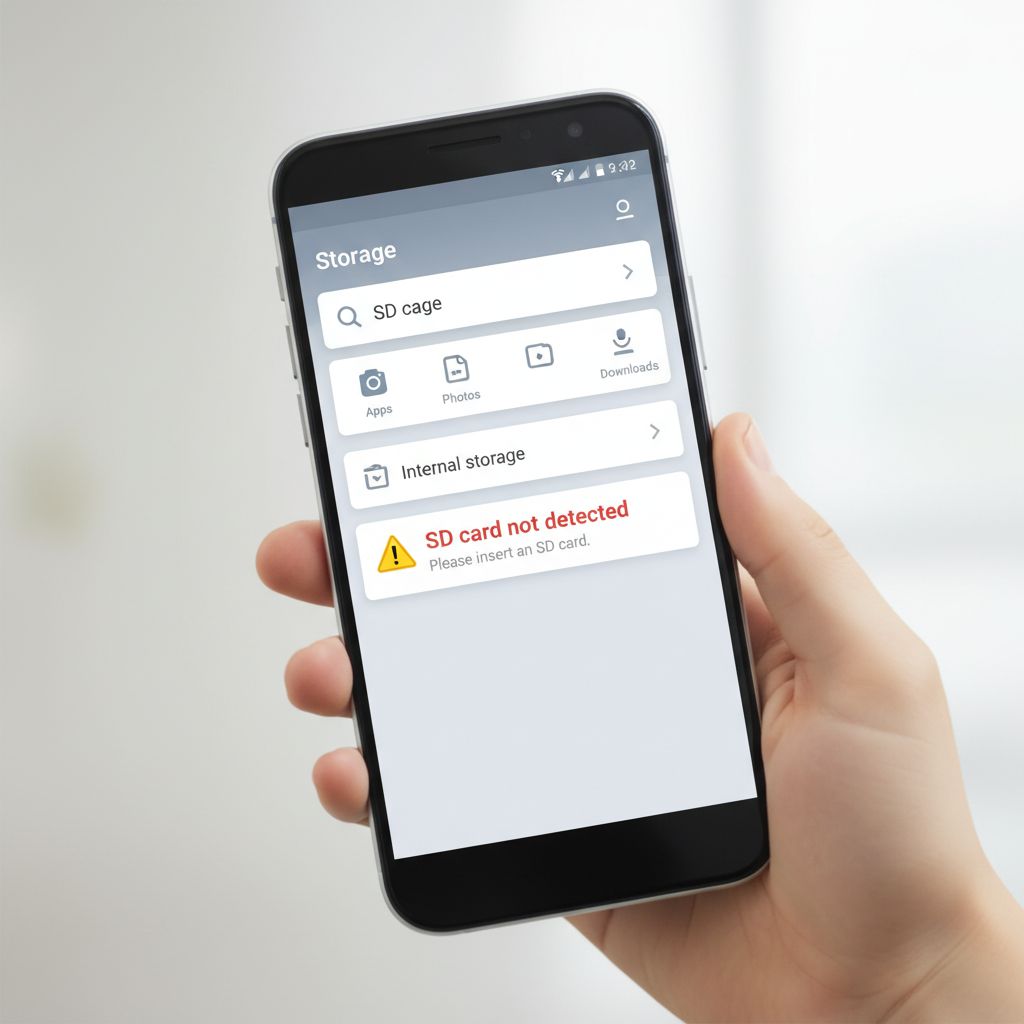
This guide focuses on practical checks that reflect real-world causes: flaky contacts, permission quirks, Android storage settings, file system compatibility, and the uncomfortable possibility that the card is failing. You’ll also see when it’s smarter to stop and prioritize data safety.
Quick triage: what “not detected” usually means
Before changing anything, take 60 seconds to identify what kind of problem you have. It saves a lot of wasted effort.
- Card not detected anywhere: it doesn’t show in Storage settings, Files app, camera save location, or notifications. Often hardware contact, slot issue, or dead card.
- Detected but can’t read: it appears with errors like “corrupted,” “unsupported,” or asks to format. Often file system issues or corruption.
- Works sometimes: intermittent mounting, disappears after reboot, or fails when phone warms up. Often dirty contacts, loose tray, or card nearing failure.
According to Google (Android Help), external storage behavior can vary by device and Android version, and some apps may not fully support SD card locations even when the card is mounted. That’s why you want to confirm whether the system sees the card, not just one app.
Self-check checklist (do this before “fixing” anything)
Run this checklist in order. Stop if you discover a risk of data loss and you care about the files.
- Do you need the data? If yes, avoid formatting and avoid repeated write attempts.
- Is your phone model SD-capable? Some Android phones (especially newer flagships) do not support microSD at all.
- Is it a microSD in a tray or a side slot? Trays can mis-seat easily, side slots can collect lint.
- Does the SD card show under Settings → Storage? If it doesn’t, you’re likely in “not seen” territory.
- Try another device: a laptop with a card reader, or another Android phone. This isolates phone vs card.
If your phone detects the card on another device but not on this one, focus on the phone slot/tray and Android settings. If no device detects it, treat the card as potentially failing.
Hardware basics that fix a surprising number of cases
These steps sound simple, but in a lot of “SD card not detected” reports, the root cause is physical contact, not software.
1) Power cycle the phone the “boring” way
- Turn the phone off completely (not just restart), wait 20–30 seconds, then power on.
- If your device supports Safe Mode, boot into Safe Mode and check Storage again. If it works there, a third-party app may be interfering.
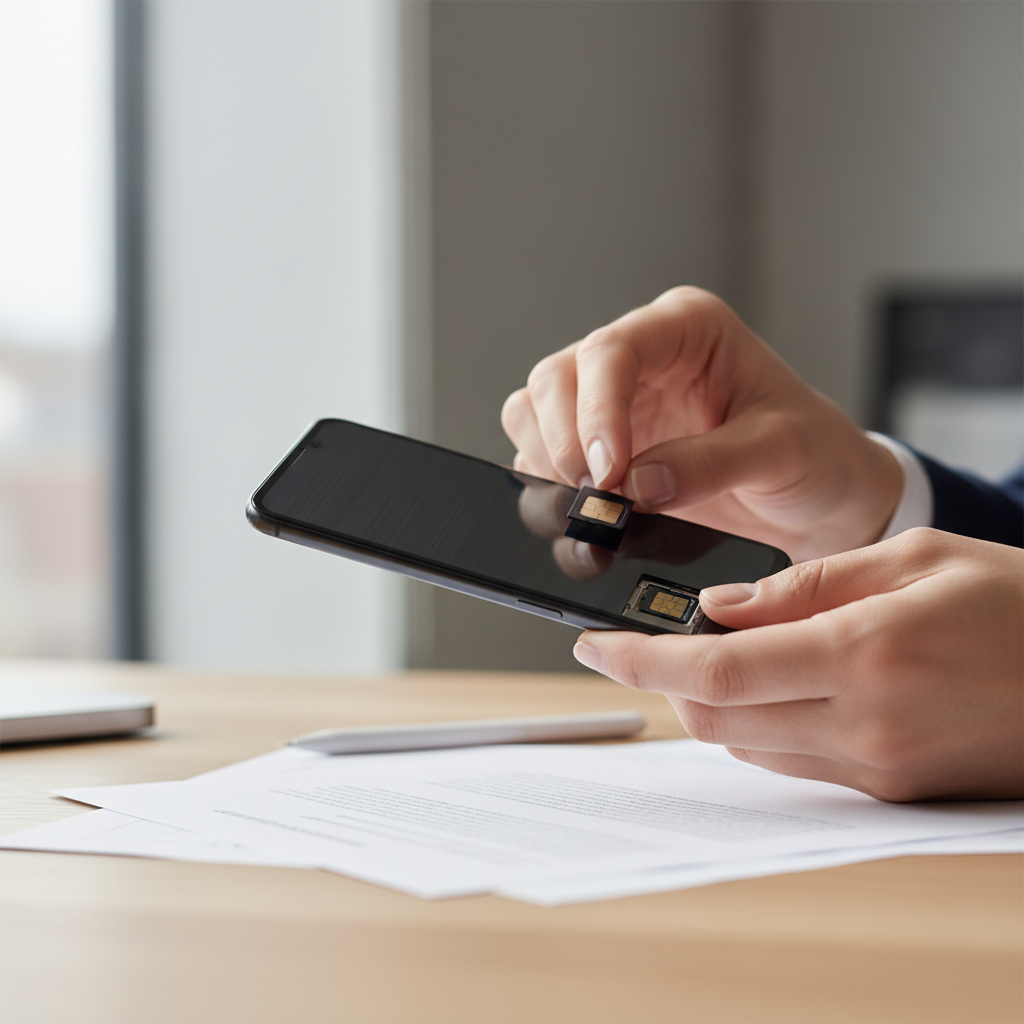
2) Reseat the card carefully
- Remove the tray/cover, take out the microSD, then insert it again with gentle pressure.
- Inspect the tray: bent plastic, warped gasket, or a tray that doesn’t sit flush can cause intermittent detection.
3) Clean contacts without getting risky
- Use a dry microfiber cloth to gently wipe the gold contacts on the card.
- If there’s visible grime, a small amount of 90%+ isopropyl alcohol on the cloth (not poured directly) can help, then let it fully dry.
- Avoid metal tools, excessive force, or compressed air too close to the slot.
If the card starts working after cleaning but fails again later, treat that as a warning sign. Copy your data soon.
Android settings to check when the card is invisible or keeps unmounting
When people search how to fix sd card not detected on phone, they often miss that Android may mount the card but hide it behind permissions, file manager behavior, or storage toggles.
Confirm the system sees it
- Open Settings → Storage (or Battery and device care → Storage on some Samsung phones).
- Look for SD card, Portable storage, or a capacity figure.
- Open the Files app (Google Files or OEM file manager) and check “Internal storage” vs “SD card.”
Check “Unmount/Eject” status
- If you see an Eject option, Android currently considers the card mounted.
- If you see Mount, tap it and wait. If it immediately fails, move to file system/corruption checks.
Permissions and app-specific confusion
Sometimes the SD card is fine, but an app can’t access it. On newer Android versions, apps must request scoped storage permissions and use the system picker to write to external storage.
- If only one app “can’t see” the SD card, test with another app (Files app is a good baseline).
- Go to Settings → Apps → [app] → Permissions and confirm file/media permissions.
File system and compatibility: when Android says “unsupported”
MicroSD cards are commonly formatted as exFAT or FAT32. Many Android phones support exFAT, but not all devices (or custom ROMs) behave the same way. A card also might be formatted for a camera, a Nintendo Switch, or a Windows workflow that your phone doesn’t like.
Use this compatibility table as a quick reference
| Symptom | Likely cause | What to try |
|---|---|---|
| “Unsupported” or prompts to format | Incompatible file system or corrupted partition | Test on a PC, back up if readable, then reformat in phone |
| Shows capacity as 0B | Partition table issue, card failure | Try another reader/device, avoid writes, consider recovery |
| Card mounts but files missing | Hidden folder path, permission view, corruption | Check on PC, try different file manager, backup immediately |
| Works briefly then disappears | Loose contact, overheating, failing NAND | Reseat/clean, copy data, replace card if repeats |
If a computer reads the card reliably, back up your data first. That’s the safest “fix” before changing formats or running repairs.
Step-by-step fixes by scenario (without making things worse)
Here are the common paths that actually resolve the issue, depending on what you observed earlier.
Scenario A: The SD card is not detected on any device
- Try a different card reader (cheap USB readers fail more than people expect).
- Try another phone that supports microSD.
- If still invisible everywhere, the card may be dead. At that point, repeated attempts can stress it further, so pause if the data matters.
Scenario B: It’s detected on PC but not on your Android phone
- Update Android and reboot. OEM firmware updates sometimes improve storage handling.
- Check the tray fit and cleanliness again, this scenario often points back to the phone slot.
- If the phone supports it, insert the card while the phone is powered off, then boot up.
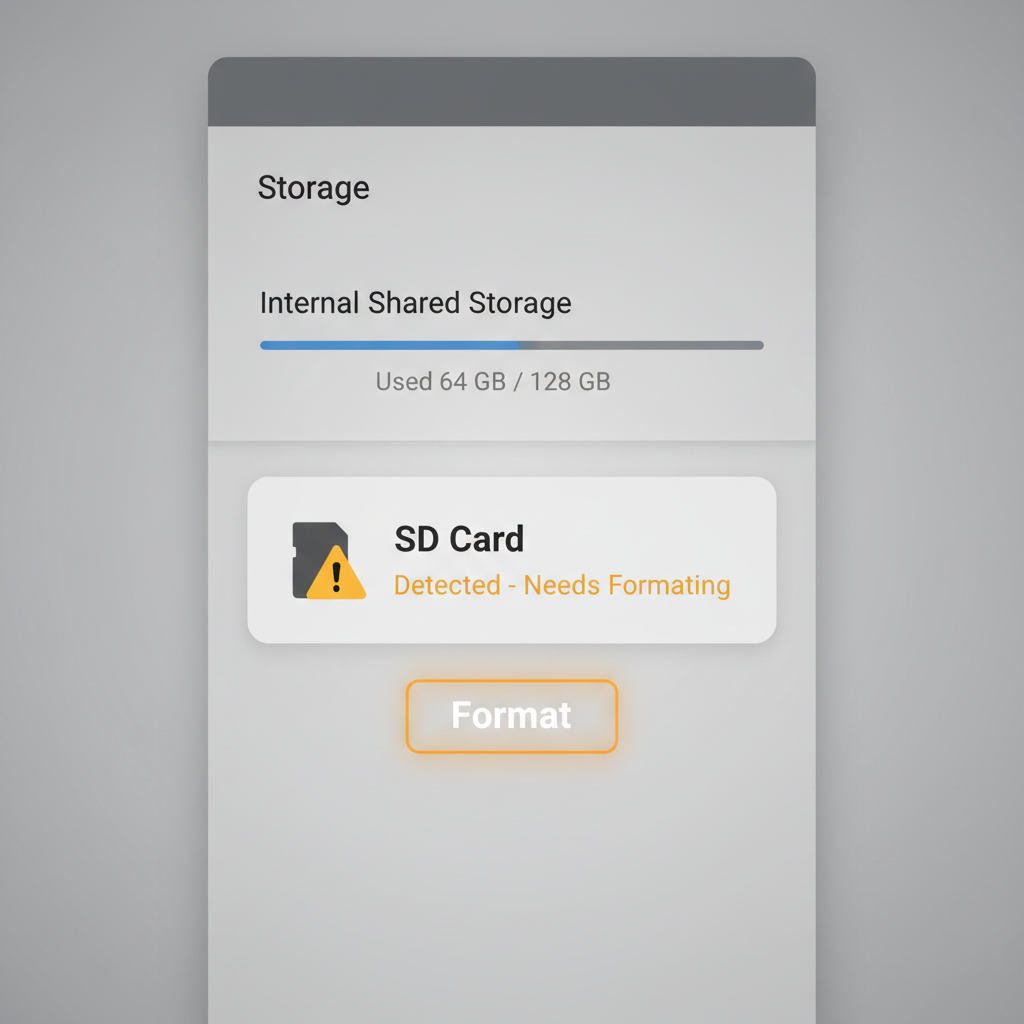
Scenario C: Android detects it but says it needs formatting
- If the files matter, do not format yet, connect to a PC and attempt a backup.
- If backup succeeds, then format using the phone’s Storage settings so Android creates the structure it expects.
- If backup fails but the data matters, consider professional data recovery. It’s not always successful and can be expensive, but it avoids DIY steps that overwrite metadata.
Scenario D: It mounts but apps can’t write to it
- In the camera app, check Storage location and switch to SD card if available.
- In file manager, use the system folder picker when an app asks where to save.
- For stubborn apps, clearing cache (not data) sometimes helps, but only after you confirm the card is stable.
Common mistakes that waste time (or cost you files)
- Formatting immediately: it can solve file system problems, but it also removes directory structure and can reduce recovery odds if you needed the data.
- Forcing the tray: if the tray doesn’t glide in, stop. Bent trays and damaged pins create “not detected” loops.
- Assuming it’s a “phone bug”: microSD cards wear out. If the issue is intermittent, prioritize backup over tweaks.
- Using sketchy repair apps: if an app promises magic fixes, be cautious. Stick to system settings and reputable tools.
Key takeaway: if the SD card becomes visible even briefly, use that window to copy important files first, then troubleshoot.
When to seek professional help (or replace the card)
Sometimes the most practical fix is replacement, especially if the card is older or used for continuous recording. Consider extra help if:
- The card is not detected across multiple devices and readers.
- It gets hot, disconnects frequently, or shows repeated corruption after formatting.
- You need the data and the card prompts you to format, but you cannot back it up on a computer.
In data-critical cases, a reputable data recovery shop may be worth a call. Outcomes vary by damage type, and no one can promise full recovery, so ask about evaluation steps and costs upfront.
Practical wrap-up: a safe order to try today
If you want a simple plan: (1) confirm whether the system detects the card in Storage, (2) reseat and clean contacts, (3) test the card on another device, (4) back up if readable, then (5) format only after your files are safe. That sequence solves most cases people mean when they ask how to fix sd card not detected on phone, without gambling on your data.
If you’re stuck at any step, write down what you see in Storage settings and what happens on a PC reader, those two details usually reveal whether you’re dealing with a phone slot issue or a failing microSD.
FAQ
- Why is my SD card not detected on my Android phone but works on my computer?
That often points to the phone’s tray/slot contact, or an Android compatibility quirk with how the card is formatted. Reseat and clean first, then try mounting from Storage settings. - How do I fix SD card not detected on phone without formatting?
Start with power off/on, reseating the card, cleaning contacts, and testing on another device. If a PC can read it, copy your files immediately before trying repairs. - What does “SD card corrupted” mean on Android?
It usually means Android can see the device but can’t reliably read the file system structure. Corruption can come from unsafe removal, power loss, or card wear. - Is it safe to format my SD card in Android settings?
It’s commonly safe for the card itself, but it can remove access to existing files. If you need the data, back up first or consider recovery options. - Can a bad SIM tray cause SD card not detected?
On phones that combine SIM and microSD in one tray, yes. A slightly warped tray can prevent proper contact and create intermittent detection. - Why does my SD card keep disconnecting?
Intermittent disconnects often come from loose seating, dirty contacts, or a card that’s starting to fail. If it happens more than once, treat it as a warning and back up. - Will a bigger SD card (like 512GB) cause detection issues?
Usually capacity is fine if the phone supports it, but compatibility varies by model and file system. If a large card fails while a smaller one works, check your device specs and consider reformatting after backup.
If you’re troubleshooting this for a parent, a work phone, or a device with years of photos, a more “hands-off” approach often works better: confirm detection in Storage, back up via a computer as soon as it shows up, then decide whether to format or replace the card based on how stable it behaves.