
top free online photo editors no signup is what you search when you need a quick fix, but you don’t want to hand over your email just to crop, resize, or add text.
That “create an account to continue” wall is more than annoying, it slows down simple tasks and can be a privacy concern when you’re editing client photos, school images, or anything you’d rather not tie to a login.
This guide focuses on practical picks that usually let you start editing right away in a browser, plus a few honest caveats, because “no signup” sometimes changes depending on features, file size, or whether you want to export in higher quality.
What “No Signup Required” Really Means (and What to Watch For)
Most of the time, “no signup” means you can open the site, upload an image, and export a result without creating an account. The catch is that some tools still ask for a login when you try to use specific features like background removal, AI retouching, brand kits, or higher-resolution exports.
Two quick reality checks help avoid frustration:
- No-signup editing: you can edit and export with no account, at least for basic tools.
- No-signup browsing: you can open the editor, but exporting, saving projects, or batch processing may trigger a login prompt.
According to FTC, it’s smart to pay attention to what information you share online and how services describe their data practices, especially when you’re uploading photos that include faces, kids, IDs, or location clues.
Top Free Online Photo Editors No Signup: Quick Comparison
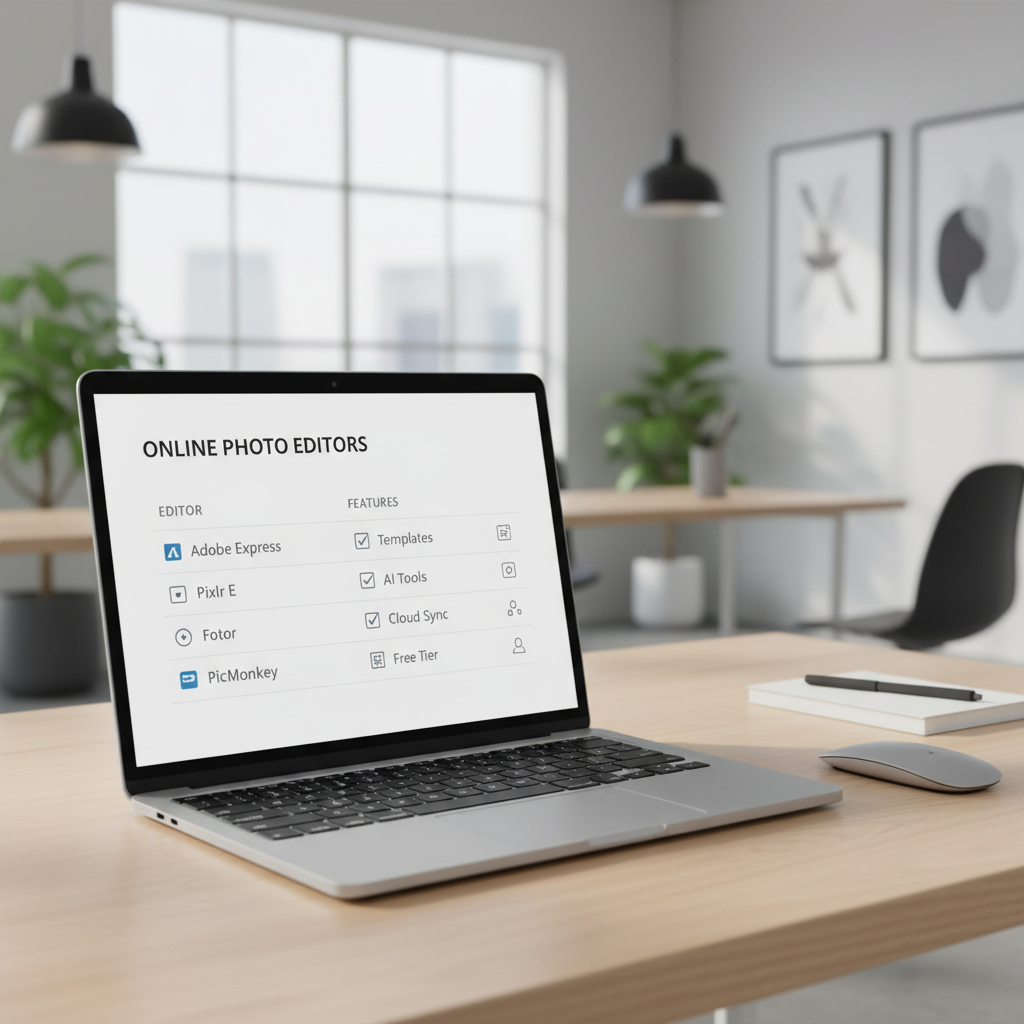
Here’s a working shortlist. Availability and limits can change, so treat this as a “start here” table rather than a forever guarantee.
| Tool | Best for | Strengths | Likely limits |
|---|---|---|---|
| Photopea | Photoshop-like editing | Layers, PSD support, advanced tools | Ads, heavier UI for beginners |
| Pixlr (X / E) | Fast edits + light design | Good templates, quick adjustments | Some features may be gated |
| iLoveIMG | Simple image tasks | Resize, compress, crop, convert | Less “creative” editing |
| Cleanup.pictures | Object removal | Remove unwanted items fast | HD export may be limited |
| BeFunky | One-click enhancements | Collages, basic retouching | Some effects may require upgrades |
Key point: if your main need is “crop, resize, compress, add text,” simpler tools often feel faster than full Photoshop-style editors.
Editor Picks by Real Use Case (So You Don’t Waste Time)
If you want a Photoshop-like experience in the browser
Photopea is usually the first stop. It’s not “simple,” but it’s powerful when you need layers, masks, smart objects, or PSD files. Many people end up here when a quick job turns into “I actually need proper control.”
- Good for: layered thumbnails, product photo tweaks, banner assets
- Look out for: interface complexity, performance on older laptops
If you want quick edits with a modern UI
Pixlr often hits the sweet spot between “fast” and “capable.” For social posts and basic photo adjustments, it gets you from upload to export without a learning curve that feels like a weekend project.
- Good for: brightness/contrast, filters, overlays, quick text
- Look out for: some features might prompt a sign-in depending on the tool
If you mainly need resize/compress/convert (the unglamorous work)
iLoveIMG (and similar utilities) are great when you’re prepping images for websites, email, or marketplaces. No layers, no fancy brushes, just straightforward “make this file usable.”
- Good for: compressing JPGs, resizing to exact dimensions, format changes
- Look out for: limited creative editing
If you need to remove something from a photo fast
Cleanup.pictures is worth bookmarking. When it works, it feels almost unfairly easy. For professional work, you still want to inspect edges and textures, because artifacts can show up on busy backgrounds.
- Good for: removing dust spots, small objects, text/signs
- Look out for: higher-resolution exports may be limited without payment
A Quick Self-Check: Which Tool Should You Use?
Before you open five tabs and lose 20 minutes, answer these:
- Do you need layers? If yes, start with Photopea or Pixlr E.
- Is the goal web performance? If yes, prioritize compress/resize tools like iLoveIMG.
- Are you removing objects? Try Cleanup.pictures first, then fall back to a layered editor if results look rough.
- Do you need a transparent PNG? Check export options early, some tools restrict it.
- Will this be used commercially? Spend a minute checking licensing for templates/fonts/stickers inside the tool.
How to Get Clean Results in 10 Minutes (Practical Workflow)
If you’re using top free online photo editors no signup for quick deliverables, a simple workflow prevents the two most common mistakes: over-editing and exporting the wrong size.
Step-by-step
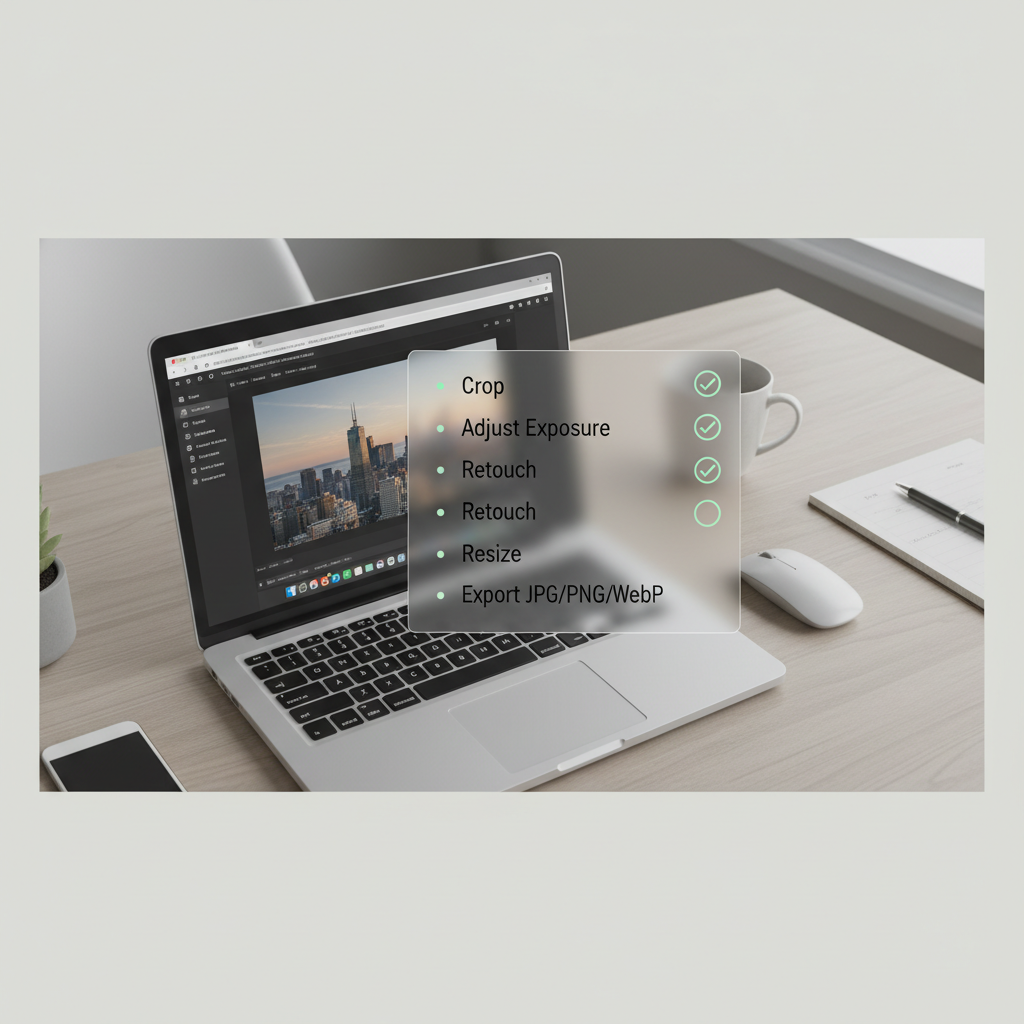
- Start with the end size: decide the pixel dimensions first (Instagram post, LinkedIn banner, Etsy listing, website hero).
- Crop before you adjust: cropping changes the visual balance, so do it early.
- Fix exposure lightly: small moves on brightness/contrast usually beat heavy filters.
- Sharpen last: especially after resizing.
- Export intentionally: JPG for photos, PNG for transparency/text sharpness, WebP for web speed when supported.
Common Mistakes People Make with No-Signup Editors
A lot of frustration comes from assuming every browser editor behaves the same. In practice, each one has its own “gotchas.”
- Editing at the wrong resolution: you finish the design, then realize you needed 2× size for crisp text.
- Relying on one-click filters: they look fun, but often crush skin tones or shadows.
- Not checking export quality: some tools default to lower quality to keep files small.
- Uploading sensitive images casually: for IDs, medical photos, or kids’ images, consider whether you should use an offline tool instead.
According to NIST, basic cybersecurity hygiene includes minimizing the data you share and understanding where your content goes, which is a useful mindset when you’re uploading images to any online service.
When You Should Use a Desktop App Instead
No-signup tools are great for speed, but they’re not always the right call.
- High-stakes professional retouching: color-critical work, print jobs, and brand photography usually need consistent color management.
- Large batch workflows: hundreds of product images often need automation, presets, and repeatable exports.
- Strict privacy requirements: client contracts, regulated industries, or sensitive personal images may call for offline editing or a managed enterprise tool.
If you’re unsure whether an online editor fits a compliance requirement, it’s reasonable to ask your legal/compliance team or a qualified professional for guidance.
Conclusion: The Fastest Way to Pick the Right Editor Today
If you want layers and real control, start with Photopea. If you want quick social-ready edits, Pixlr is usually the smoothest path. If you’re doing practical website prep, a utility tool like iLoveIMG saves the most time.
Two action steps that pay off: bookmark one “power” editor and one “utility” editor, then build a tiny checklist for export sizes you use all the time, it cuts repeat work more than any fancy effect.
FAQ
What is the best option if I need top free online photo editors no signup for basic resizing?
A dedicated image utility (resize/compress/convert) is often faster than a full editor. You’ll get fewer distractions and fewer export surprises.
Do no-signup photo editors still store my uploaded photos?
It depends on the service. Many tools process images on servers, some may keep files temporarily for performance or troubleshooting. If it’s sensitive, consider offline editing or check the tool’s privacy policy before uploading.
Can I edit PSD files online without creating an account?
Photopea is commonly used for PSDs in-browser and often works without signup for basic editing. Complex PSDs may run slower depending on your device.
Why does a tool say “no signup” but asks me to log in at export?
Some sites allow editing freely but gate HD export, watermark removal, or certain formats behind an account. It’s not always obvious until the last step, so it helps to test-export early.
Are these editors okay for Etsy, eBay, or Amazon listing images?
Usually yes for cropping, background cleanup, and size formatting, but you’ll want to follow each marketplace’s image rules and double-check sharpness after resizing.
Which format should I export for the web?
JPG is the common default for photos, PNG works well for transparency and crisp text, and WebP can reduce file size when supported. If the editor offers quality controls, a slightly higher quality setting often avoids banding.
What’s the safest way to use an online editor for client work?
Keep uploads minimal, avoid sensitive content when possible, and confirm file handling in the provider’s policy. For stricter clients, offline tools or managed solutions are usually easier to defend.
If you’re trying to move fast and you want a more consistent workflow than hopping between random tabs, a simple approach is to standardize on one no-signup editor for creative edits and one utility tool for resize/compress, then save your common export sizes as a repeatable checklist.