
Free cloud backup services can be a lifesaver when a laptop dies, a phone gets stolen, or ransomware hits, but “free” usually comes with limits that matter in real life. The goal for 2026 is picking a plan you’ll actually keep running, not just a signup you forget about.
Most people don’t lose data because they never heard of backups, they lose it because the setup felt annoying, storage ran out, or the tool silently stopped syncing. This guide focuses on what tends to break, what to check before you commit, and which free options are typically easiest to live with.
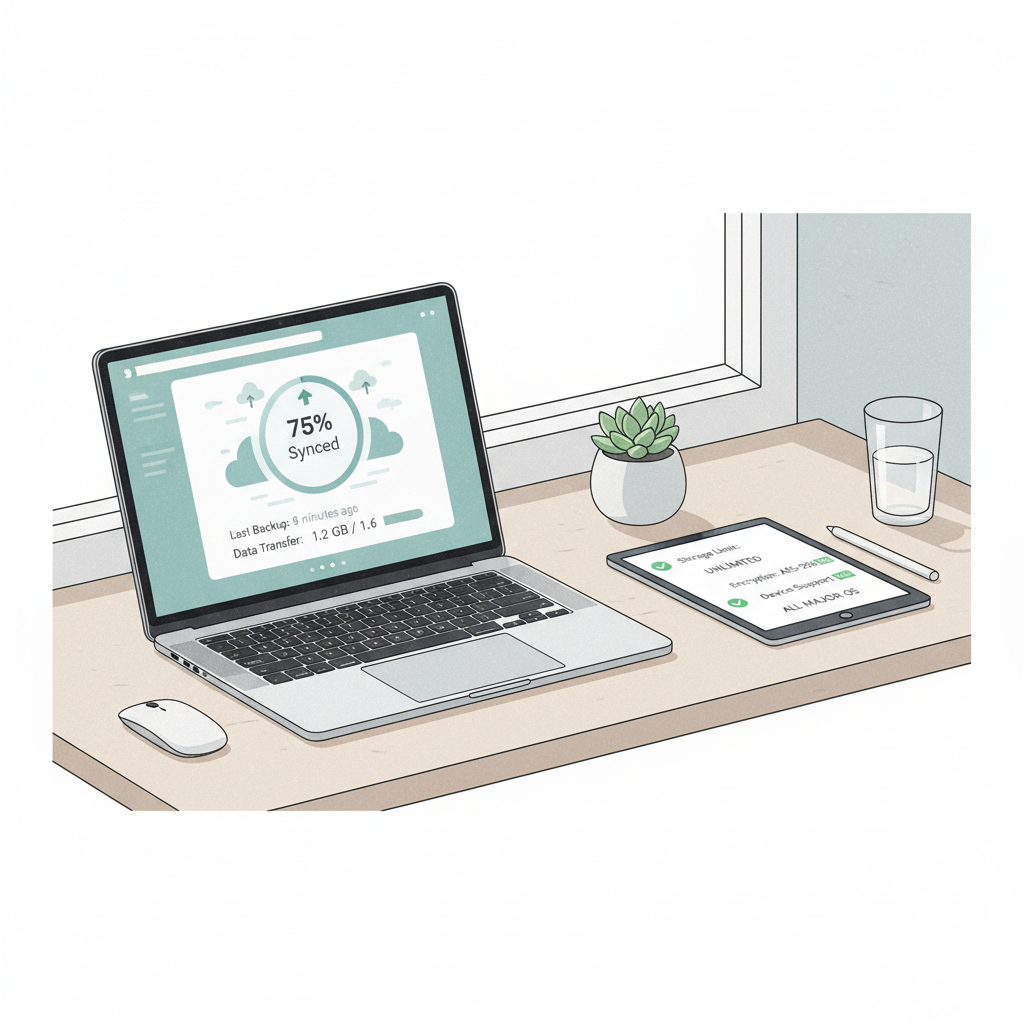
One more boundary up front: there’s a difference between cloud backup (version history, recovery, “oops” protection) and cloud sync (a mirrored folder that can delete mistakes everywhere). Many “free backup” searches end up in sync tools, so I’ll call that out where it matters.
What “free cloud backup” really means in 2026
Free plans are usually designed as an entry point, so they tend to limit at least one of these: storage size, number of devices, backup frequency, file version history, or restore options. That’s not automatically bad, it just changes what the plan is good for.
- True backup tools: focus on recovery, versioning, and sometimes full-device backup.
- Sync-first storage: great for working files across devices, but can spread accidental deletions fast if you’re not careful.
- Phone photo backup: convenient, but may not cover documents, app data, or full-device restore.
According to NIST, keeping multiple copies of important data across different locations reduces the impact of device failure and other incidents. In plain terms, “free” is fine if it still helps you keep at least one extra copy somewhere off the device.
Quick comparison table: common free options (and who they fit)
The “best” option depends on your device mix and what you’re protecting. Use this as a fast filter, then read the setup tips later so the free tier doesn’t quietly stop working.
| Service type | Best for | Typical free limit | Watch-outs |
|---|---|---|---|
| Google Drive (sync + storage) | Docs, photos, light laptop files | Small-to-moderate storage shared across Google | Storage shared with Gmail/Photos, sync mistakes can propagate |
| Microsoft OneDrive (sync + Windows) | Windows users, Office files | Small free storage, single account | Shared storage across account, limited “backup” features on free tier |
| Apple iCloud (device + photos) | iPhone/iPad users, Apple ecosystem | Small free storage shared across iCloud services | Fills up quickly with photos/device backups |
| Dropbox (sync) | Simple folder sync, collaboration | Small free storage | Not a full-system backup, free tier limits can be tight |
| Cloud “backup” trials | Testing full backup behavior | Often time-limited, feature-rich | May require payment method, plan ends unless you downgrade/cancel |
How to tell if you need backup, sync, or both
This is where people waste time. If you pick the wrong category, you end up either paying later unexpectedly or discovering too late that restore is painful.
A fast self-check
- You need backup if you worry about ransomware, corrupted files, or “I need last month’s version.”
- You need sync if you work across devices and want the same files everywhere.
- You need both if you sync daily work files but also want rollback protection.
If your most important data is photos + contacts, phone-centric options (like iCloud or Google) can be enough. If it’s client files or business records, you usually want version history and a restore flow you’ve tested at least once.
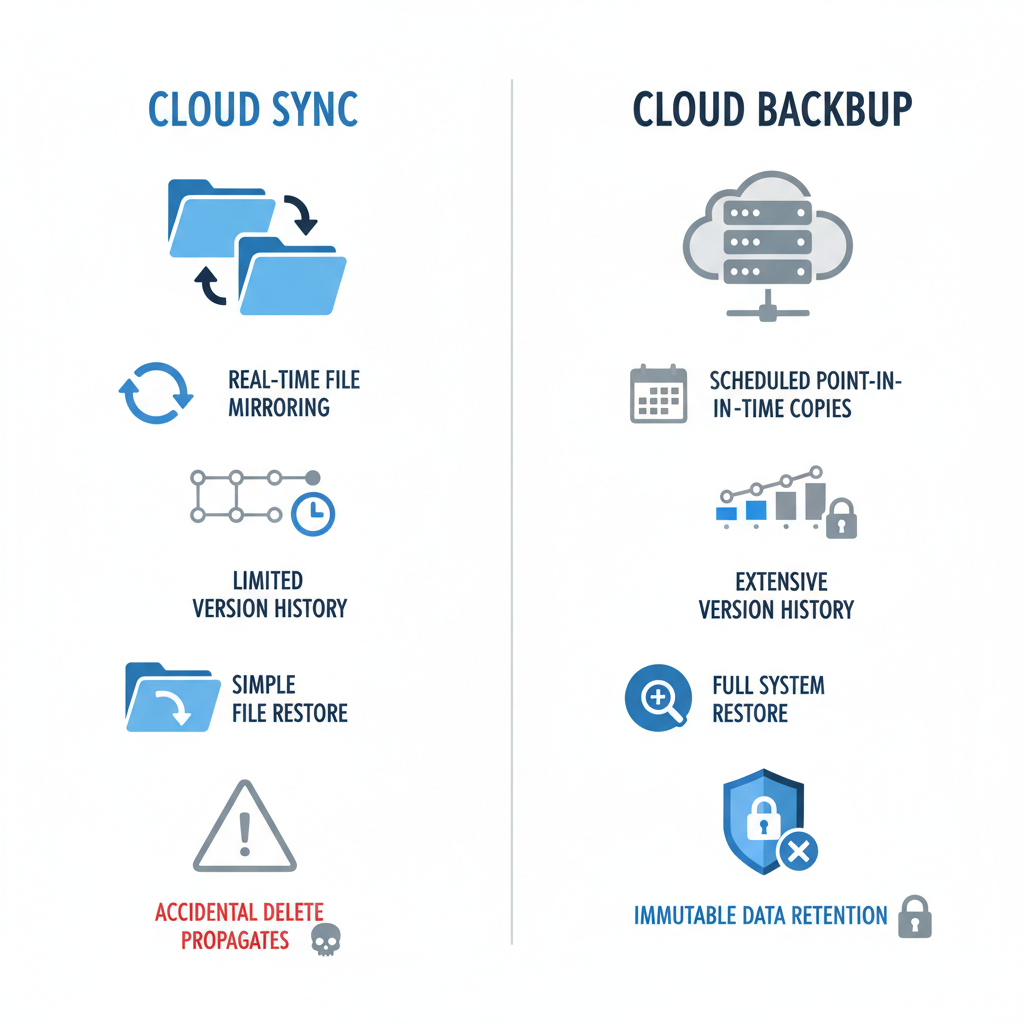
One more practical clue: if the product mostly talks about “sharing” and “collaboration,” it’s probably sync-first. If it emphasizes “restore,” “versions,” “retention,” and “recovery,” it’s closer to backup.
Key features to prioritize on free plans (not the marketing stuff)
With free cloud backup services, you’re typically trading money for constraints, so choose constraints you can live with. These are the features that tend to matter when something goes wrong.
- Version history: the ability to roll back. Even a short history is better than none.
- Restore workflow: can you restore a folder cleanly, or is it a messy manual download?
- Encryption and account security: at minimum, strong password + MFA. According to CISA, multi-factor authentication reduces risk from account compromise.
- Device coverage: Windows/macOS support, mobile support, and whether multiple devices are allowed.
- Selective sync/backup: lets you protect the right folders without filling the quota with junk.
Don’t over-obsess about “unlimited” claims on free tiers. In many cases, the free version is limited by storage anyway, and the real win is consistent, predictable behavior.
Recommended picks by scenario (what I’d choose for most people)
These picks are intentionally scenario-based because the same “top 10” list won’t fit a college student, a freelancer, and a family photo archive.
If you mainly want phone photos + basic files
- Google ecosystem: typically convenient on Android, and usable on iPhone too.
- Apple ecosystem: iCloud tends to feel seamless on iPhone and Mac, but the free storage can fill fast.
Tip: turn on backup for only the folders that matter, otherwise the free quota disappears in a week and the backup stops quietly.
If you’re on Windows and live in Office files
- OneDrive: fits naturally into Windows and Microsoft 365 workflows, even on a free plan.
Make sure you understand what “PC folder backup” features are included in your tier, because some “backup” features may be limited unless you upgrade.
If you want a simple shared folder across devices
- Dropbox: still one of the simplest sync experiences, great for a small “working set” folder.
This is where version history matters most. If the free plan doesn’t give enough history for your comfort, consider using it for sync and keeping a second copy elsewhere.
If you want true backup behavior without paying (realistic approach)
- Use a free sync/storage plan for your top-priority folders (tax docs, contracts, projects).
- Add an offline copy on an external drive monthly or quarterly for everything else.
It’s not glamorous, but it’s reliable. Free cloud backup services are often best when they protect the “critical 5%” of your data consistently.
Setup guide: make a free plan actually protect you
Here’s a practical setup that avoids the usual failure modes: running out of space, syncing the wrong stuff, and not being able to find anything during restore.
Step-by-step (15–30 minutes)
- Pick a “Backup” folder on your computer, not your whole drive. Put only your irreplaceable files there.
- Turn on MFA for the account, and save recovery codes somewhere offline.
- Enable version history (where available) and check how long versions are kept.
- Run a test restore: delete a harmless file, restore it, confirm the process works.
- Set a calendar reminder once a month to confirm backups still run and storage is not full.

If you’re backing up a phone, do one extra thing: confirm backups happen on Wi‑Fi (or your preferred setting) and check the last backup timestamp. Many people assume it runs automatically, but battery settings and app permissions can interfere.
Mistakes that make “free” backups fail
- Backing up everything: system files and downloads eat quota, then your important folder stops syncing.
- No second factor: if someone gets into your account, they can delete cloud copies too.
- Assuming sync equals backup: accidental delete can propagate, and then you’re relying on version history.
- Never testing restore: the worst time to learn the restore flow is during a crisis.
- Ignoring retention limits: some free tiers keep versions for a shorter window.
If you handle sensitive data (client info, medical documents, legal records), check your compliance needs. Cloud tools can be fine, but the rules vary, and it may be worth asking a qualified professional if you’re unsure.
Conclusion: the best free option is the one you’ll maintain
For most people, the smartest approach is simple: use free cloud backup services to protect a small set of truly irreplaceable files, turn on MFA, and test restore once. If you need full-device backup or longer version retention, that’s often the point where a paid plan or a hybrid setup starts making sense.
Action steps: pick one service you already trust, create a dedicated Backup folder today, and schedule a monthly 3-minute check so the “free” plan keeps doing its job.
FAQ
What are the best free cloud backup services for Windows in 2026?
For many Windows users, OneDrive is the most frictionless starting point because it integrates with File Explorer and Office workflows. Just confirm what backup features are included on the free tier and keep your scope to essential folders.
Is Google Drive a backup or just syncing?
It’s primarily sync + cloud storage, but it can function as a practical backup for selected folders if you use version history and you’re disciplined about what you store there. If you need full-system recovery, it may fall short.
How much storage do free plans usually include?
It varies by provider and can change over time, and the same quota may be shared across services (mail, photos, device backups). Before committing, check what else in your account consumes storage so backups don’t stop unexpectedly.
Can a free plan protect me from ransomware?
It can help, especially if version history is available and you notice the issue within the retention window. But ransomware scenarios can get complicated, so pairing cloud copies with an offline backup is often a safer play.
Are free cloud backups secure enough for personal files?
Often yes for everyday use if you enable MFA and keep account recovery options updated. For highly sensitive data, you may also want client-side encryption tools, though that adds complexity and can affect restore convenience.
What’s the easiest way to back up photos for free?
Use the platform you already live in, typically iCloud for Apple users and Google for many Android users, then review settings so uploads happen reliably on Wi‑Fi. Also check that your free quota won’t be swallowed by videos.
How do I know my backup is actually working?
Look for a recent “last synced/last backup” timestamp, verify the backed-up folder contains your newest files, and do a small restore test. If you can’t restore confidently, it’s not a real backup in practice.
If you’re trying to protect a full computer, multiple family devices, or a growing photo library, free tiers can feel like a constant squeeze; in that case, a simple hybrid setup, cloud for essentials plus an external drive for the rest, is usually the least stressful path.