
If you’re searching for how to clear ram on android phone, you’re probably dealing with lag, random app reloads, or a phone that feels “stuck” even though storage isn’t full.
The good news is you usually don’t need anything extreme, and you definitely don’t need sketchy “RAM cleaner” apps. In many cases, a few built-in actions, plus one or two habit changes, gets your Android back to feeling normal.
This guide walks through what “clearing RAM” really means on Android, how to check whether RAM is actually the problem, and the safest ways to free up memory without breaking notifications or battery life.
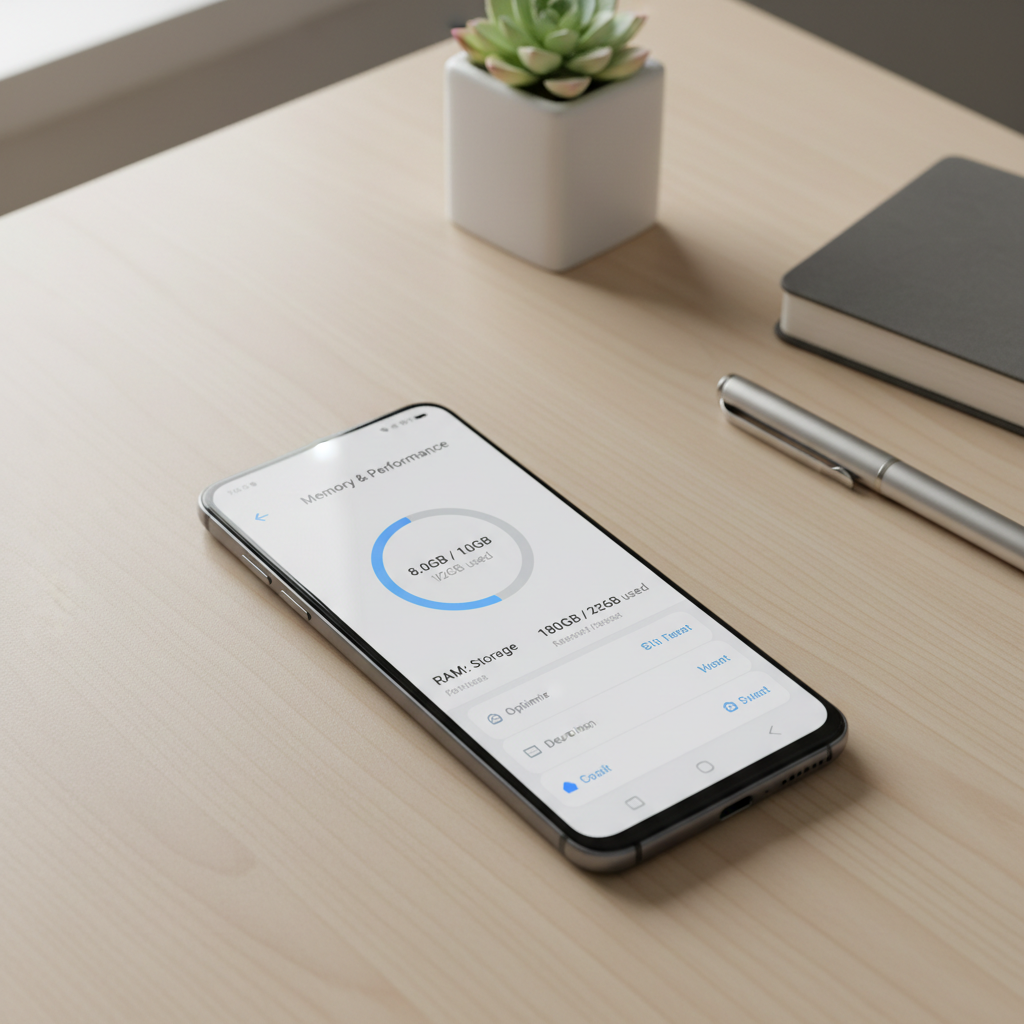
What “clearing RAM” means on Android (and what it doesn’t)
RAM is short-term working memory. Android uses it to keep apps ready in the background so switching feels fast. When you “clear RAM,” you’re usually forcing Android to close some background processes so more memory becomes available for what you’re doing right now.
Two important realities that trip people up:
- More free RAM isn’t always better. Android tries to use RAM efficiently, so “empty” RAM can be wasted RAM.
- Clearing too aggressively can backfire. If you force-close everything, apps may restart more often, and battery use can increase.
According to Google (Android’s developer guidance), Android is designed to manage memory automatically and will close background apps when needed. So the goal here is targeted cleanup when performance feels off, not constant “RAM scrubbing.”
Common reasons your Android feels low on RAM
Most “memory issues” come from a few repeat offenders. If you recognize your situation, you can fix the cause instead of repeatedly cleaning.
- One app is misbehaving: social apps, browsers with many tabs, or a game can slowly build up memory use.
- Too many heavy apps open: navigation + music + camera + messaging at once pushes mid-range phones hard.
- Widgets and live services: some launchers, VPNs, accessibility tools, and always-on sync add background load.
- System updates or app updates: right after updates, indexing and optimization can temporarily slow things down.
- Low storage masquerading as RAM trouble: when internal storage is nearly full, the system may stutter even if RAM looks “okay.”
Quick self-check: is RAM really your problem?
Before you focus on how to clear ram on android phone, do a fast diagnosis. It saves time, and it keeps you from “fixing” the wrong thing.
Signs it’s likely RAM pressure
- Apps reload when you switch back to them (you lose your place).
- Multitasking feels worse than usual.
- The keyboard lags mainly when multiple apps run.
Signs it’s more likely something else
- Phone is hot: thermal throttling can mimic low memory.
- Storage under ~10–15% free: stutters often come from storage pressure.
- Only one app lags: that app may need an update, cache cleanup, or reinstall.
Practical check: open Settings and search for “Memory” (or “Device care” on Samsung). If you see memory consistently near the top while you’re doing normal tasks, RAM is probably part of the story.

Safe ways to clear RAM (built-in methods first)
Here are the approaches that tend to work without creating new problems. You can mix and match, but you usually won’t need all of them.
1) Restart your phone (still the most reliable reset)
A restart clears many stuck processes and gives you a clean baseline. If you haven’t restarted in weeks, this is often the fastest “RAM clear” you can do.
- Hold Power, tap Restart (or Power + Volume Up/Down depending on model).
- Wait 30–60 seconds after boot before judging performance, background services need a moment.
2) Close a few heavy apps from Recent Apps (don’t swipe everything daily)
Open Recent Apps and close the obvious memory hogs: big games, video editors, or a browser with a ton of tabs. The point is to reduce load, not to “zero out” your phone.
- If your phone offers “Close all”, use it sparingly, usually when the device is clearly stuck.
- Prioritize the app you last used that triggered the slowdown.
3) Force stop only when an app is acting weird
Force stop is a hard kill. Useful when an app freezes, drains battery, or keeps crashing.
- Settings → Apps → pick the app → Force stop
- Reopen it and see if behavior improves.
Tip: if force-stopping a messaging app breaks notifications, you’ll know why, that’s normal behavior.
4) Use “Device Care” / “Memory” optimization (Samsung and some OEMs)
On Samsung, you’ll typically find this under Settings → Battery and device care → Memory → Clean now. Other brands label it differently, but the idea is similar: stop some background activity.
It’s generally safer than third-party cleaners because it’s integrated with the system, but you still shouldn’t run it obsessively.
5) Lighten your browser workload
People underestimate how much RAM a browser can eat, especially with many tabs, heavy sites, or lots of extensions in mobile browsers that support them.
- Close old tabs, especially media-heavy ones.
- Clear the browser’s in-app cache (not the entire app data unless you’re okay re-logging in).
Steps that prevent RAM issues from coming back
Clearing memory helps in the moment, but if you’re doing it every day, something upstream needs adjustment. Here are fixes that usually stick.
Update the problem apps (and Android System components)
- Update apps in Google Play Store.
- Check for system updates in Settings.
According to Google Play support guidance, updates often include stability and performance fixes, which can reduce crashes and background churn that feels like RAM shortage.
Reduce background activity for specific apps
If one or two apps constantly sit in the background, rein them in rather than repeatedly cleaning memory.
- Settings → Apps → [app] → Battery → set to Restricted or Optimized (wording varies)
- Turn off nonessential notifications that wake apps frequently
Be careful with apps you rely on for real-time alerts (banking, security, messaging), restricting them can delay notifications.
Keep internal storage healthy
This isn’t RAM, but it affects how “smooth” Android feels. If you’re constantly near full storage, your phone can become sluggish in ways that look like memory trouble.
- Aim to keep some free space available (exact needs vary by device).
- Delete large downloads and duplicate videos, offload photos to a cloud service you trust.
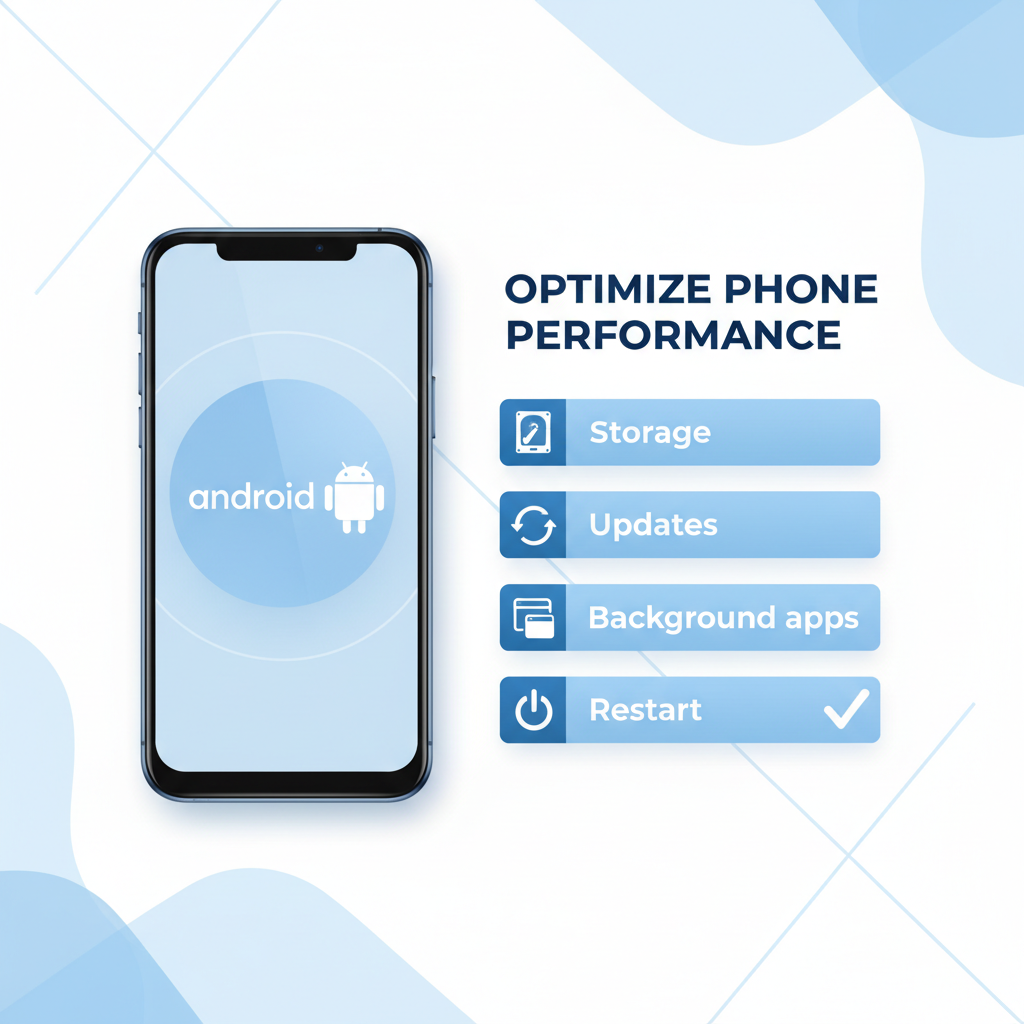
What to avoid: “RAM booster” apps and other common mistakes
A lot of apps promise to free memory with one tap. In reality, many of them keep running in the background, which can add more overhead, and some push aggressive ads or questionable permissions.
- Avoid always-on task killers: they can cause apps to restart repeatedly, which may use more battery.
- Don’t clear app data as a first move: it can wipe logins and settings. Cache cleanup is usually safer.
- Don’t force-stop system apps: it can cause instability, especially on heavily customized Android skins.
If you want a simple rule: use Android’s tools, then fix the app that keeps causing the mess.
Cheat sheet: best method by situation
Here’s a quick way to choose the right action without overthinking it.
| What you notice | Likely cause | What to do |
|---|---|---|
| Phone suddenly slow, many apps open | Temporary RAM pressure | Close 1–3 heavy apps, then try again |
| One app freezes or crashes repeatedly | App bug or stuck process | Force stop, update, then consider reinstall |
| Apps reload every time you switch | Low RAM for your usage | Reduce multitasking, restrict background for heavy apps |
| Lag + storage almost full | Storage pressure | Free storage, reboot, then re-test |
| Slow after system update | Background optimization | Give it time, reboot once, keep charging overnight |
Key takeaways and a practical routine
If you came here for how to clear ram on android phone, the most useful approach is simple: do a light cleanup when performance dips, then prevent repeats by fixing the app or setting that causes memory pressure.
- Weekly: restart your phone if you rarely power-cycle it.
- When lag hits: close a couple of heavy apps, especially games and browsers with many tabs.
- If it keeps happening: update apps, restrict background for the worst offenders, and make sure storage isn’t cramped.
If your phone still struggles after these steps, or it overheats, reboots, or crashes often, it may be worth contacting your device maker support or your carrier, and in some cases a repair shop can help diagnose hardware or battery-related issues.
If you want the fastest next step, restart once, then watch which app triggers the slowdown again, that single clue usually tells you where to focus.