
How to fix sd card errors on windows pc usually comes down to three things: the card isn’t being read correctly, Windows is blocking access, or the file system has corruption from a bad disconnect. The good news is you can often narrow it down in 10–20 minutes without special tools.
If you’re seeing “You need to format the disk,” “The device is not ready,” random disconnects, or a drive letter that appears and vanishes, don’t rush into formatting. Many people format too early and make recovery harder than it needs to be.
This guide walks through quick checks, safe repair steps, and what to do when Windows tools aren’t enough, with a simple decision table so you can pick the right fix for your exact error.
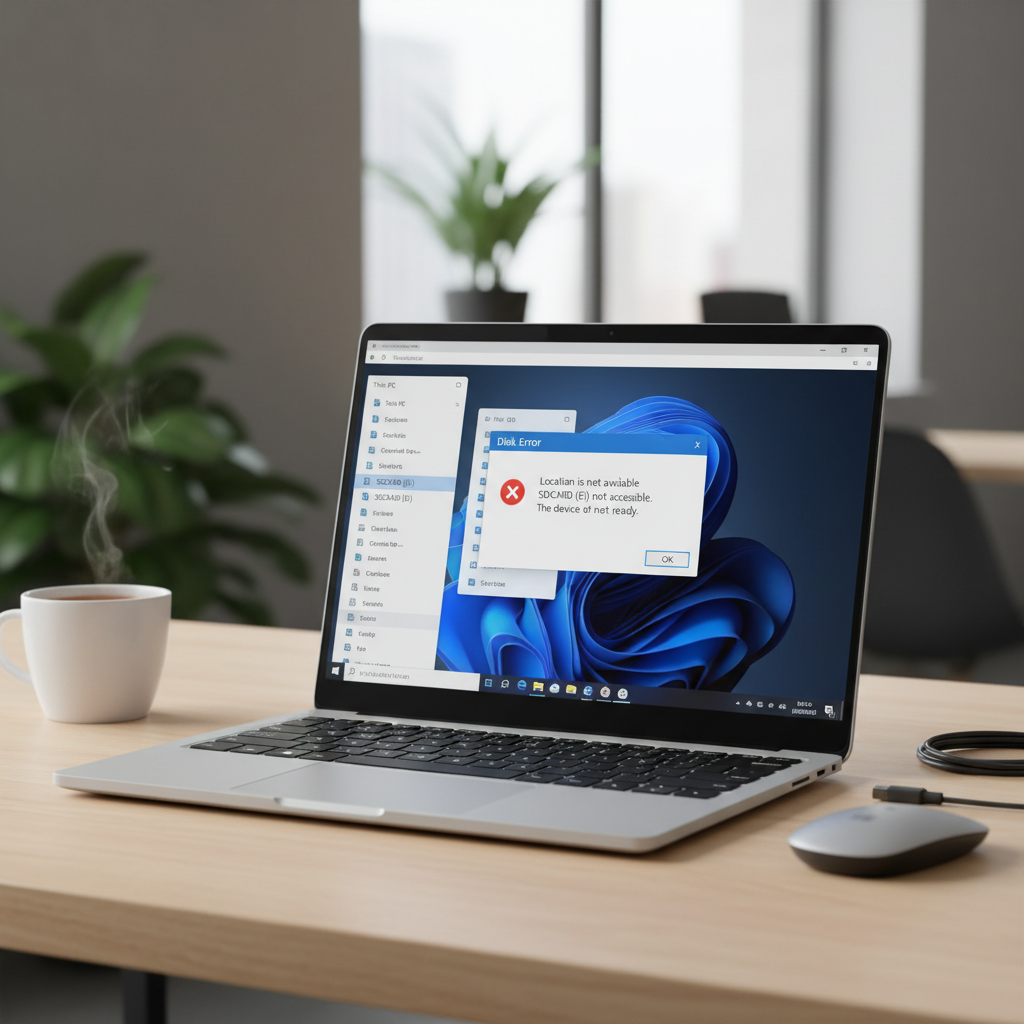
Quick diagnosis: match the symptom to the likely cause
Before you run repairs, identify what Windows is actually doing. SD card problems often look the same on the surface, but the fixes differ.
| What you see on Windows | Common cause | What to try first |
|---|---|---|
| “You need to format the disk” | File system corruption, wrong format, or damaged partition info | Try a different reader/port, then CHKDSK, then recovery tools before formatting |
| SD card shows up, but files won’t copy | Write-protect switch, permissions, failing card | Check lock switch, test on another PC, try copying smaller batches |
| No drive letter / shows as “Unknown” in Disk Management | Partition table issue, driver/reader problem | Disk Management scan, update drivers, different reader |
| “The device is not ready” / frequent disconnects | Bad adapter, insufficient power on hub, worn-out NAND | Use a direct USB port, swap adapter/reader, avoid hubs |
| 0 bytes capacity / RAW file system | Serious corruption or failing card controller | Stop writing to the card, prioritize data recovery |
Safety first: avoid the two moves that make things worse
If the SD card contains anything you care about, treat it like a “read-only” situation until you’ve copied what you can. Corruption often spreads when Windows keeps retrying writes.
- Don’t format immediately even if Windows suggests it. Formatting can overwrite metadata that recovery tools rely on.
- Don’t keep re-plugging and retrying large transfers if the card disconnects. That pattern can turn a minor issue into a bigger one.
Also, if the card feels unusually hot, smells odd, or the USB reader gets scorching, stop and switch hardware. That’s rare, but it’s not worth the risk.
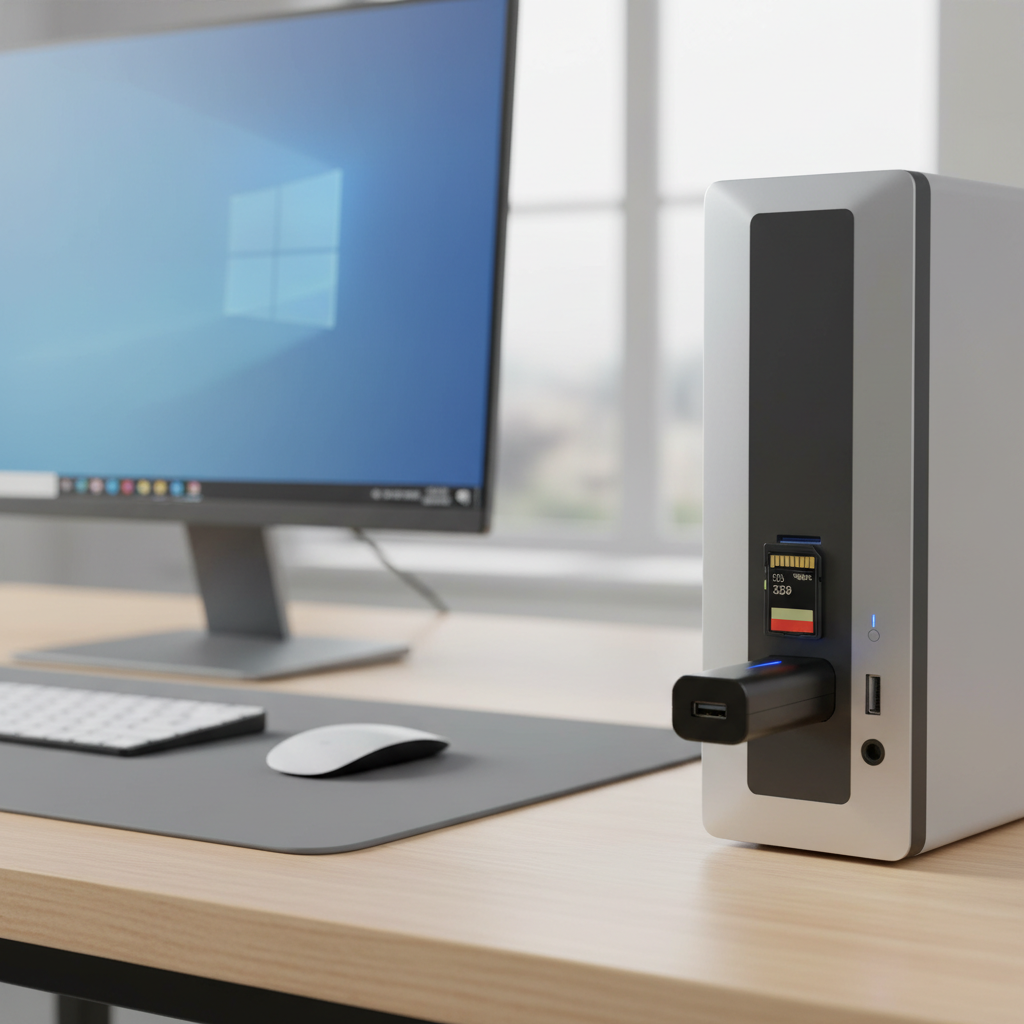
Step 1: Rule out the “it’s just the reader/port” problem
More SD card “errors” on Windows PCs are caused by cheap adapters and flaky card readers than people want to believe. It’s not glamorous, but it’s real.
- Try a different SD card reader (preferably a reputable USB 3.0 reader).
- Try another USB port directly on the PC, not a hub or monitor port.
- If you’re using microSD, swap the SD adapter sleeve.
- Test the card on another computer if you can, even briefly.
If the card works flawlessly on another PC, your Windows setup (drivers, USB controller, power management) is the likely culprit, not the card itself.
Step 2: Use Windows built-in checks (the right way)
Windows has a few tools that can fix common file system issues, but they help most when you use them in a sensible order.
Check it in File Explorer (Error Checking)
If the SD card gets a drive letter and opens at least partially, start here.
- Open File Explorer → This PC
- Right-click the SD card → Properties → Tools
- Under Error checking, click Check
This is the least invasive option, and in many cases it resolves minor directory issues.
Run CHKDSK (best for logical corruption)
If the card mounts but behaves weirdly, CHKDSK is the next step. According to Microsoft, CHKDSK can scan a volume and attempt to fix logical file system errors.
- Search Windows for Command Prompt → Run as administrator
- Type: chkdsk X: /f (replace X with the SD card drive letter)
- If it reports bad sectors or repeated failures, stop and switch to recovery-focused steps
For many “how to fix sd card errors on windows pc” searches, CHKDSK is the turning point, but it isn’t magic. If the card is physically failing, it may stall, loop, or “fix” files into unreadable fragments.
Check Disk Management for missing drive letter or RAW
- Right-click Start → Disk Management
- Find the SD card by capacity (be careful not to pick the wrong disk)
- If there’s no drive letter, try Change Drive Letter and Paths → Add
- If it shows as RAW, prioritize data recovery before formatting
Step 3: Fix write protection and permission roadblocks
When you can read files but can’t delete/copy, Windows may be reacting to write protection. Sometimes it’s a physical lock, sometimes it’s Windows being cautious.
Check the physical lock switch
Full-size SD cards often have a tiny lock switch. If it’s down (locked), Windows can act like the card is “broken” when it’s simply locked.
Try DiskPart (advanced, use carefully)
If Windows insists the media is write-protected and the switch isn’t locked, DiskPart may help. This step is safe when you only remove the read-only attribute, but it still deserves attention.
- Open Command Prompt as admin
- Type diskpart
- list disk (identify the SD card by size)
- select disk N (N is the SD card)
- attributes disk clear readonly
- exit
If DiskPart reports it cannot clear attributes, the card may be in a “fail-safe” mode due to wear. That’s common in aging flash media: it goes read-only to prevent further data loss.
Step 4: If you need your files back, switch to recovery mode
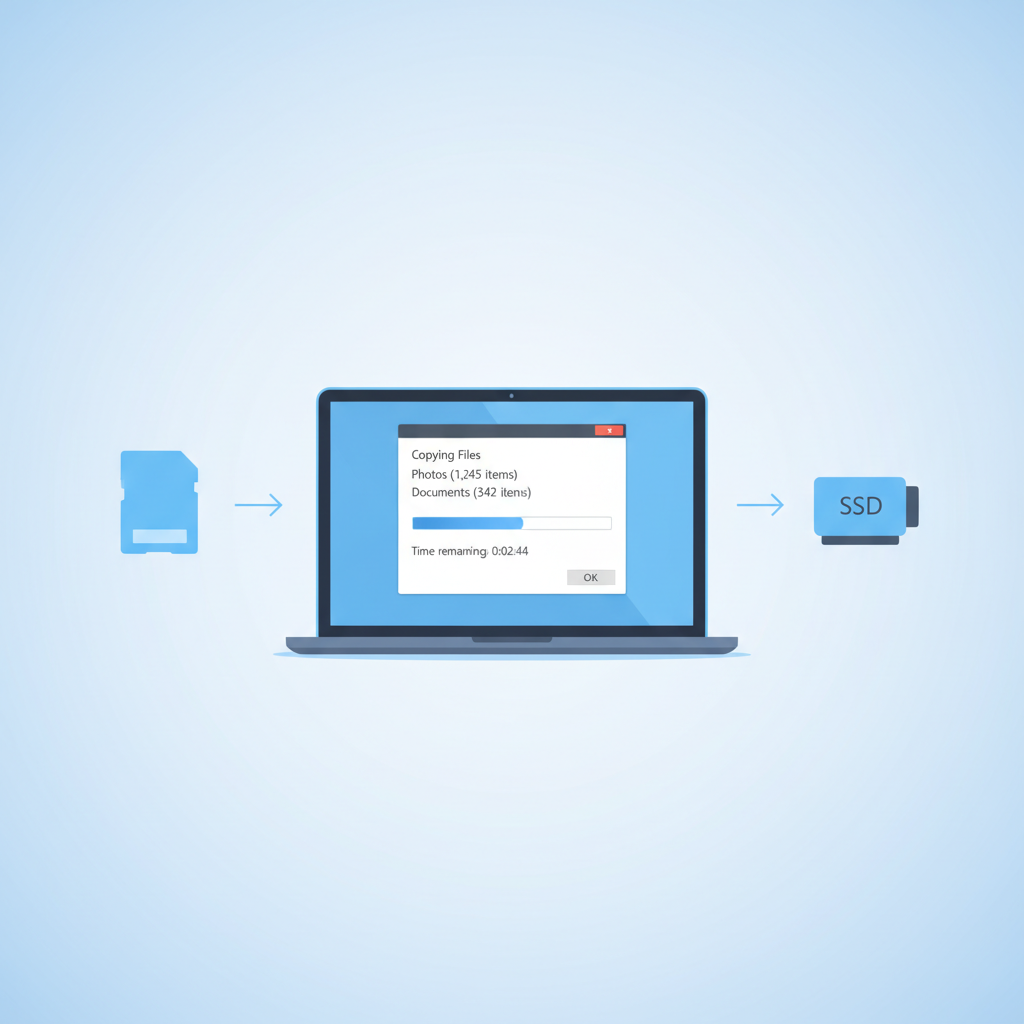
If Windows asks to format, the SD card shows RAW, or CHKDSK can’t complete, your goal changes: get the data off first, then repair or replace the card.
- Stop writing to the SD card, including “quick fixes” that create new folders or downloads.
- Copy what you can through File Explorer, starting with the most important folders.
- If copies fail, try smaller batches or single files to reduce repeated retries.
For deeper recovery, many people use reputable file recovery software. The exact tool depends on file system (FAT32, exFAT, NTFS) and how the corruption happened, so it’s worth reading the vendor documentation carefully and avoiding sketchy downloads.
Step 5: Repair or reformat the SD card (only after backup/recovery)
Once your data is safe, reformatting is often the cleanest long-term fix. According to SD Association, using the official SD formatting approach can help apply settings aligned with SD card specs, though many users still format successfully within Windows for basic needs.
Choose the right file system
- exFAT: common for 64GB+ cards and large video files, works well across Windows and macOS.
- FAT32: compatible with many cameras and older devices, but has file size limits (often painful for 4K video).
- NTFS: mostly for Windows-only workflows, not ideal if the card goes back into cameras or consoles.
Format in Windows (quick steps)
- File Explorer → right-click SD card → Format
- Select file system (usually exFAT)
- Keep Quick Format enabled for a normal reset; if you suspect deeper issues, a full format may be more thorough but takes longer
If formatting fails, Windows may show I/O errors or “Windows was unable to complete the format.” At that point, the card is often near end-of-life or the controller is unstable, and replacement is usually the practical route.
Key takeaways (so you don’t get stuck repeating steps)
- Hardware issues look like software errors, so swap reader/port early.
- If Windows prompts formatting and you need files, pause and prioritize recovery.
- CHKDSK can fix logical corruption, but it can’t revive failing flash memory.
- If the card turns read-only by itself, it may be wear protection, not a Windows setting.
Practical workflow: a simple order that works in real life
If you want a clean sequence to follow, this is the one most people should try:
- Try a different reader/USB port and a second computer
- If the drive letter appears, copy important files immediately
- Run Windows Error Checking, then CHKDSK if needed
- If write-protected, check lock switch, then DiskPart clear readonly
- If RAW/format prompt and data matters, use recovery tools before formatting
- After recovery, format to exFAT or FAT32 depending on your device
That sequence covers most “how to fix sd card errors on windows pc” scenarios without jumping into destructive actions too early.
Conclusion: fix the error, then fix the habit that caused it
SD card errors on Windows are annoying, but they’re usually diagnosable if you separate “Windows/reader problems” from “card corruption” and “card failure.” Start with the boring hardware swap, move to Windows repair tools, and only then consider formatting once your files are safe.
If you take one action today, make it this: copy your important data off the SD card the moment it mounts, even if it mounts only briefly, then deal with repairs after. That single habit saves the most headaches.