
How to install ai extensions usually comes down to one thing: picking the right “store,” then verifying permissions before you click Add. Most install issues happen because people mix up browser extensions with desktop plugins, or they install something that looks right but comes from the wrong publisher.
This guide keeps it practical. You’ll see the common install paths for Chrome, Edge, VS Code, and popular productivity tools, plus a quick checklist to avoid sketchy listings, broken installs, or surprise billing.
One small heads-up: “AI extension” can mean a lot of things. Sometimes it’s a browser add-on (ChatGPT sidebar, writing assistant), sometimes it’s an IDE extension (code completion), and sometimes it’s an add-on inside a SaaS app. The steps look similar, but the details matter.

What “AI extension” means (and why install steps vary)
Before you install anything, clarify what you’re installing. This prevents the classic “I added it but nothing appears” problem.
- Browser extension: Runs in Chrome/Edge/Firefox, often adds a toolbar icon, sidebar, or right-click menu.
- IDE/editor extension: Installs inside VS Code/JetBrains, adds features like code suggestions, refactors, chat panels.
- App add-on/integration: Installed from within tools like Notion, Google Workspace Marketplace, Slack, or Atlassian.
- Desktop app plugin: Less common, but some AI tools plug into design or video apps.
If you’re following instructions and a menu option doesn’t exist, you’re probably in the wrong category. Swap to the correct “store” and you’ll save time.
Quick install paths by platform (cheat sheet)
If you want the fastest route, use this table to jump to the right install flow.
| Where you’re installing | Where to get it | Typical install action |
|---|---|---|
| Chrome | Chrome Web Store | Add to Chrome → confirm permissions |
| Microsoft Edge | Edge Add-ons (or Chrome Web Store) | Get → Add extension |
| Firefox | Firefox Add-ons | Add to Firefox → allow permissions |
| VS Code | VS Code Marketplace | Install → sign in (if required) |
| Google Workspace | Google Workspace Marketplace | Install → admin approval (sometimes) |
| Notion/Slack/Atlassian | In-app integrations directory | Connect → authorize scopes |
How to install AI extensions in Chrome (the safe way)
For most people searching how to install ai extensions, Chrome is the real target. The steps are simple, but the safety checks are where people skip.
Step-by-step
- Open the Chrome Web Store and search for the extension name.
- Open the listing, then verify publisher name and recent updates.
- Click Add to Chrome, then review permissions in the popup.
- Pin it: click the puzzle icon → pin the extension so you can find it quickly.
According to Google (Chrome Help), extensions can request permissions that affect browsing data, so it’s worth reading that permission prompt instead of clicking through on autopilot.

Permission checks that actually matter
Not every “scary” permission is bad, but you should match the permission to the feature you want.
- “Read and change all your data on all websites”: Big scope. Sometimes needed for page-level writing help, but overkill for a simple toolbar chatbot.
- Access to clipboard: Makes sense for paste-and-summarize workflows, less so for a theme or icon tool.
- File access: Be cautious. Useful for local document tools, but verify publisher reputation.
- Runs in the background: Normal for assistants that monitor tabs, but can affect performance on older machines.
If the permissions feel broader than the advertised features, choose a different extension or look for an official alternative.
How to install AI extensions in Microsoft Edge
Edge users have two common paths: install from Microsoft Edge Add-ons, or allow extensions from the Chrome Web Store. The second option is convenient, but you still want to treat it like a real software install.
- Open Edge → visit Edge Add-ons → find the extension → click Get.
- If using Chrome Web Store: enable “Allow extensions from other stores” in Edge when prompted.
- Confirm permissions, then pin the icon so it doesn’t vanish into the menu.
In managed work environments, installs can be blocked by policy. If you see “This extension is blocked,” you’ll need IT/admin approval rather than more troubleshooting.
How to install AI extensions in VS Code (and avoid broken setups)
IDE extensions are a different beast. Many AI coding tools require sign-in, API keys, or workspace permissions, so “install” is only the first half.
Step-by-step
- Open VS Code → Extensions view (square icon) → search the extension name.
- Check publisher and install count as a quick sanity signal, then click Install.
- Reload VS Code if prompted.
- Open the extension panel, sign in, or add an API key if the tool requires it.
According to Microsoft (VS Code documentation), extensions can contribute commands and run code inside the editor environment, which is why you should keep installs limited to reputable publishers, especially on work machines.
Typical “it installed but doesn’t work” causes
- No account/session: Many AI assistants need an authenticated session before features show up.
- Network restrictions: Corporate proxies and firewalls can block model endpoints.
- Wrong runtime: Some extensions expect a specific Node/Python environment, depending on what they do.
- Conflicting extensions: Keybindings and inline suggestions can conflict with other coding tools.
Self-check: are you installing the right AI extension for your goal?
This is the part people skip, then they end up uninstalling three tools in a row. Use this quick decision checklist before you keep going with how to install ai extensions for your setup.
- Writing help in Gmail/Docs: Consider Workspace marketplace add-ons or a browser tool that works on Google apps.
- Summarize web pages: Browser extension that reads the current tab, with limited site access if possible.
- PDF and local docs: Look for tools that clearly explain file handling and privacy controls.
- Coding help: VS Code/JetBrains extension, ideally from a vendor with clear documentation.
- Customer support workflows: In-app integrations (Zendesk, Intercom, Salesforce) tend to fit better than generic browser add-ons.
If your goal is “I want it everywhere,” that’s usually where permission scope expands, and you’ll want to be more picky about publisher trust and settings.
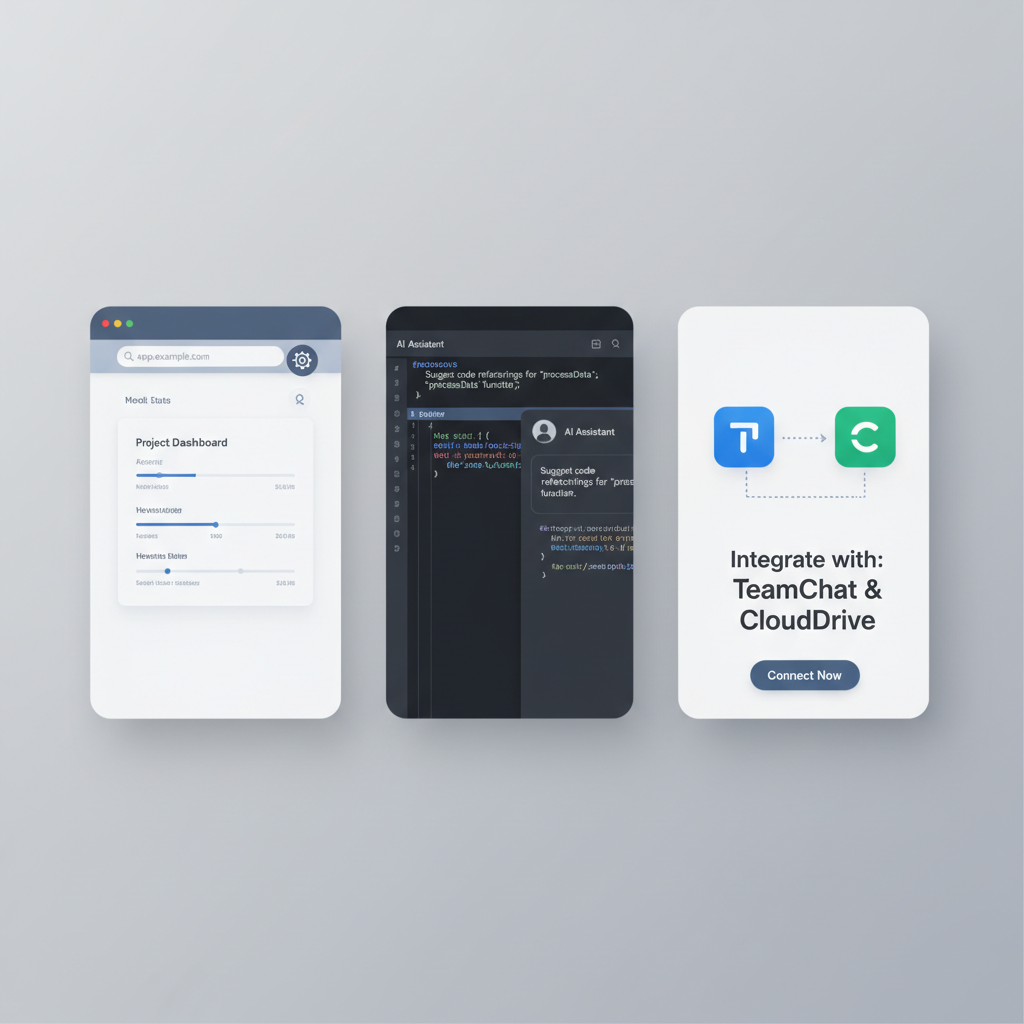
Practical setup steps after install (where the value shows up)
Installation is the easy part. The real payoff comes from two quick setup steps: configuring permissions and setting default behaviors.
Do these right after you add it
- Pin the extension and open its settings page, so you don’t forget it exists.
- Limit site access if the browser supports it, many tools allow “On click” or “On specific sites.”
- Turn off features you won’t use such as auto-suggestions on every page, it can reduce distractions.
- Set hotkeys you’ll actually remember, especially for summarizing or rewriting.
- Check data options: look for toggles about chat history, training, telemetry, or logging.
Key takeaways (save this)
- Install from the official store whenever possible, it reduces spoofed listings.
- Match permissions to features, broad permissions should buy you clear functionality.
- Expect a second step for many AI tools: sign-in, API key, or integration authorization.
Troubleshooting: common install problems and quick fixes
If you followed how to install ai extensions instructions and something still feels off, it’s usually one of these.
Extension won’t install
- Browser is outdated: update Chrome/Edge/Firefox, then retry.
- Policy restrictions: on work devices, installs may be blocked. Admin approval is the real fix.
- Corrupted cache: try incognito for the store page, or clear store/site data.
Installed but icon doesn’t show
- Open the extensions menu and pin it.
- Check if it’s disabled in the extensions manager.
- Restart the browser, especially after a permissions change.
Features don’t activate on certain sites
- Review site access settings for that extension.
- Some sites block overlays or scripts, so behavior can vary by domain.
- Try “On click” mode, then manually activate it on the page.
Security and privacy notes (what experienced users look at)
It’s fair to be cautious. Extensions often sit close to your browsing and content, and AI tools may process text you feed them.
- Prefer verified publishers and listings with clear documentation and support channels.
- Avoid “free” clones that mimic popular tools, name similarity is a common trap.
- Use separate profiles if possible: one browser profile for work, another for experiments.
- Review data handling in settings and the publisher’s privacy policy, especially for sensitive work.
According to CISA, reducing software supply-chain risk often involves limiting privileges and installing only what you need, that logic applies well to extensions too.
If you’re handling regulated data (health, legal, finance), it may be smarter to ask your security or compliance team which tools are approved, rather than testing random add-ons.
Conclusion: install fast, but verify before you commit
If you came here for how to install ai extensions, the dependable formula stays consistent across platforms: use the official marketplace, verify the publisher, read permissions like you mean it, then do the small setup steps that control scope and noise.
Action to take now: pick one extension you actually plan to use this week, install it from the official store, and set site access to the minimum that still supports your workflow.
If you want a lower-friction setup, look for AI extensions that offer clear permission explanations, simple onboarding, and settings that let you limit where the tool runs, those three traits usually separate “useful” from “uninstalled next week.”