
how to optimize steam games for performance usually comes down to a few repeatable levers: removing bottlenecks, reducing stutter sources, and choosing graphics settings that actually match your hardware.
If you’re dealing with sudden FPS drops, hitching when turning the camera, or a game that runs fine one day and struggles the next, you’re not alone. Steam sits on top of Windows, drivers, overlays, shaders, and storage, so performance problems often come from the stack, not just the game.
This guide focuses on changes that tend to move the needle in real setups, not just generic “set everything to low.” You’ll get quick checks, a settings table you can reference mid-tweak, and a practical order of operations that avoids breaking things.
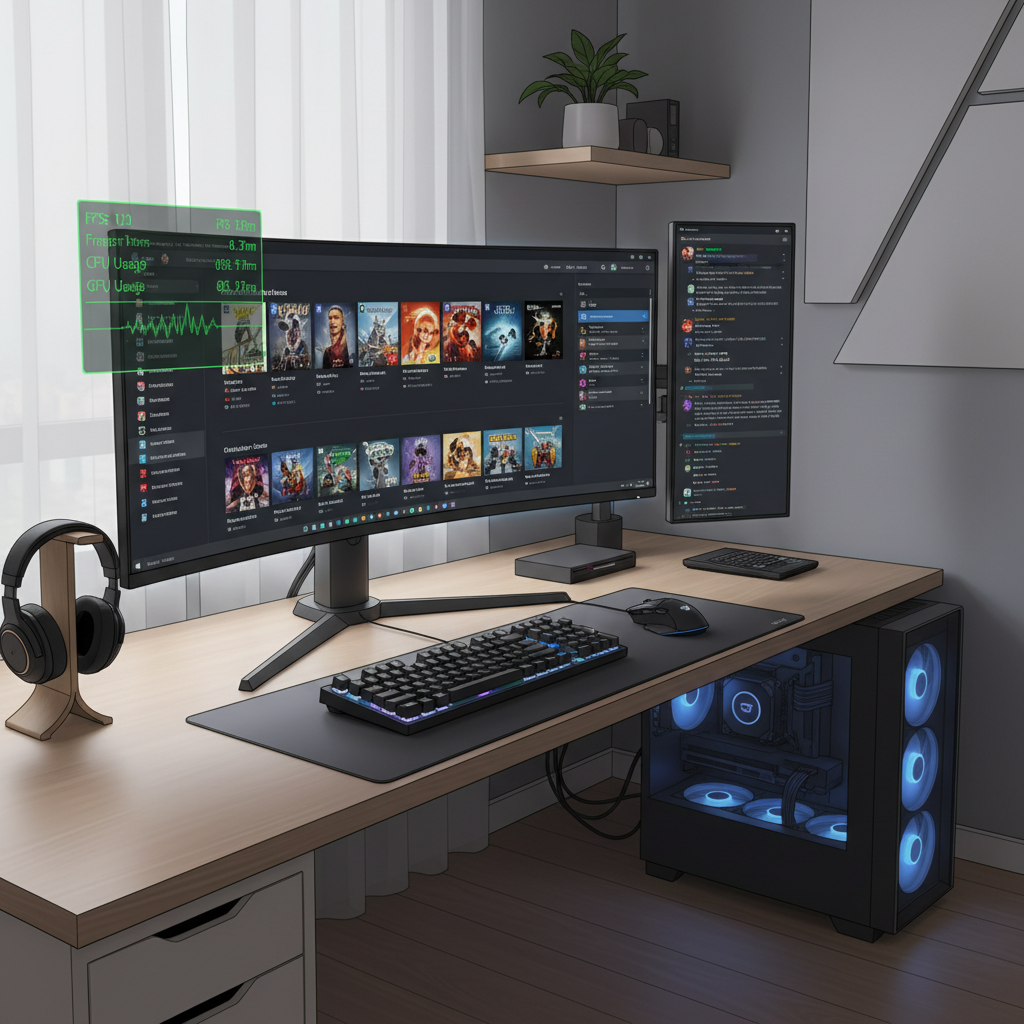
Start with the real goal: stable frame time, not just high FPS
Most players chase a higher FPS number, but what feels “smooth” is often consistent frame time, meaning each frame takes about the same time to render. That’s why 60 FPS with spikes can feel worse than a steady 50.
Before you change anything, set a baseline:
- Run the same in-game scene for 2–3 minutes (a busy hub, a repeatable mission, a training range).
- Turn on an FPS + frame time overlay if the game has one, or use Steam’s built-in FPS counter.
- Write down what’s wrong: average FPS, stutters when loading, micro-hitches during fights, input lag.
Key takeaway: you’re optimizing toward fewer spikes and fewer drops, not a single peak number.
Fast self-check: what is likely limiting your Steam game?
Different symptoms point to different fixes. This quick checklist helps you avoid wasting time on tweaks that don’t fit your issue.
- GPU-limited: FPS rises a lot when you lower resolution or turn down shadows, GPU usage stays high.
- CPU-limited: lowering resolution barely helps, big drops in crowded areas, one or more CPU threads hit high usage.
- RAM/VRAM pressure: stutter after playing a while, texture pop-in, hitching after alt-tabbing.
- Storage/streaming: hitching when entering new zones, open-world traversal stutter, long loads, especially on HDD.
- Network/online: rubber-banding and delays without FPS drops, more noticeable in multiplayer.
If you want a simple rule, treat stutter as a data delivery problem (CPU, storage, shaders, background apps), and treat low FPS as a rendering budget problem (GPU/graphics settings).
Steam-side settings that often help (and when they backfire)
Steam is rarely the sole cause, but a few client features can add overhead or introduce conflicts. Here are the ones worth checking first.
1) Disable or limit overlays if you’re stuttering
Overlays hook into rendering. Many PCs run fine with them, but when you’re already near your limits, they can push frame time over the edge.
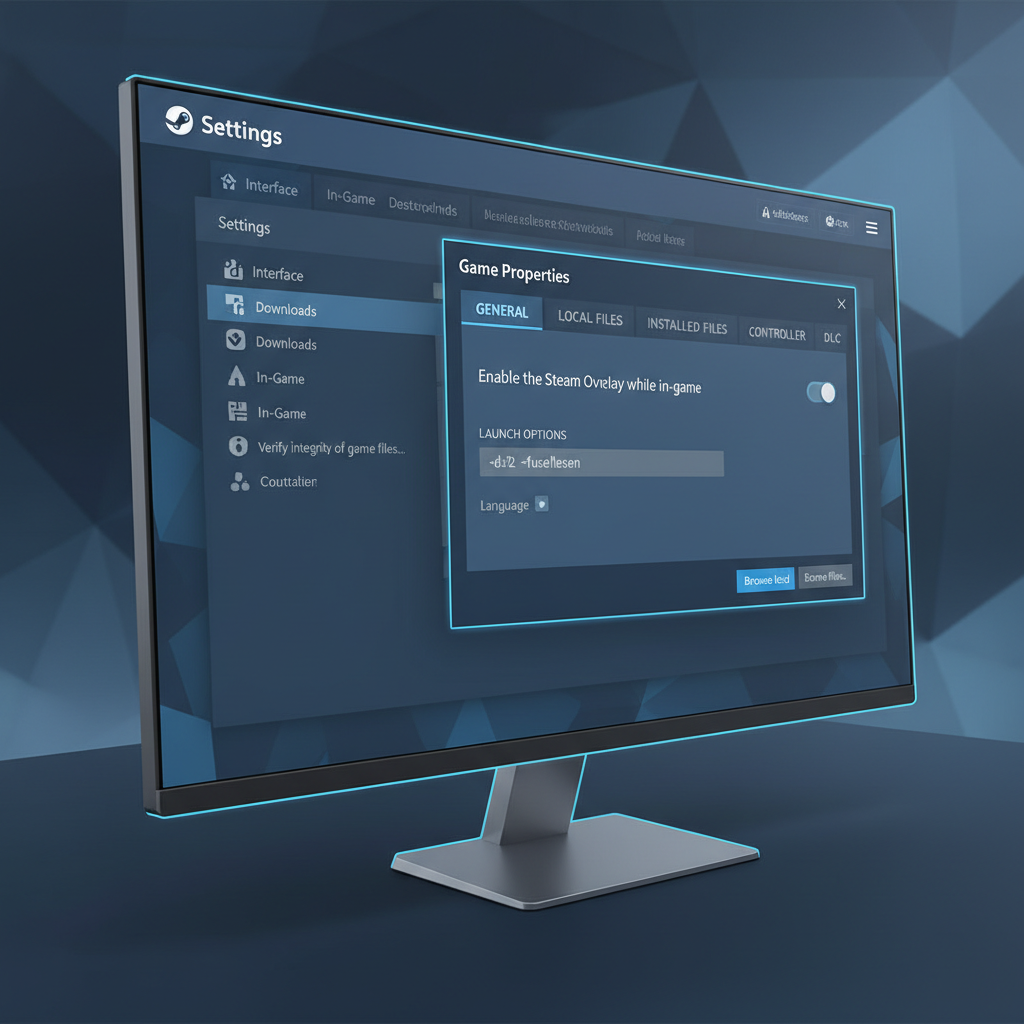
- Steam Overlay: try disabling per game (Properties → General).
- Also consider Discord overlay, GeForce Experience overlay, Xbox Game Bar, and third-party FPS counters.
2) Verify game files when performance suddenly changes
Corrupted or partially updated files can cause weird behavior. This is a low-risk step.
- Right-click game → Properties → Installed Files → Verify integrity.
3) Watch shader compilation behavior
Some games compile shaders on first run or after driver updates, causing temporary stutter. Be patient for a session, but if stutter persists for hours, it’s likely not just compilation.
According to NVIDIA, shader compilation and caching are part of modern graphics pipelines, and changes to drivers or game updates can trigger rebuilding caches, which may affect hitching in some scenarios.
In-game settings that matter most (use this table)
If you only change a few things, change the ones with the biggest performance cost per visual benefit. The exact impact varies by engine, but the pattern below holds in many PC games.
| Setting | Usually impacts | What to try first | Common symptom it fixes |
|---|---|---|---|
| Resolution / Render scale | GPU | Lower render scale to 90–80% | Low FPS with high GPU usage |
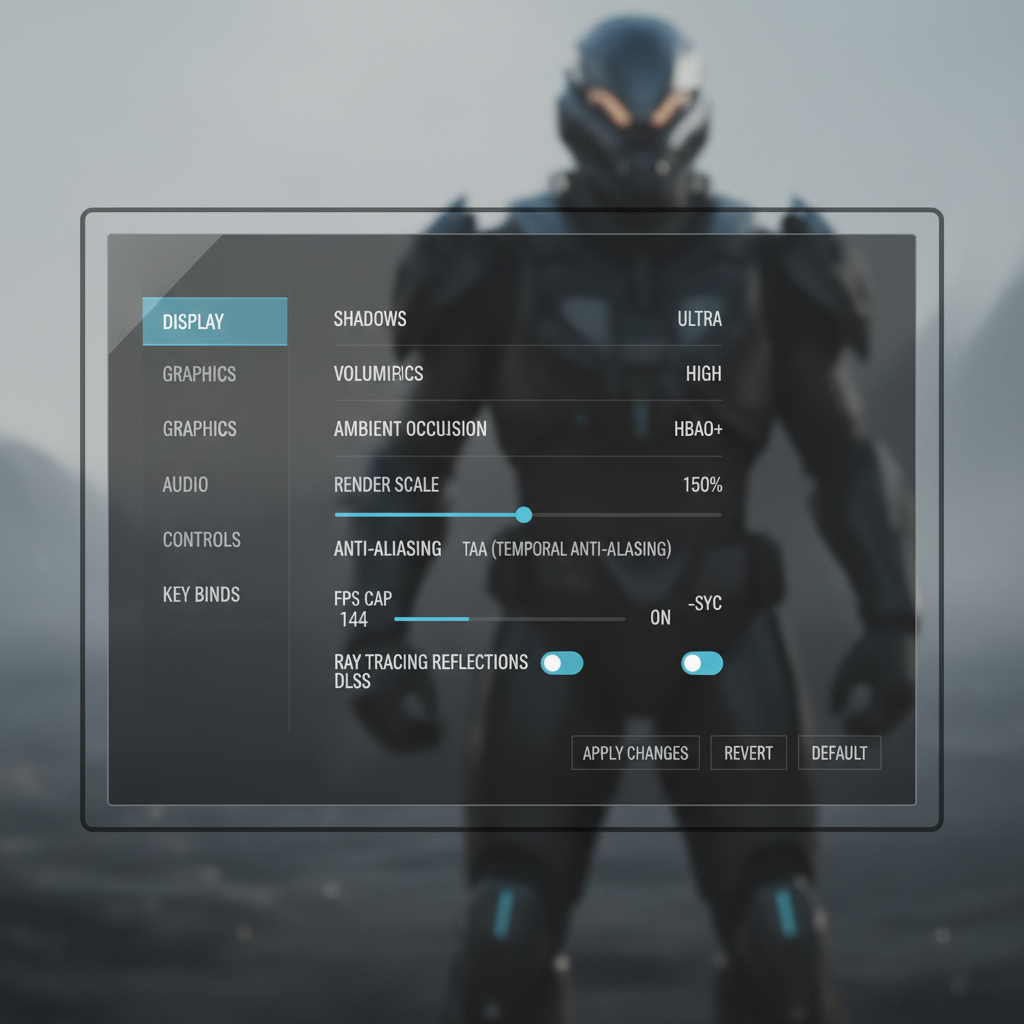
| Shadows | GPU + CPU | Drop one tier (Ultra → High) | Big drops in busy scenes |
| Ambient Occlusion | GPU | Medium or off | General FPS improvement |
| Volumetrics / Fog | GPU | Medium or low | Stutter in smoke, weather, effects |
| Anti-aliasing | GPU | Use TAA/FXAA, avoid heavy MSAA | FPS loss without major clarity gain |
| Textures | VRAM | High if VRAM allows, otherwise Medium | Texture pop-in, hitching on load |
| View distance / Crowd density | CPU + RAM | Lower one tier | Drops in cities, big fights |
A practical approach: lower resolution scale slightly, then tackle shadows and volumetrics, then tune CPU-heavy options like crowd density. Leave textures alone unless you see VRAM-related issues.
Windows + driver tweaks that make Steam games smoother
This is the part most guides overdo. You don’t need 30 registry changes. A few clean steps cover most cases when you’re figuring out how to optimize steam games for performance.
Update GPU drivers, but don’t “chase” every release
- If you’re on a very old driver, update.
- If a brand-new driver coincides with new stutter, consider rolling back one version.
According to AMD and NVIDIA, driver releases can include game-specific optimizations and bug fixes, but some systems may behave differently depending on hardware and software combinations.
Set a sane power plan and avoid background surprises
- Use Windows power mode geared toward performance when plugged in (names vary by Windows version).
- Close heavy background apps: browsers with many tabs, video encoders, RGB suites that constantly poll hardware.
- Pause large downloads during gameplay, including Steam downloads on the same drive as the game.
Turn on Game Mode, but treat it as “try and see”
Windows Game Mode often helps by reducing background activity, but a small number of setups see no change. It’s worth toggling once and testing in your baseline scene.
According to Microsoft, Game Mode prioritizes game processes and can reduce background work while playing, though results may vary by PC and game.
Practical step-by-step: a safe optimization order
When people get stuck, it’s usually because they changed too many things at once. This order keeps changes reversible and easy to measure.
- Step 1: Reboot, close background apps, pause downloads, confirm the game runs in the baseline scene.
- Step 2: Disable extra overlays (Steam, Discord, Xbox Game Bar) and retest.
- Step 3: In-game: drop shadows one tier, lower volumetrics one tier, lower render scale to ~90%, retest.
- Step 4: If stutter continues: reduce view distance/crowd density, check if the game sits on an HDD, retest.
- Step 5: Update or roll back GPU drivers if performance changed after an update, retest.
- Step 6: Optional: cap FPS to match your display and stabilize frame time (example: 60, 90, 120).
Why an FPS cap can help: if your system swings between 80 and 50, a cap at 60 can feel steadier than uncapped spikes.
Common mistakes that waste time (or make performance worse)
Some tweaks get repeated online because they sound technical, not because they consistently help.
- Maxing textures on low VRAM: it may look fine for 5 minutes, then hitching starts as assets stream.
- Turning everything to Low: you can shift load from GPU to CPU (or the opposite) and still stutter.
- Stacking multiple upscalers or sharpeners: pick one primary method (in-game upscaling, driver-level, or post-process), then tune.
- Ignoring thermals: overheating can cause downclocking that looks like “random” drops. If fans are screaming and FPS sinks over time, check temps.
- Mod overload: texture packs, script mods, reshade filters, and ENB-style presets can hit CPU/GPU and storage at the same time.
If you suspect overheating or unstable hardware settings, consider returning CPU/GPU to stock values and, if needed, consult a qualified technician, especially if crashes accompany performance issues.
Conclusion: a smoother Steam game is usually a few focused changes
When you’re figuring out how to optimize steam games for performance, aim for repeatable testing and the biggest-impact settings, then stop once the game feels stable. In practice, disabling an extra overlay, lowering shadows and volumetrics one tier, and using a reasonable FPS cap fixes a lot of the “it should run better than this” cases.
If you only do two things today, do this: pick a baseline scene and test changes one at a time, then adjust render scale plus shadows before you touch a dozen other sliders.
FAQ
How do I optimize Steam games for performance without making them look bad?
Start with shadows and volumetrics, then use a small render-scale drop (like 90%). Those changes often improve smoothness more than nuking textures or turning everything to Low.
Does disabling the Steam Overlay increase FPS?
Sometimes. On many systems it’s neutral, but if you’re seeing stutter or frame-time spikes, removing overlay hooks can help. Test it in the same scene so you can tell.
Should I use V-Sync, G-Sync, or an FPS cap?
It depends on your display and tolerance for tearing vs input lag. An FPS cap can stabilize frame time; adaptive sync (like G-Sync/FreeSync) can smooth variable FPS. V-Sync may add input lag in some setups, so it’s worth comparing.
Why does my game stutter even when FPS looks high?
High FPS can still include frame-time spikes caused by shader compilation, background tasks, streaming from a slow drive, or VRAM pressure. Look for hitching patterns: new areas, alt-tab, big fights, or after an update.
Is moving games to an SSD worth it for performance?
For many open-world or asset-heavy games, yes, it can reduce streaming stutter and shorten loads. It won’t magically fix a GPU bottleneck, but it often helps with hitching tied to loading new assets.
Do launch options in Steam improve performance?
Occasionally, but many popular launch options are outdated or game-specific. If you use any, add one at a time and confirm it helps; otherwise you can end up masking the real problem.
What if none of these steps help?
At that point, narrow it down: test another demanding game, check temperatures, run the same title with mods disabled, and confirm drivers and Windows updates. If you suspect hardware instability or repeated crashes, getting professional help is a safer next step than piling on tweaks.
If you’re still stuck after working through the baseline test and the high-impact settings, it may help to share your PC specs, resolution, and the exact symptom pattern, that context usually makes performance troubleshooting far more efficient.