
Best budget smart plugs with energy monitor are the quickest way to see what your “always on” devices really cost, without buying a whole smart home system. If your bill feels unpredictable, or you just want to catch energy vampires like old TVs and game consoles, these plugs give you usable numbers fast.
The catch is that “energy monitoring” means different things depending on the brand, the app, and even whether you run Apple Home, Alexa, or Google Home. Some budget plugs show solid kWh totals, others mostly show real-time watts with limited history, and a few bury the good stuff behind subscriptions.
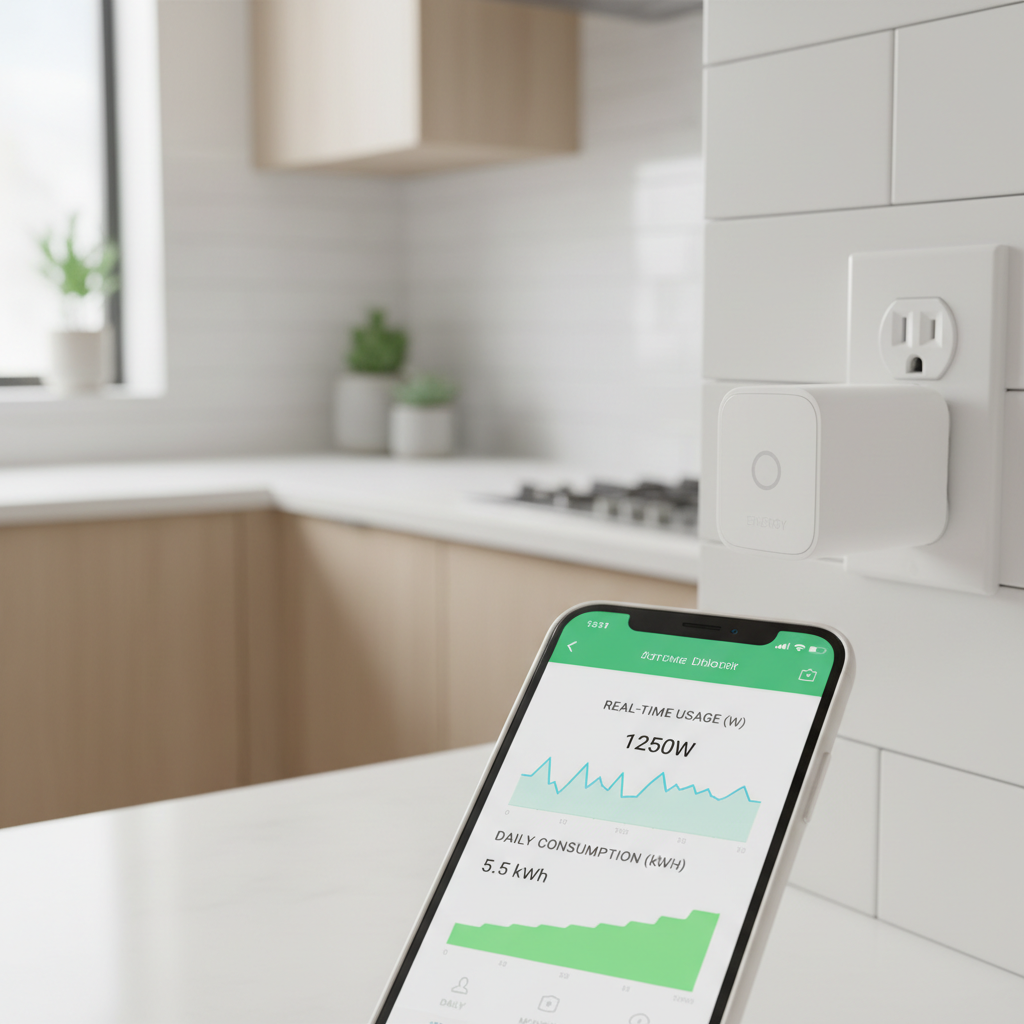
This guide focuses on what actually matters in 2026: reliability, readable energy data, no-drama setup, and safe use for the loads people plug in every day. You’ll also get a quick checklist to avoid buying the “right plug” that turns out to be wrong for your Wi‑Fi, voice assistant, or appliances.
What “energy monitoring” really gives you (and what it doesn’t)
Most smart plugs with energy monitoring track power in two ways: real-time watts (what a device draws right now) and energy over time (kWh over a day/week/month). Real-time watts helps diagnose spikes, while kWh helps connect usage to cost.
Where people get disappointed is the detail level. Many budget models can’t separate “on vs standby” cleanly for low-watt devices, and some don’t keep long history unless your phone stays logged in or the plug has decent cloud sync.
- Good for: finding energy hogs, estimating monthly cost, deciding whether a dehumidifier or space heater is worth running.
- Not great for: utility-grade accuracy, whole-home measurement, or high-draw 240V appliances like dryers and ovens.
According to U.S. Department of Energy, reducing standby power and managing plug loads is a practical way to cut waste in many homes, but results vary by device mix and habits.
Quick comparison table: budget picks worth shortlisting
You’ll see different models and availability depending on retailer and region, so treat this as a shortlisting framework, not a promise that every box exists at every price every week. The goal is to compare the “budget tier” features that change day-to-day usability.
| What to compare | Why it matters | Budget-friendly “green flag” |
|---|---|---|
| Energy data depth | Whether you can see kWh totals and history | Daily/weekly/monthly kWh + export or clear charts |
| App + account | Some apps are cluttered, some require extra permissions | Simple dashboard, local controls, minimal nags |
| Wi‑Fi band | Many plugs only work on 2.4GHz | Clear 2.4GHz support; setup doesn’t fail repeatedly |
| Voice assistant fit | Matching your ecosystem saves headaches | Works with Alexa/Google; Matter support if you want flexibility |
| Load rating | Safety and nuisance shutoffs | 15A / 1800W rating (typical in U.S.) and solid reviews on heat |
Why budget smart plugs fail in real homes (common scenarios)
Most returns come from a few predictable mismatches, not because the plug is “bad.” Knowing these upfront saves time.
- 2.4GHz vs 5GHz Wi‑Fi confusion: lots of plugs still require 2.4GHz; mesh systems can make pairing weird.
- Outlet spacing: chunky plugs block the second socket, especially on power strips or older duplex outlets.
- Energy charts you can’t use: the app shows watts, but hides kWh history three menus deep, or only keeps 7 days.
- Cloud dependency: if servers lag, schedules lag. For lights this is annoying; for appliances it can be risky.
- Wrong load type: space heaters, window AC units, and pumps can stress cheap plugs even under the “rated” number.
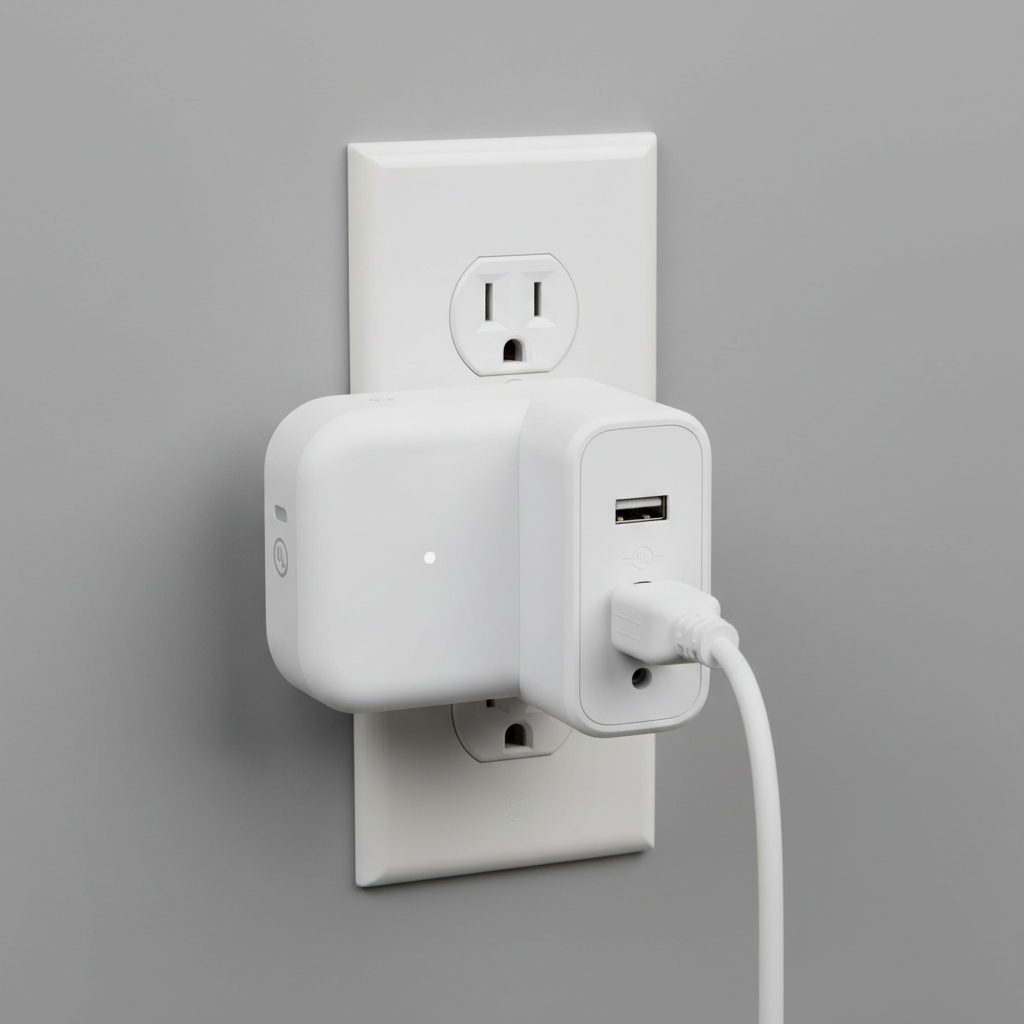
There’s also the “silent failure” category: the plug works, but the monitoring is too noisy to trust. That’s why it helps to sanity-check readings with a known load for 10 minutes, like a lamp with an incandescent bulb if you still have one, or a small heater on a low setting, and see if watts look plausible.
Self-check: which energy-monitor plug type fits you?
If you want to buy once and stop thinking about it, answer these quickly. Your “yes” answers point to the feature you should pay for, even in the budget range.
- I want cross-platform flexibility: look for Matter support (when available in budget models).
- I mostly care about cost: you need kWh totals and a simple monthly view, not just live watts.
- I’ll automate schedules: prioritize stable app scheduling and reliable reconnect behavior after outages.
- I have a crowded outlet: prioritize a slim body or side-facing design.
- I’m monitoring high-draw devices: prioritize strong thermal reputation and clear 15A rating, and be conservative.
One more reality check: if your main goal is reducing a big bill, a handful of plugs placed on the usual suspects often beats buying ten plugs and never opening the app again.
Buying criteria that actually matter in 2026
Specs pages can look identical, so here’s what separates a “cheap but fine” plug from a “cheap and annoying.”
1) Energy history you can act on
Look for daily and monthly kWh, plus an easy way to reset totals per device. If the app can export, that’s a bonus, but even a clean chart is enough for most households.
2) Ecosystem compatibility without hacks
If you live in Alexa or Google Home, make sure the plug exposes on/off reliably. If you use Apple Home, confirm whether it needs a bridge or supports Matter. Don’t assume “works with Siri” means HomeKit-quality integration.
3) Setup and recovery after outages
The best budget smart plugs with energy monitor are the ones that reconnect after a router reboot without you re-pairing them. This is hard to judge from marketing, so reading recent reviews about “stays connected” is usually more useful than older five-star ratings.
4) Safety basics
Stick to typical indoor 120V use, respect the manufacturer’s rating, and avoid using a small plug for a device that runs hot for hours. According to UL Solutions, certification and proper product testing help reduce fire and shock risks; when you’re shopping budget, verifying certification claims becomes even more important.
How to use energy monitoring to lower your bill (simple workflow)
This is where people either get value quickly or abandon the app. Keep it boring and structured for one week.
- Day 1: Plug in one suspect device (TV, old fridge in garage, dehumidifier, gaming PC setup). Confirm you can see watts and kWh.
- Days 2–3: Let it run normally, then check daily kWh. Write down one number per day, nothing fancy.
- Day 4: Change one habit: schedule off-hours, lower run time, or switch to eco mode if the device has it.
- Days 5–7: Compare kWh before/after. If the difference is tiny, move the plug to the next device.
If you want an estimated cost, multiply kWh by your utility rate. Your bill may include tiered rates and fees, so treat this as a helpful estimate, not a perfect match to the statement.
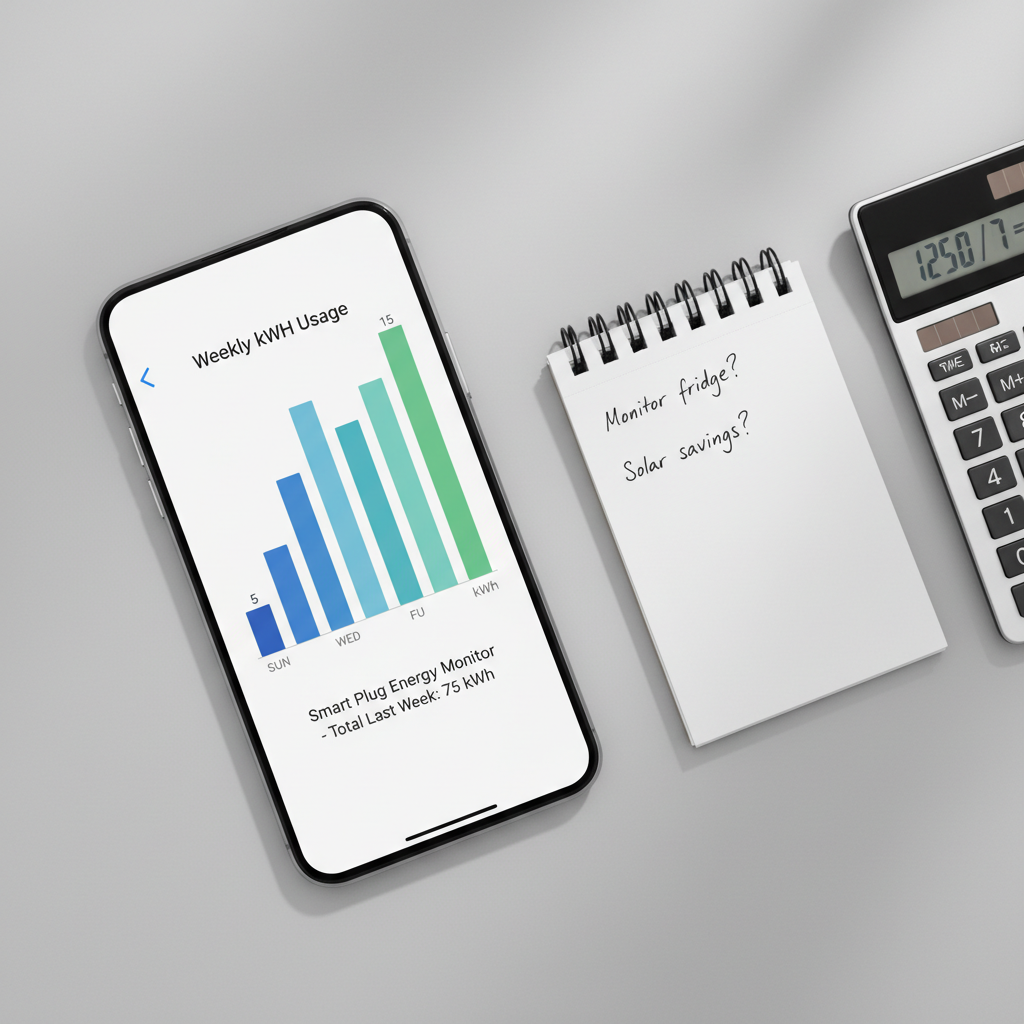
Key takeaway: energy monitoring helps most when you use it as a rotation tool, one plug can audit multiple devices over a month.
Mistakes to avoid (they waste time or create risk)
- Using a plug as a fix for unsafe wiring: if an outlet feels loose, hot, or spark-prone, stop and consider an electrician.
- Running high-watt heaters unattended: even if the plug is rated, heat + long runtime + cheap hardware can be a bad mix.
- Chasing single-digit watt changes: focus on big loads and long runtimes first, then optimize small stuff if you enjoy it.
- Assuming “energy monitor” equals accuracy: budget models are usually “good enough for decisions,” not lab instruments.
- Buying a 4-pack before testing one: if the app UX annoys you, you’ll hate managing four of them.
Conclusion: what to buy, depending on your goal
If you want the simplest win, pick a budget plug that shows monthly kWh clearly and stays connected, then use it to audit your top 3 energy suspects. If you care about platform flexibility, prioritize Matter support even if you buy fewer plugs.
Your next step can be small: choose one device you suspect, track it for seven days, and decide whether a schedule or a habit change actually moves the number. That’s when these plugs start paying for themselves, not on day one in the box.
FAQ
What is the most important feature in the best budget smart plugs with energy monitor?
Readable kWh history, because it ties usage to cost. Real-time watts are nice, but without daily/monthly totals, it’s hard to make decisions you’ll stick with.
Are energy readings from smart plugs accurate enough to trust?
Many are consistent enough for comparisons, like “Device A uses more than Device B,” but exact accuracy can vary by model and load type. If you need billing-grade precision, you may need a dedicated meter.
Can I use an energy-monitor smart plug with a space heater or window AC?
Sometimes, but be cautious. Check the device wattage, the plug’s rating, and heat buildup at the plug during use. If anything feels hot or unstable, stop and consider a safer approach or ask a professional.
Do I need Matter for a smart plug in 2026?
Not always. Matter can make ecosystem switching easier, but a non-Matter plug can still be a great buy if it matches your voice assistant and the app energy reports are solid.
Why does my smart plug show watts but not kWh?
Some apps hide kWh totals in a separate “statistics” or “energy” tab, and a few models only offer live power. If you mainly want cost estimates, confirm kWh reporting before buying.
Will a smart plug reduce my bill automatically?
No, it mainly gives visibility and control. Savings usually come from changing schedules, reducing runtime, or replacing inefficient devices once you’ve identified them.
What devices are best to monitor first?
Dehumidifiers, older refrigerators or freezers, entertainment centers, aquarium heaters, and anything that runs many hours per day. Those tend to produce clearer “before/after” results than a phone charger.
If you’re trying to pick between a few budget models and you want a more “no guessing” approach, it helps to start from your Wi‑Fi setup, outlet spacing, and the one device you most want to measure, then choose the plug that matches those constraints rather than chasing the lowest price.