
Top free photo resizers for social media can save you from the most common posting headache, a great photo that turns into an awkward crop, blurry text, or a cut-off face the moment it hits Instagram, TikTok, or LinkedIn.
If you post regularly, resizing stops being a one-off fix and becomes part of your workflow, especially when you repurpose the same creative across multiple channels, ad placements, and story formats. The “right” tool depends less on hype and more on what you actually need, quick presets, batch export, brand-safe templates, or clean control over pixels.
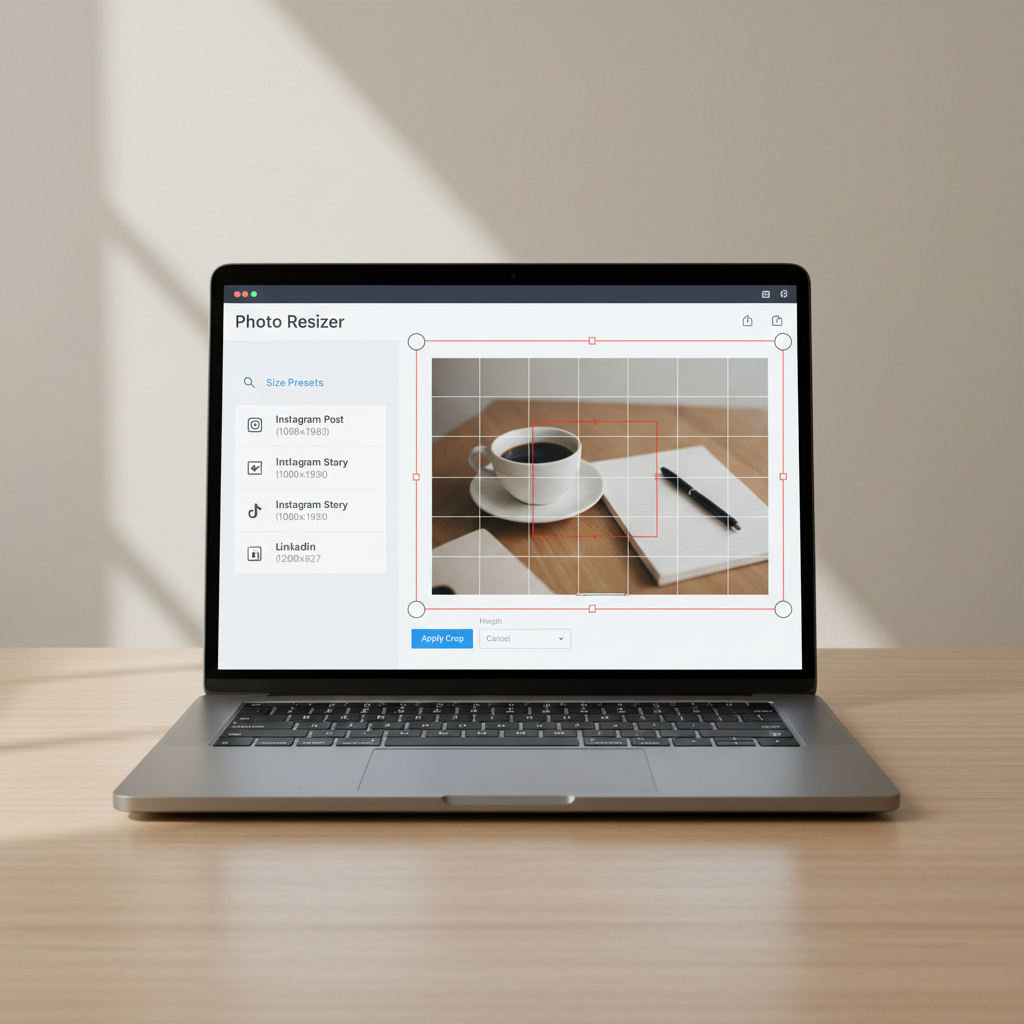
This guide narrows down reliable free options, calls out where “free” usually comes with limits, and gives a practical way to choose a resizer based on your posting rhythm. You will also get a simple checklist and a quick workflow you can repeat without overthinking it every time.
What “free photo resizer” really means (and what to watch)
Most free resizers fall into a few buckets, and each bucket has tradeoffs. Knowing them up front prevents frustration later, like exporting with a watermark or hitting a daily limit mid-campaign.
- Web-based editors are fast and convenient, usually include social presets, but may limit export quality or batch processing on free plans.
- Mobile apps feel quickest for creators posting from phones, but ads and file management can get messy.
- Desktop tools offer more control and privacy, often no upload required, but take a little setup time.
Also, “resize” can mean different actions. Some tools only change dimensions, others also crop, pad with background, keep aspect ratio, or help with safe zones for text. If your main problem is awkward cropping, you want a tool that makes aspect ratios obvious, not just a width-and-height box.
Quick comparison table: top free options at a glance
Here is a practical snapshot. Availability and free limits can change, so treat this as a starting shortlist, not a promise of forever-free features.
| Tool | Best for | Standout free features | Common free limits |
|---|---|---|---|
| Canva | Fast social presets + light design | Resize by choosing preset sizes, templates, background removal sometimes via paid | Some assets/features gated, advanced resizing workflows vary by plan |
| Adobe Express | Polished exports, brand-friendly layouts | Social size presets, simple cropping, quick edits | Some premium templates/tools restricted |
| Photopea | Photoshop-like control in browser | Precise resize/crop, layers, PSD support | UI learning curve, ads |
| Pixlr | Quick web edits with solid controls | Resize/crop, basic enhancements | Some exports/features may be limited |
| Figma (basic/free) | Teams + reusable social frames | Frame presets, components, collaboration | Not a “simple resizer,” export workflow takes setup |
| GIMP | Offline editing and full control | Resize, crop, export control, no upload | Steeper learning curve |
Best picks by real posting scenario
Picking from “top free photo resizers for social media” gets easier when you start from your scenario, not from the tool list.
If you want the quickest path: Canva
Canva is usually the fastest option when your goal is “make it the right size and ship it.” Presets for posts, stories, and banners reduce guesswork, and the UI keeps cropping intuitive. It is also the most forgiving if you are not a designer.
- Use when: you post often, you want templates, you want quick resizing plus light layout edits.
- Skip when: you need strict pixel-level control, heavy batch processing, or you dislike web-based asset libraries.
If you want brand-safe results with a clean editor: Adobe Express
Adobe Express tends to feel more “finished” in output, especially for text overlays and simple graphics. For small teams, its brand features can be helpful, even if you stay mostly within the free tier.
- Use when: you want clean exports, quick resizing, and a design-forward workflow without complexity.
- Watch for: premium templates and some features that can tempt you into upgrading.
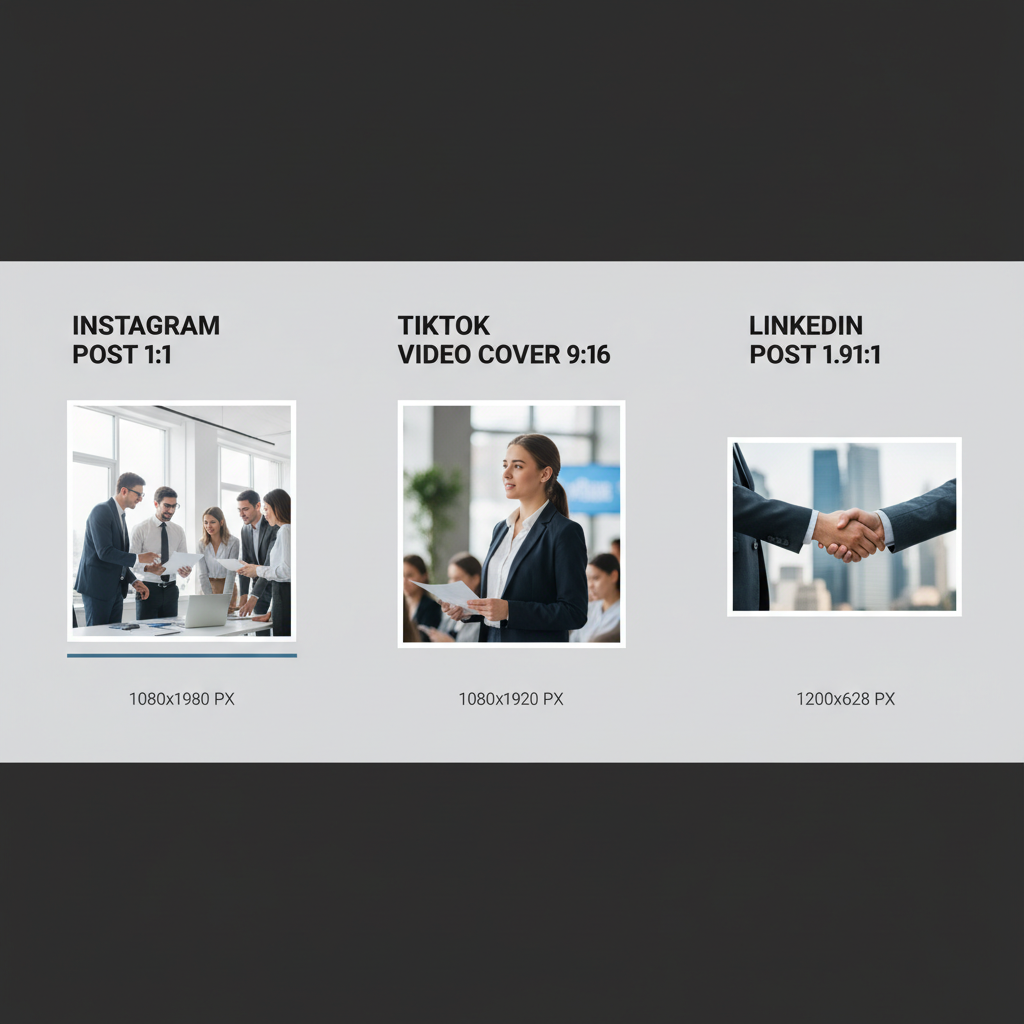
If you need Photoshop-like precision without paying: Photopea
Photopea is the “serious” pick among free browser tools. If you regularly resize with tight constraints, like keeping a product centered while adjusting aspect ratio, layers and guides matter. Photopea gives you that control without installing anything.
- Use when: you want exact pixels, smart cropping, layers, and file compatibility like PSD.
- Expect: a learning curve, and an interface that feels closer to pro tools than social apps.
If you need a lightweight web editor: Pixlr
Pixlr sits between “simple resizer” and “full editor.” It is often enough for quick social resizing, especially when you also want basic enhancements like brightness, contrast, or a quick sharpen before export.
If you want a reusable system for a team: Figma
Figma is not a resizer in the usual sense, but many content teams use it to standardize social sizes. You create frames for each platform, drop in an image, adjust position, and export. Once set up, it can be faster and more consistent than ad-hoc resizing.
- Use when: you want repeatable templates, approvals, and collaboration.
- Skip when: you want one-click resizing with no setup.
If you want offline control (no uploads): GIMP
If your images are sensitive, client work under NDA, internal screenshots, product roadmap visuals, an offline tool reduces risk. GIMP can resize, crop, and export with good control over compression settings, which matters for keeping text crisp.
Self-check: which resizer should you pick?
If you are unsure, answer these quickly. Your “yes” answers should steer your choice more than any top-10 list.
- I post from my phone most of the time. You will likely prefer Canva mobile or Adobe Express mobile.
- I resize the same creative into 3–6 formats per week. Look for presets and a saved-template workflow, Canva, Express, or Figma.
- I need exact cropping around a subject. Photopea or GIMP gives finer control.
- I care about export quality and avoiding blurry text. Prioritize export settings and avoid “auto compress” defaults when possible.
- I handle client or sensitive images. Offline tools like GIMP reduce upload exposure, or use tools with clear privacy terms.
According to FTC, it is smart to pay attention to how online services handle data and privacy disclosures, especially when you upload personal or business files. That does not mean you cannot use web resizers, it means you should be intentional.
A repeatable workflow that keeps posts sharp
Tools matter, but the process is what prevents rework. This workflow is boring on purpose, and it works in most cases.
1) Start from the “tightest” crop you will need
Vertical formats like Stories and TikTok covers often force the tightest crop. Build that version first, then adapt outward to square and landscape. It reduces the “why does this look empty?” problem later.
2) Use safe areas for text and faces
Even with the right dimensions, UI overlays can hide content. Keep faces and key text away from edges. Many editors offer grids, guides, or margins, use them, even if you think you can eyeball it.
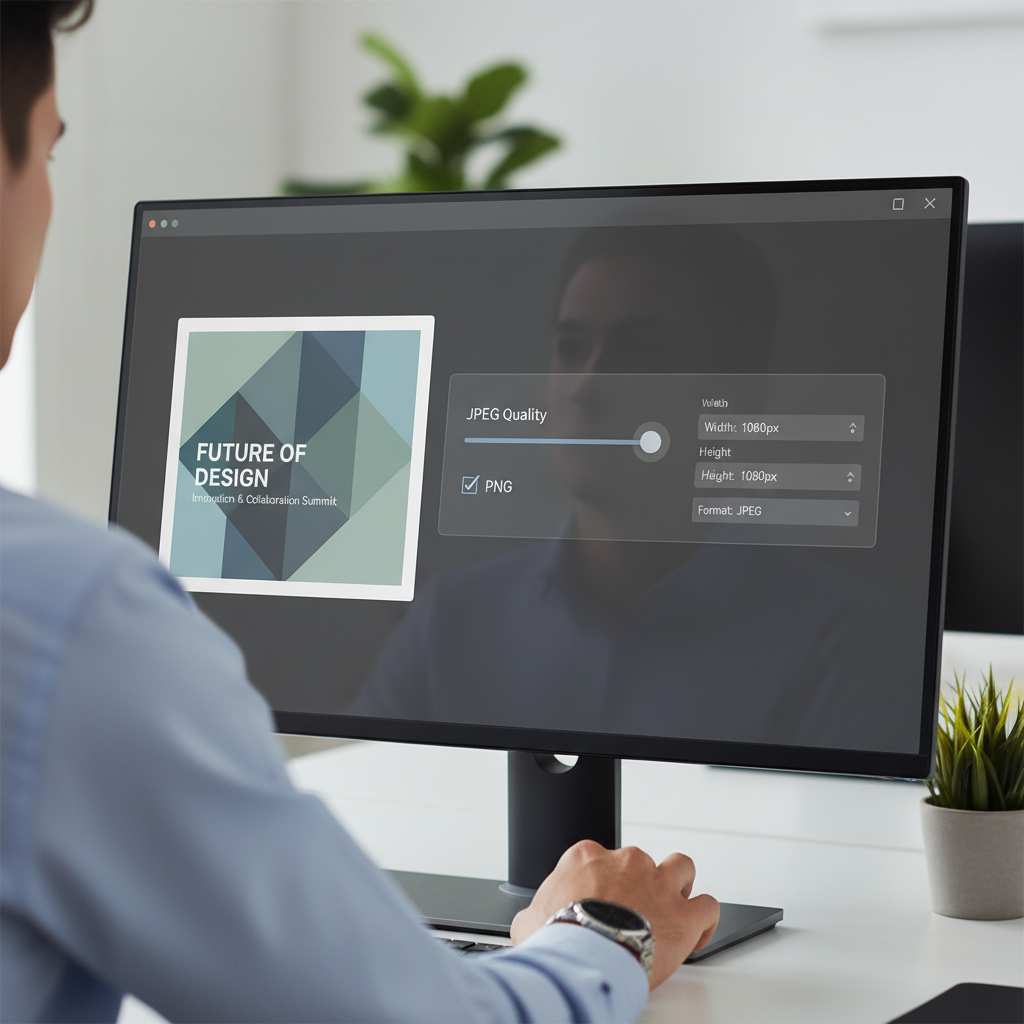
3) Export with the right file type
- JPEG works for photos, keep quality high enough to avoid banding.
- PNG is often better for text overlays, logos, and UI screenshots.
- MP4 or video formats are outside “photo resizer” scope, but your cover image still needs the right dimensions.
4) Keep one master file
Save a master at higher resolution, then export versions for each platform. This is where Photopea, Figma, or GIMP shines, you avoid resizing a resized file, which can degrade quality.
Common mistakes that make “correct size” still look wrong
- Resizing without considering aspect ratio. Changing pixels but ignoring ratio causes stretching or unwanted cropping.
- Over-compressing exports. Many free tools default to smaller files; text and gradients show artifacts fast.
- Designing too close to edges. Captions, UI buttons, and auto-crops can cover important content.
- Mixing templates with inconsistent margins. Your grid looks messy even if each post looks fine alone.
- Assuming one preset fits all placements. Even inside one platform, feed, story, reels cover, and ads can differ.
If you keep running into “it looked fine in the editor,” test by exporting and viewing on your phone before scheduling. That one minute catches most surprises.
Key takeaways and a simple next step
If you want speed, Canva or Adobe Express is usually enough, if you want precision and control, Photopea or GIMP tends to feel safer. For teams, Figma becomes powerful once you invest in a basic frame system.
Your next step can be small, pick one tool, create three saved presets you use most, then commit to exporting from a single master file for a week. That alone removes a lot of avoidable resizing drama.
FAQ
What are the top free photo resizers for social media if I only need presets?
Canva and Adobe Express are the usual go-tos because presets are front and center, and you do not have to think in pixels. If you want a simpler interface, some mobile apps can work, but web tools are often easier to manage for downloads and re-exports.
How do I resize without cropping important parts of the image?
Look for tools that let you reposition within the frame and add padding or background when needed. If the subject must stay intact, consider adding margins and a background color instead of forcing a crop.
Why does my resized image look blurry on Instagram or Facebook?
It is often a compression issue, either from the export settings or the platform recompressing your file. Export a slightly higher-quality file, avoid re-saving multiple times, and prefer PNG for text-heavy graphics.
Is Photopea safe to use for client work?
Photopea runs in the browser and is widely used, but “safe” depends on your client requirements and your comfort with uploading assets. If you work with sensitive files, an offline tool like GIMP may be a better fit, or confirm expectations with the client.
Can I batch resize images for social posts for free?
Some tools offer limited batch workflows, but batch resizing is commonly where free tiers start to restrict usage. If batch work is central for you, check each tool’s current limits before you commit your workflow to it.
What export size should I use to keep images sharp across platforms?
There is no single magic size because platforms vary and can change. A practical approach is to export at the platform’s recommended aspect ratio, keep resolution reasonably high, and test on a real device before publishing.
Which free tool is best for a small business with basic branding needs?
Canva and Adobe Express are usually easiest for consistent fonts, colors, and layouts without a design team. If you already collaborate in Figma for product or marketing assets, building social frames there can keep everything consistent.
If you are resizing weekly and the real issue is consistency, not just dimensions, it may help to standardize on one tool, lock in a small set of presets, and build a reusable “post kit” with margins, fonts, and export settings so every new post starts from a reliable base.