
how to use ai chatbots for daily productivity comes down to one thing: treating the chatbot like a fast, flexible assistant you can brief, correct, and reuse, not a mind reader.
Most people try a few generic prompts, get a bland response, and decide AI is overhyped. The real payoff shows up when you build small repeatable workflows: planning your day, drafting messages, summarizing notes, and turning “I should do this” into a concrete next step.
This guide focuses on everyday life in the US, not enterprise AI. You’ll get prompt patterns, a simple decision checklist, a table of use cases, and guardrails so you stay productive without oversharing personal info.

What AI chatbots are good at (and what they are not)
Chatbots tend to excel at language-heavy work: drafting, reorganizing, brainstorming, and translating your messy thoughts into a structured plan. They’re also useful for “first pass” research, as long as you verify anything that matters.
Where people get burned is assuming the chatbot knows your context, your calendar constraints, or the latest facts. According to NIST, AI risk management should include understanding model limitations and using appropriate oversight, which in plain English means you still own the final decision.
- Great for: outlining, summarizing, rewriting, step-by-step checklists, simple comparisons, role-playing conversations.
- Less reliable for: legal/medical/financial advice, live news, exact policy requirements, anything needing verified citations.
A quick self-check: are you using chatbots in the most productive way?
If your results feel mediocre, it’s usually not because you “picked the wrong bot,” it’s because the prompt lacks inputs, constraints, or a clear output format.
- You often ask broad questions like “How do I be more productive?”
- You don’t provide examples of your style, preferences, or constraints.
- You accept the first answer without asking for a revision or options.
- You copy-paste sensitive info (address, account details, health records) without thinking twice.
If two or more points match you, you’re a good candidate for “prompt templates” and simple automation habits, which is where daily gains usually come from.
The core prompt formula that makes chatbots actually useful
When people ask me how to use ai chatbots for daily productivity, I usually point to one repeatable structure. It looks simple, but it forces clarity.
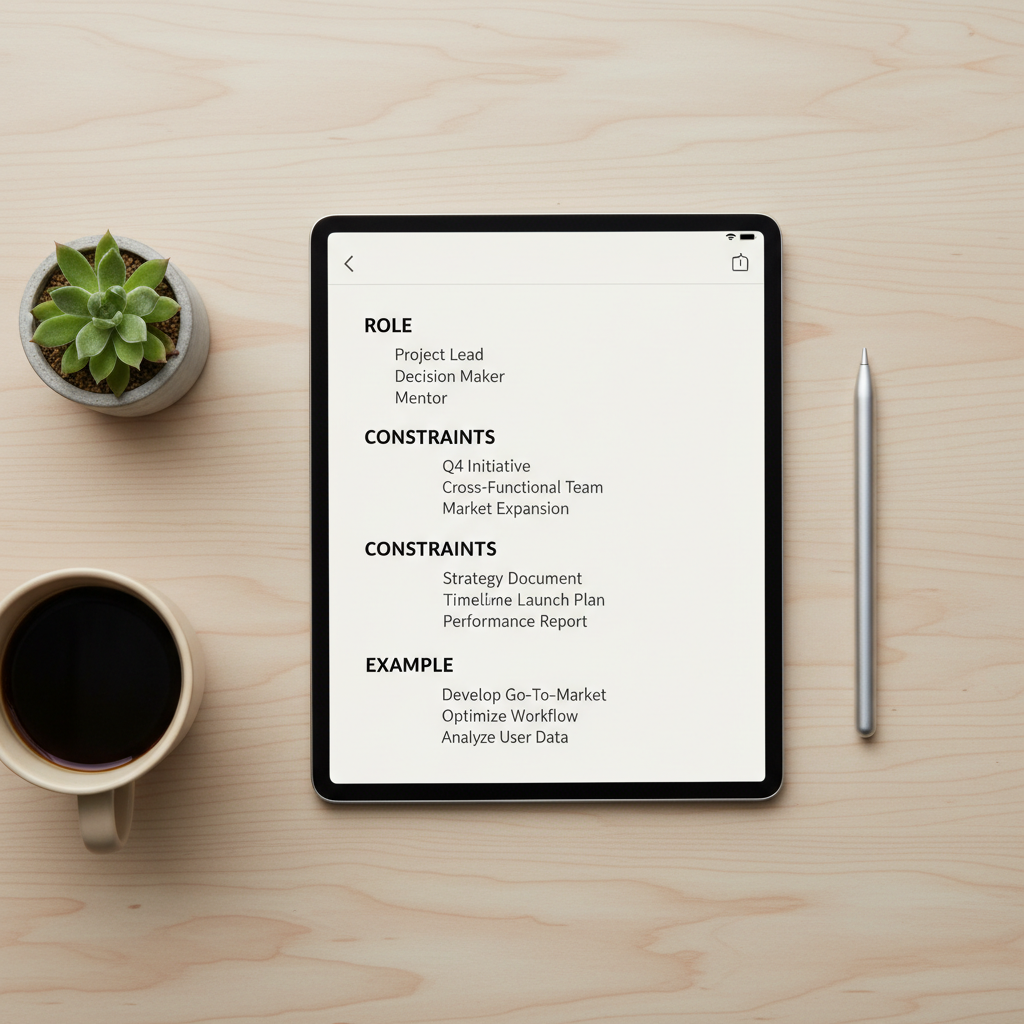
Use this: Role + Context + Constraints + Output
- Role: “You are my executive assistant” or “You are a meticulous editor.”
- Context: what you’re doing and why, plus any background that matters.
- Constraints: time, budget, tone, tools you use, what to avoid.
- Output: the format you want, like bullets, a table, or a 5-step plan.
Example prompt you can copy
Prompt: “You are my assistant. Context: I have 6 tasks and only 2 focused hours today. Constraints: I prefer 25-minute blocks, no meetings before 11am, include breaks. Output: prioritize tasks, propose a 2-hour schedule, and list what to defer.”
Then do the part most people skip: ask for one revision. “Now redo it assuming I only have 90 minutes,” or “Make it less ambitious and include the easiest wins.”
Everyday productivity use cases (with prompts you can reuse)
You don’t need 50 use cases. You need 5 that you repeat weekly. Here are the ones that tend to stick because they reduce friction in real life.
| Use case | When it helps | Prompt starter |
|---|---|---|
| Email + messages | When you’re avoiding a reply or need the right tone | “Draft a reply that is friendly, concise, and sets a boundary. Include 2 subject line options.” |
| Weekly planning | When your to-do list is noisy and unprioritized | “Turn this list into a weekly plan with must-do, should-do, nice-to-do, and time estimates.” |
| Shopping and comparisons | When options overwhelm you | “Ask me 8 questions to narrow down the right choice, then give 3 short recommendations.” |
| Learning and studying | When you need a fast explanation plus practice | “Explain this like I’m new, then quiz me with 10 questions and correct my answers.” |
| Admin tasks | When paperwork, forms, or calls stall you | “Create a step-by-step checklist and a script for a 5-minute phone call to resolve this.” |
Key takeaway for reuse
Save your best prompts in a notes app as templates, then paste and adjust. The second time is where the speed shows up, not the first.
Practical workflows: from “chat” to getting things done
Chat is nice, but a workflow is what makes it reliable. These three are simple enough to adopt without changing your whole life.
Workflow 1: Daily plan in 5 minutes
- Paste your tasks, plus any fixed commitments.
- Ask the bot to prioritize by impact and urgency, then produce a schedule with buffers.
- Ask for a “minimum viable day” version, in case things go sideways.
Prompt add-on: “Flag anything that looks unrealistic, and tell me what I’m underestimating.” This is surprisingly helpful when you’re overloading your day.
Workflow 2: Inbox zero-ish without becoming a robot
- For repetitive replies, create 3 tone profiles: warm, neutral, firm.
- Ask for a version under 80 words, then a version under 40 words.
- Before sending, read it once out loud to make sure it still sounds like you.
If you’re using how to use ai chatbots for daily productivity as a reason to send more email, that’s a trap. The goal is fewer back-and-forth loops, not more output.
Workflow 3: Turn notes into actions
- Paste meeting notes or class notes.
- Request: summary, decisions, open questions, and next actions with owners and due dates.
- Ask for a follow-up message you can send to confirm next steps.

Safety, privacy, and accuracy: the guardrails that keep you productive
Productivity drops fast when you have to clean up a mistake, or when you regret what you pasted into a chat window. Build a few guardrails and you’ll move faster with less stress.
- Don’t paste sensitive identifiers: Social Security number, full account numbers, medical records, copies of IDs.
- Use “redacted mode”: replace names with Person A/Company B, remove addresses, keep only what’s needed for the task.
- Verify claims that matter: policies, legal steps, health guidance, and anything with real consequences. According to FTC guidance on AI-related claims, avoid relying on unverified output for decisions that could harm consumers, so treat outputs as drafts, not facts.
- Ask for uncertainty: “List what you’re unsure about and what I should confirm.” This often surfaces hidden assumptions.
If your use case touches taxes, legal issues, or health, it’s usually smarter to use the chatbot to prepare questions for a licensed professional rather than to replace one.
Conclusion: a simple way to start this week
If you want how to use ai chatbots for daily productivity to feel real instead of gimmicky, pick one workflow and run it for seven days. Daily planning, message drafting, or turning notes into action items are the easiest wins for most people.
Action step 1: Save three prompt templates (plan, draft, summarize) in one place and reuse them.
Action step 2: Add one guardrail you’ll actually follow, like redacting personal details before you paste anything.
FAQ
What are the best daily tasks to give an AI chatbot?
Start with tasks that are repetitive and language-heavy: drafting emails, planning a day, rewriting text, making checklists, summarizing notes. These usually deliver value without requiring the bot to know private details.
How do I write prompts that don’t sound robotic?
Give the bot a tone target and an example of your voice. You can paste a short message you wrote and say, “Match this tone: friendly, direct, not salesy,” then request two variants so you can pick what feels natural.
Can AI chatbots replace a to-do app or calendar?
In many cases, no. They’re better as a planning layer on top of your tools. Use the chatbot to prioritize and structure, then put the final commitments into your calendar and task manager so nothing gets lost.
How do I keep an AI chatbot from making things up?
You can’t fully prevent it, but you can reduce the risk by asking for assumptions, requesting sources you can verify, and limiting the task to drafting or structuring rather than “deciding.” For anything high-stakes, confirm independently.
Is it safe to paste work emails or client info into a chatbot?
It depends on your workplace policy and the tool’s data settings. Many companies restrict what can be shared. When in doubt, redact names and confidential details, and ask your IT or compliance team what’s allowed.
How can students use AI chatbots without crossing academic integrity rules?
Use it for studying support: explanations, practice quizzes, flashcards, and outlining your own ideas. If you’re unsure, check your course policy and ask your instructor, since rules vary by school and class.
What if the chatbot gives me a plan I can’t stick to?
Tell it that. Ask for a “low-energy” version, add realistic constraints, and request buffers. A plan that you follow at 70% beats a perfect plan you abandon on day two.
If you’re trying to streamline work and home admin without spending your evenings tweaking prompts, a lightweight setup with a few reusable templates and privacy-friendly habits can make the whole thing feel much more automatic.