
how to turn off auto update apps android is mostly a Google Play Store setting, and once you know where it lives, you can stop surprise updates that burn mobile data, eat storage, or change an app right before you need it.
\nIf you’re in the US, this shows up a lot when you’re on a limited data plan, using a prepaid carrier, or sharing a hotspot. Auto-updates can also trigger when you’re traveling, on hotel Wi‑Fi, or when your phone decides a “good time” is 8:05 AM on a workday.
\nThe tricky part is there are two common layers: Google Play’s app updates, and manufacturer tools (Samsung, carrier apps) that may also update in the background. This guide helps you turn off auto-updates, keep security in mind, and still update the apps that matter on your schedule.
\n\n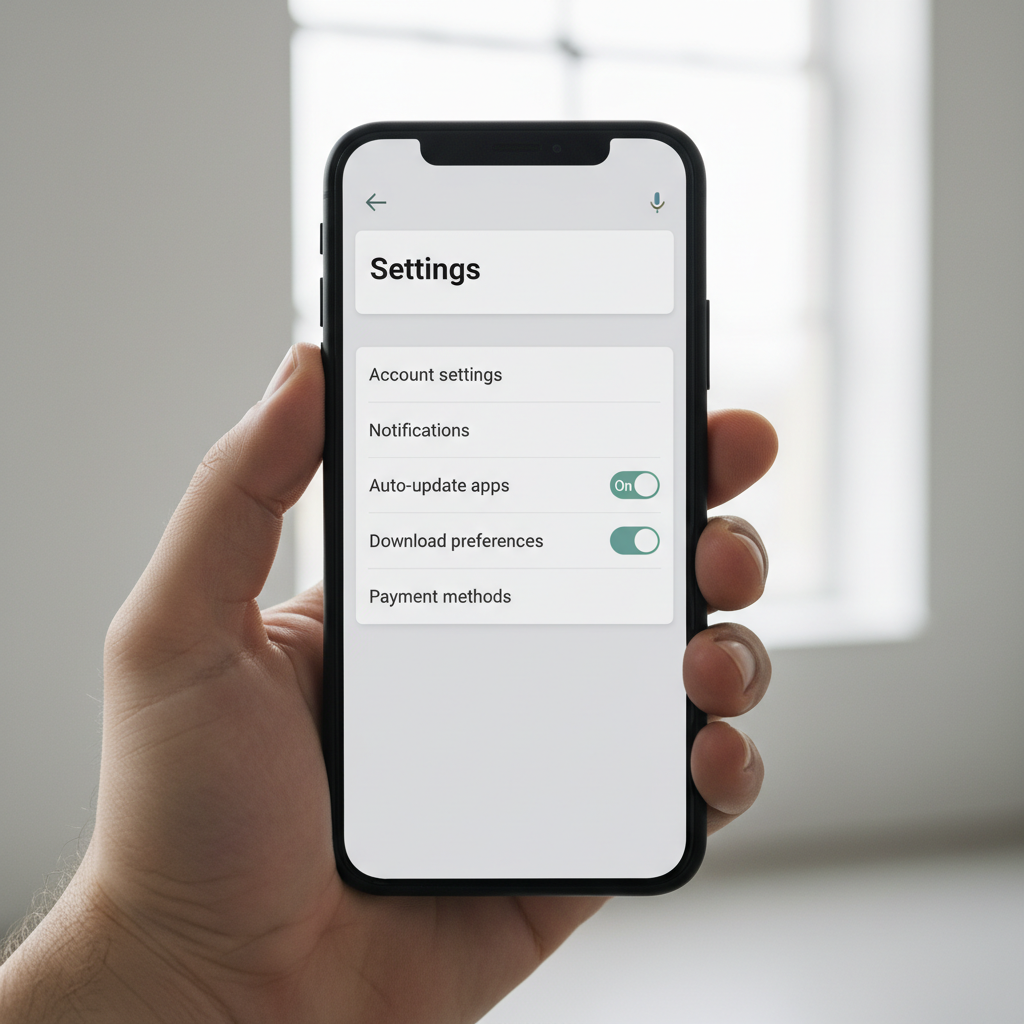 \n\n
\n\n
Why Android apps update automatically (and why it can be annoying)
\nAuto-updates exist for a good reason: developers patch bugs and security issues, and most people forget to update manually. But in day-to-day use, the downside is real.
\n-
\n
- Mobile data surprises: An update queue can be large, especially games and social apps. \n
- Storage pressure: Updates often require temporary space to install, then you get the “not enough storage” warning at the worst time. \n
- Unexpected changes: Interface changes, new permissions, or removed features can disrupt a workflow. \n
- Battery and heat: Big installs can spike CPU and background activity. \n
According to Google Play Help, auto-updates can be set to update over any network, or Wi‑Fi only, or turned off entirely. That setting is the main control point for most Android phones.
\n\nQuick checklist: are you dealing with Play Store updates, or something else?
\nBefore changing settings, it helps to identify what’s actually updating, because “apps updating” can mean different things on Android.
\n-
\n
- Is the Play Store doing it? You see downloads under Play Store > Manage apps & device. \n
- Is it a Samsung app store update? You see “Galaxy Store” updating Samsung apps. \n
- Is it the system updating? That’s usually a firmware/security update, not an app update. \n
- Is it carrier bloatware? Some carrier tools update via their own services. \n
If updates keep happening after you turn off Play Store auto-updates, you’re probably looking at the Galaxy Store (Samsung) or another vendor store.
\n\nTurn off auto-update apps in Google Play Store (most Android phones)
\nThis is the setting most people need. It stops Google Play from automatically updating apps you installed through Google Play.
\nSteps (works on Pixel, Motorola, OnePlus, most Android)
\n-
\n
- Open Google Play Store. \n
- Tap your profile icon (top right). \n
- Tap Settings. \n
- Tap Network preferences. \n
- Tap Auto-update apps. \n
- Select Don’t auto-update apps. \n
If you still want updates to happen automatically but only on Wi‑Fi, pick Over Wi‑Fi only. That’s often a better compromise for many people than turning everything off.
\n\n \n\n
\n\n
Samsung phones: also check Galaxy Store auto updates
\nIf you’re on a Samsung Galaxy device, some Samsung apps and modules may update through Galaxy Store even after you change Google Play settings. This is where many people get confused and assume the Play Store setting “didn’t work.”
\nSteps (Samsung Galaxy Store)
\n-
\n
- Open Galaxy Store. \n
- Tap the menu or three lines (varies by model). \n
- Go to Settings. \n
- Find Auto update apps and set it to Off (or Wi‑Fi only, if offered). \n
Some Samsung system components still update via system updates or Samsung services, which you typically should not disable unless you know the trade-offs.
\n\nBest middle-ground settings (so you don’t forget security updates)
\nTurning off auto-updates solves the “surprise update” problem, but it can quietly create another problem: apps sitting months behind on fixes. A middle-ground approach usually works better in real life.
\n-
\n
- Set auto-updates to Wi‑Fi only if data is the main issue. \n
- Manually update weekly, pick a calm moment, like Sunday evening. \n
- Prioritize high-risk apps: banking, email, password managers, browsers. \n
- Keep Play Protect on (Play Store > Settings > About > Play Protect settings). \n
According to CISA (Cybersecurity and Infrastructure Security Agency), applying updates is a common recommendation to reduce exposure to known vulnerabilities. You don’t need to be paranoid, but letting everything drift for too long rarely ends well.
\n\nHow to update apps manually (fast, without hunting one by one)
\nOnce you stop auto-updates, you want a quick manual routine that doesn’t feel like a chore.
\nManual update steps in Google Play
\n-
\n
- Open Play Store and tap your profile icon. \n
- Tap Manage apps & device. \n
- Under “Updates available,” tap Update all or choose specific apps. \n
If you only want to update one app (say, Maps before a trip), search the app in Play Store and tap Update.
\n\nCommon mistakes and things that look like auto-update (but aren’t)
\nA few settings and behaviors commonly get misread as auto-updates. Fixing the wrong thing wastes time.
\n-
\n
- System updates vs app updates: Android security patches are separate from Play Store app updates. \n
- Auto-download over Wi‑Fi: Some apps download content (offline playlists, podcasts, map areas) and it feels like an update. \n
- Multiple app stores: Samsung, Amazon Appstore, or enterprise stores can update apps independently. \n
- “Pending” doesn’t mean “auto”: If you previously queued updates, they may resume when conditions allow. \n
Also, some phones have battery/data optimization features that delay downloads until your phone charges or connects to strong Wi‑Fi, which makes updates seem random.
\n\n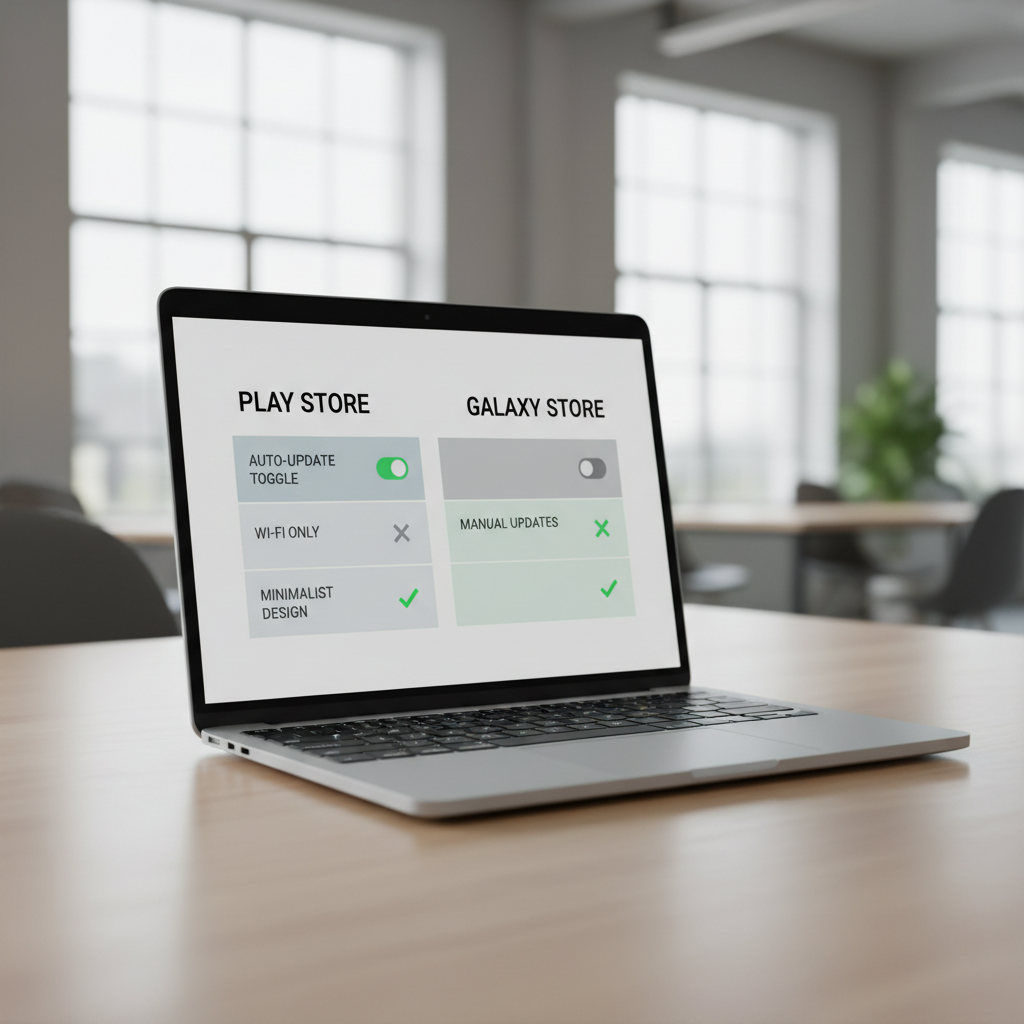 \n\n
\n\n
Quick reference table: where to control updates on Android
\nThis table is the “don’t make me think” version, especially if you manage phones for family members.
\n| What you want to control | \nWhere to change it | \nWhat to pick | \n
|---|---|---|
| Most app auto-updates | \nGoogle Play Store > Settings > Network preferences | \nDon’t auto-update (or Wi‑Fi only) | \n
| Samsung app auto-updates | \nGalaxy Store > Settings | \nAuto update off (or Wi‑Fi only) | \n
| Android system/security updates | \nSettings app > System/Software update | \nUse default, be cautious disabling | \n
| Downloads using mobile data | \nPlay Store > Settings > Network preferences | \nApp download preference: Wi‑Fi only | \n
Key takeaways (so you can set it and move on)
\n-
\n
- Play Store is the main switch for most people who want to turn off auto updates. \n
- Samsung users should also check Galaxy Store, because it can update Samsung apps separately. \n
- Wi‑Fi only is a practical compromise if you mainly want to protect mobile data. \n
- Manual updates matter for security-sensitive apps, even if you dislike surprise changes. \n
Conclusion: stay in control without falling behind
\nIf your goal is control, turning off auto-updates in Play Store (and Galaxy Store on Samsung) usually solves the problem in minutes. Then set a simple habit: update manually once a week, or at least keep browsers, email, banking, and password apps current. That balance keeps your phone predictable without drifting into “years out of date” territory.
\nIf you want to act right now, do two things: switch Play Store auto-updates to Don’t auto-update or Wi‑Fi only, then open “Manage apps & device” and clear any pending updates so nothing surprises you later.
","tags":["Android Settings","Google Play Store","Samsung Galaxy","App Updates","Mobile Data"]}