
how to defrag hard drive windows 11 is still a common question because Windows 11 behaves differently depending on whether you have an SSD or an old-school HDD, and the wrong “optimization” can waste time or add unnecessary wear.
If your PC feels sluggish when opening big folders, launching older games, or copying lots of files, fragmentation on a mechanical hard drive can be part of the story. On the other hand, if you use an SSD, Windows typically manages it with TRIM and scheduled optimization, so manual defrag is usually not the move.
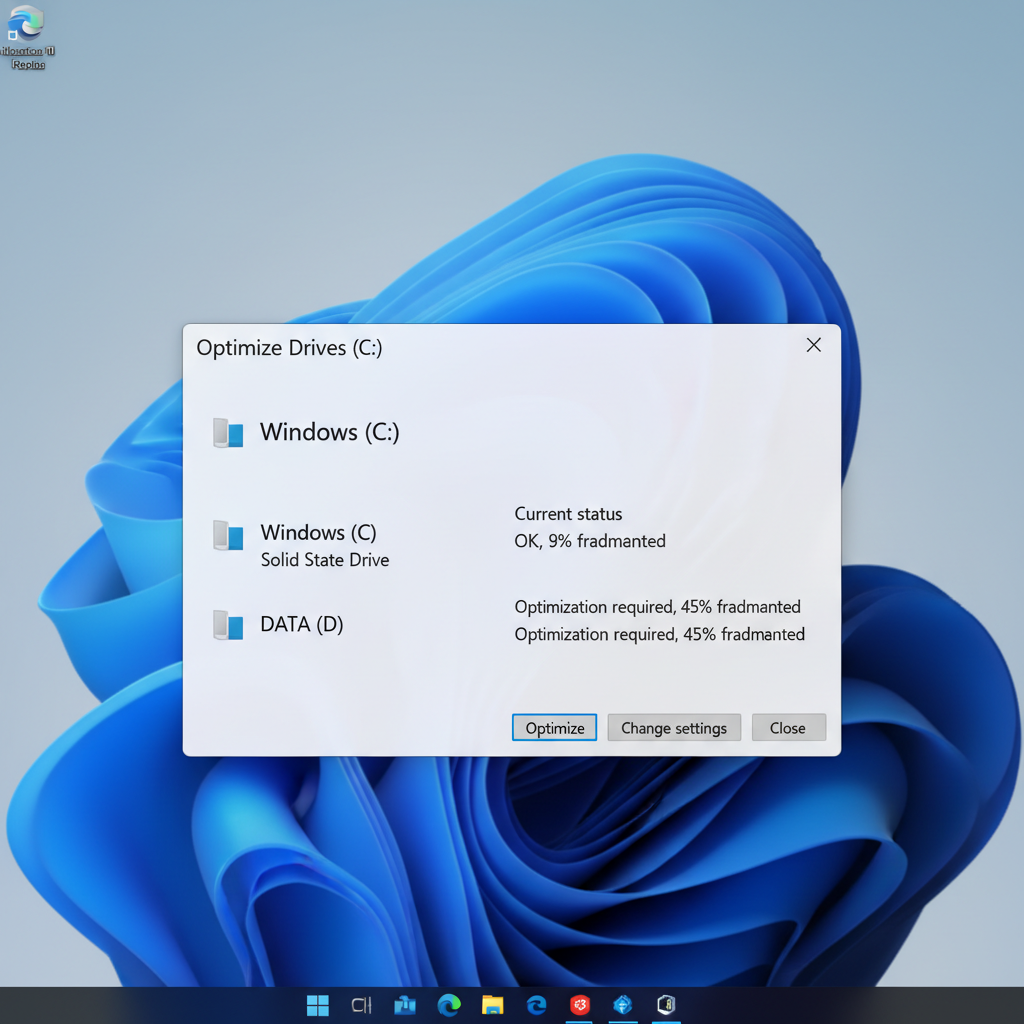
This guide focuses on practical decisions: how to confirm your drive type, when defragmenting helps, how to run it safely in Windows 11, and what settings matter so you don’t “optimize” the wrong thing.
What defragmentation does (and why it matters less on SSDs)
Defragmentation rearranges pieces of files so they sit closer together on a hard disk drive. HDDs read data with a spinning platter and a moving head, so scattered file chunks can mean extra seeking, extra waiting, and a system that feels slower under load.
SSDs don’t have moving parts, so fragmentation doesn’t slow them down the same way. Instead, SSD health and speed depend more on free space, firmware, controller behavior, and maintenance actions like TRIM.
Key takeaway: Defrag is mainly for HDDs. SSDs should be “optimized,” but that typically means TRIM, not classic defragmentation.
- HDD: Defrag can improve responsiveness in some file-heavy workflows.
- SSD: Windows runs TRIM via Optimize Drives; manual defrag is rarely helpful.
Quick self-check: do you have an HDD or SSD?
Before you touch any settings, confirm your storage type. People skip this, and it’s where most wasted effort starts.
Method A: Optimize Drives
- Press Start, type Defragment and Optimize Drives, open it.
- Look at the Media type column: it will say Solid state drive or Hard disk drive.
Method B: Task Manager
- Press Ctrl + Shift + Esc → Performance.
- Select Disk and check whether it shows SSD or HDD.
If you have multiple drives (common on desktops), you may have both, so treat each one differently.
When defrag helps in Windows 11 (and when it’s a distraction)
Defrag can help, but not for every “slow PC” complaint. Many Windows 11 slowdowns come from startup apps, low RAM, overheating, or a near-full drive.
Defrag often helps when:
- You have an HDD and regularly move large files around (video, photos, archives).
- Game installs and updates on an HDD feel increasingly choppy.
- File searches and folder opens on an HDD feel delayed, especially with many small files.
Defrag usually does not help when:
- Your system drive is an SSD and you’re hoping for a big speed jump.
- The disk is almost full (you may need to free space first).
- Windows is slow due to background tasks, malware, or driver issues.

According to Microsoft Support, Windows includes built-in tools to optimize drives and will typically run scheduled optimization automatically, which is why many users don’t need to do this manually unless they have a specific reason.
How to defrag a hard drive on Windows 11 (built-in Optimize Drives)
If you confirmed the drive is an HDD, this is the cleanest way to do it. It’s also the approach that tends to avoid sketchy “tune-up” software.
Step-by-step
- Open Defragment and Optimize Drives.
- Select the HDD you want to improve.
- Click Analyze (optional, but useful for a reality check).
- Click Optimize to start defragmenting.
For larger HDDs or very fragmented drives, it can take a while. You can keep using the PC, but heavy disk activity slows the process and can make the computer feel busier than usual.
Practical tip: If this is a laptop, plug it in. Power-saving modes can reduce performance mid-run.
Set it once: scheduling and smart defaults
Most people want a “set it and forget it” setup, and Windows 11 is pretty good at that if you don’t override it randomly.
- In Optimize Drives, click Change settings under Scheduled optimization.
- Keep Run on a schedule enabled in most cases.
- Click Choose to confirm which drives are included.
If you use your HDD occasionally (backup drive, photo archive), weekly is typically fine. If the HDD is constantly active, more frequent scheduling may help, but the improvement is not always noticeable.
HDD vs SSD: what “Optimize” actually does (quick reference)
Windows 11 uses the same “Optimize Drives” window for both drive types, which is why it confuses people. Here’s the practical read.
| Drive type | What Windows 11 typically runs | When to do it manually | What to avoid |
|---|---|---|---|
| HDD | Defragmentation (reorders file blocks) | After big installs/mass file moves, or if HDD feels slower | Running it repeatedly “just because” |
| SSD | TRIM (helps SSD manage free blocks) | If optimization is off, or after restoring from some backups | Third-party defrag tools claiming huge SSD speed boosts |
Common mistakes that waste time (or cause new problems)
This topic attracts a lot of outdated advice. A few small corrections save you hours.
- Defragging an SSD to “make it faster”: In many cases it won’t, and it adds unnecessary writes.
- Running defrag with almost no free space: HDD defrag needs working room; aim for breathing space before you optimize.
- Using aggressive “PC optimizer” suites: They often bundle extras you don’t want, and the built-in tool is usually enough.
- Chasing a fragmentation percentage: The number alone doesn’t always translate to real-world slowness.
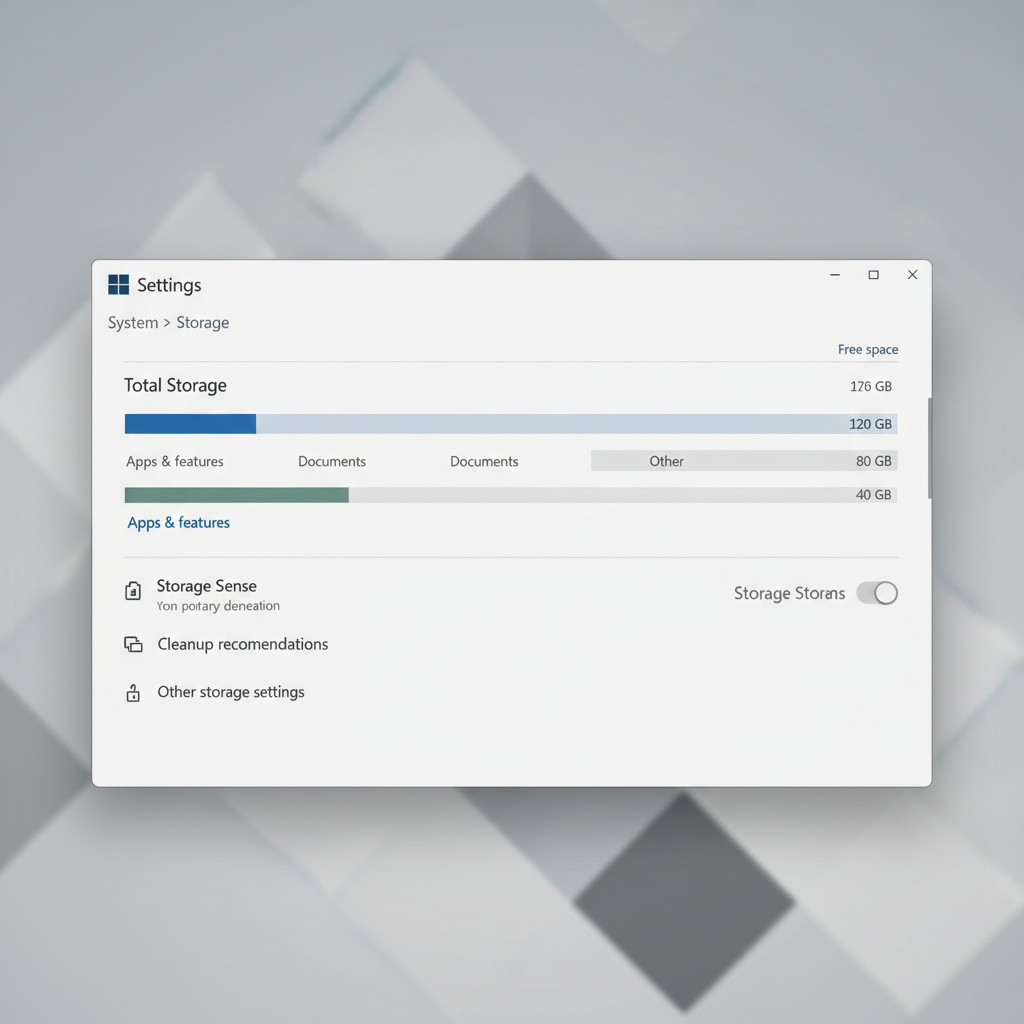
If you’re doing this because your PC is slow, it’s worth also checking Storage Sense, startup apps, and whether Windows Update is running heavy tasks in the background. Defrag is one tool, not a cure-all.
When you should consider professional help (or different fixes)
If your HDD shows signs of failure, defrag is not the priority. It can even fail mid-run if the drive has bad sectors.
Consider stopping and getting help if you see:
- Clicking/grinding noises from a mechanical drive.
- Repeated file corruption, frequent read/write errors, or Windows disk warnings.
- SMART alerts from the manufacturer’s utility.
In those cases, focus on backing up data first, then consider a drive replacement. If you’re in a business environment or the data is sensitive, it’s reasonable to consult IT or a reputable repair shop.
Key points to remember before you hit Optimize
- Confirm drive type before taking action, HDD and SSD should not be treated the same.
- Use Windows 11 Optimize Drives for a safe baseline approach.
- Free space matters, low space often limits any improvement.
- Schedule it if you still use an HDD regularly, then stop thinking about it.
Conclusion: a simple, realistic plan
If you came here wondering how to defrag hard drive windows 11, the best plan is straightforward: confirm the drive is an HDD, run Optimize Drives once, then rely on scheduling unless performance issues return. If you’re on an SSD, let Windows handle TRIM and spend your effort on storage space, startup bloat, and updates.
Pick one action today: open Optimize Drives and verify media type, then either run Optimize for your HDD or turn scheduled optimization back on and move on.