
How to enable dark mode on all apps usually comes down to one thing: your device can only enforce dark mode so far, and the rest depends on each app’s own theme settings. The good news is you can get very close to “everything dark” with the right order of operations.
If you’ve ever turned on Dark Mode in iPhone or Android settings and still opened a blinding white app, you’ve already seen the catch. Some apps follow the system theme instantly, some need a manual toggle, and some ignore it unless you use accessibility workarounds.
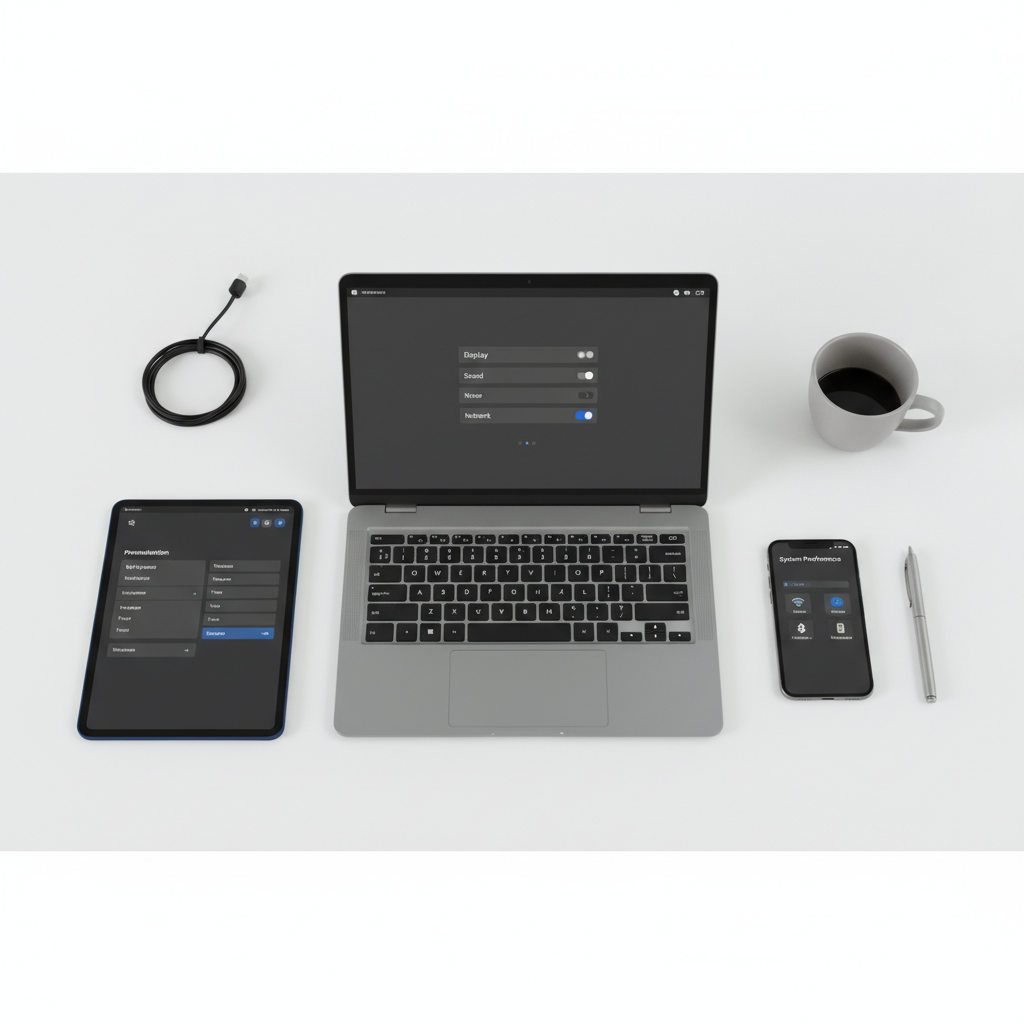
This guide focuses on practical steps for iOS, Android, Windows, macOS, browsers, and common “stubborn” apps. You’ll also get a quick checklist and a small decision table, so you can stop chasing menus and get a consistent look.
What “dark mode on all apps” can and can’t mean
Before you chase every switch, it helps to set expectations. There are three layers that control appearance, and they don’t always agree.
- System theme: iOS/Android/Windows/macOS setting that apps may follow.
- In-app theme: a setting inside the app (often Light/Dark/System).
- Content layer: web pages, PDFs, emails, or media inside an app, which may stay light even if the app shell is dark.
Also, some apps intentionally avoid a forced dark theme because it can reduce readability or break brand colors. According to Apple Support, apps can choose whether to adopt system appearance, so it’s normal to see exceptions.
Quick self-check: why some apps stay bright
If you want a fast diagnosis, run through this list. It’s usually one of these.
- You enabled Night Shift / blue light filter instead of Dark Mode. Night Shift warms colors, it doesn’t change UI background.
- The app theme is set to “Light” even though the phone is dark.
- The app doesn’t support dark mode (common with older utilities, some banking portals, niche enterprise apps).
- You’re viewing web content inside a browser or in-app webview that doesn’t inherit the app theme.
- Battery Saver overrides behavior on some Android skins, or reduces animation/contrast in a way that feels “off.”
If you’re trying to figure out how to enable dark mode on all apps for comfort, this step saves time: you’ll know whether you need a settings change, an app toggle, or a workaround.
Enable Dark Mode system-wide (do this first)
Start with the system toggle, because it’s the only thing that can influence multiple apps at once.
iPhone and iPad (iOS/iPadOS)
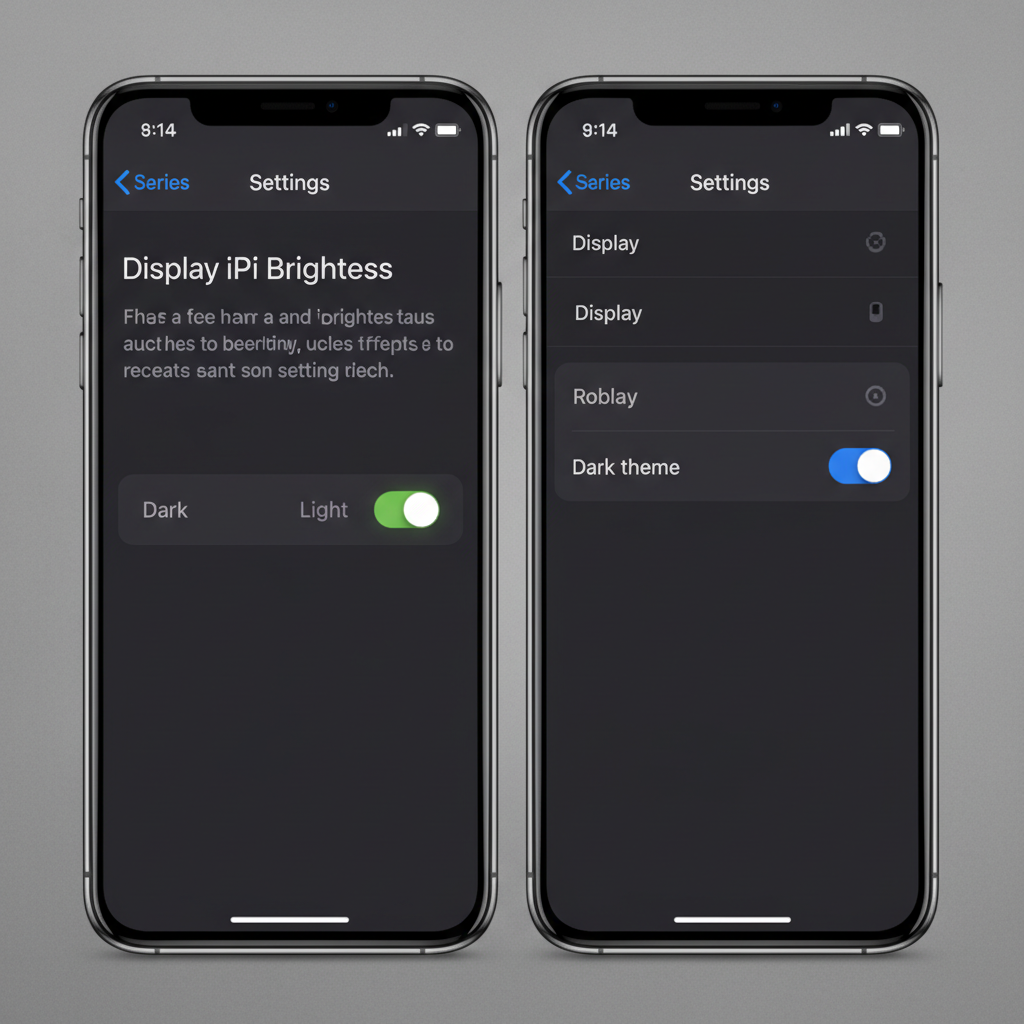
- Go to Settings → Display & Brightness → Appearance and choose Dark.
- Optional: set Automatic if you want it to switch at sunset or on a schedule.
- For quick access, add Dark Mode to Control Center: Settings → Control Center.
Android (steps vary by brand)
- Go to Settings → Display (or Wallpaper & style) and enable Dark theme.
- Turn on Schedule if you want automatic switching.
- Check Quick Settings tiles for a fast toggle (often called Dark theme).
According to Google Support, Android’s Dark theme affects supported apps and system UI, but not every app adopts it, which is why the next section matters.
Windows 11 / Windows 10
- Go to Settings → Personalization → Colors.
- Set Choose your mode (Win 11) or Choose your color (Win 10) to Dark.
- Optional: use Custom to keep Windows dark while apps stay light, or vice versa.
macOS
- Go to System Settings → Appearance and choose Dark (or Auto).
- Some third-party Mac apps still use their own theme toggle, so don’t stop here.
Turn on dark mode inside apps (where most people get stuck)
Once the system theme is dark, open the apps that still look bright and look for a theme setting. Many apps hide it under “Display,” “Appearance,” or “Chat settings.” If you see System default, choose that so it follows your device going forward.
Here are common places to check, because the labels tend to repeat:
- Social apps: Settings → Display/Appearance → Theme
- Messaging: Settings → Chats/Chat settings → Theme
- Email: Settings → Theme (some clients only theme the app chrome, not message content)
- Productivity: Settings → Appearance (some have per-document page colors)
Key point: if an app offers Light / Dark / System, pick System unless you have a reason to pin it.
Browsers and web content: the “it’s still white” problem
A big chunk of “not all apps are dark” is really “web pages are still light.” Browsers have their own theme layer, and websites decide their colors.
Chrome (desktop)
- Set your OS to dark (Chrome usually follows it).
- Optional: install a reputable dark mode extension if specific sites stay bright. Test carefully because some extensions can invert images or break layouts.
Safari (macOS)
- Safari’s UI follows macOS appearance.
- For websites, consider Reader mode when available, or a content-focused extension if you truly need forced dark pages.
Edge / Firefox
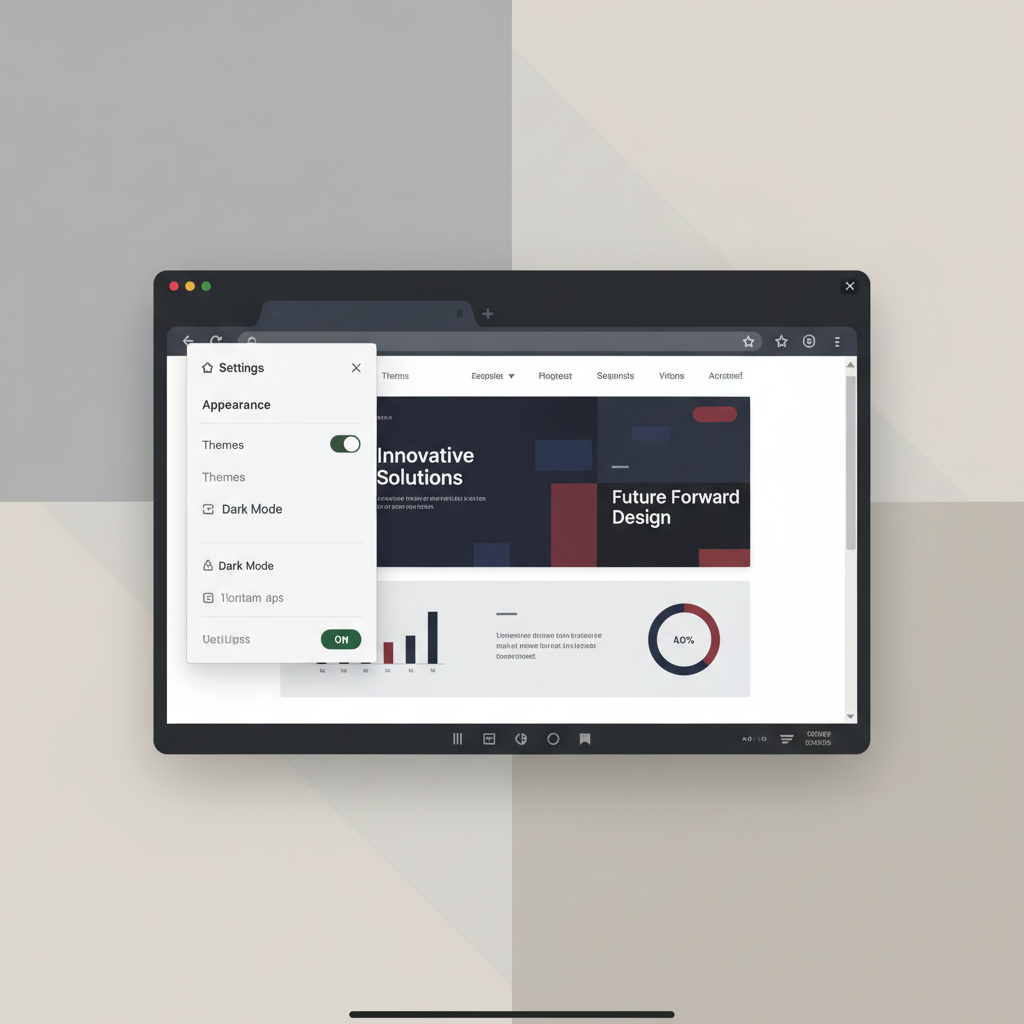
- Enable a dark theme in browser settings (Appearance → Themes).
- Check each browser’s setting for “Use system theme” if you want consistency across devices.
When apps don’t support dark mode: realistic workarounds
Some apps just won’t comply. In those cases, you’re choosing between “good enough” and “might look weird.” If you’re evaluating how to enable dark mode on all apps, this is the line where you decide how aggressive you want to be.
iOS: Smart Invert (use carefully)
- Go to Settings → Accessibility → Display & Text Size → Smart Invert.
- This can darken many bright interfaces, but it may invert images/colors in ways you dislike.
- Tip: set it as an Accessibility Shortcut for quick on/off.
Android: Force Dark (Developer options, not always available)
- Enable Developer Options (varies by device), then look for a Force dark toggle.
- Some Android versions/brands hide or remove this, and results can be inconsistent.
- If an app becomes hard to read, turn it back off for usability.
Desktop apps: check for “theme packs” and accessibility settings
- On Windows, many apps follow system theme, but older apps may not.
- Some tools provide their own themes, skins, or “night mode.” Use those instead of global inversion where possible.
A simple decision table: what to change based on what you see
If you’d rather not guess, use this quick table and fix the most likely layer.
| What’s still bright? | Most likely cause | What to do |
|---|---|---|
| Only one app | In-app theme set to Light | Find Theme/Appearance, set to Dark or System |
| Many apps + system UI is light | System theme not enabled | Turn on device Dark Mode first |
| Browser UI is dark, websites are white | Site doesn’t support dark styling | Use Reader mode or a trusted extension |
| PDFs/documents inside an app | Content layer stays light | Look for “page color” or “night reading” options |
| An older or niche app | No dark mode support | Use Smart Invert/Force Dark, or accept light UI |
Common mistakes to avoid (so you don’t waste an hour)
- Confusing brightness tools with dark mode: Night Shift, True Tone, and blue light filters change color temperature, not UI theme.
- Forcing dark everywhere without checking readability: inverted colors can make buttons, charts, or photos look wrong.
- Missing the “System” option: setting an app to Dark is fine, but “System” prevents future mismatch.
- Assuming all websites can be dark: lots of sites still ship light-first designs, so you’ll need browser-level help.
According to Microsoft Support, Windows can apply dark mode to supported apps and UI surfaces, but older software may not update. That limitation is normal, not a sign you “did it wrong.”
Practical routine: get to 90% dark in 10 minutes
If you want a repeatable plan, here’s a simple run that works for most people.
- Enable system Dark Mode on your phone and computer.
- Open your top 10 most-used apps, search for Theme or Appearance, set to System.
- Set your main browser theme to dark, then decide whether you want a website darkening tool.
- Only if you still have one or two “flashbang” apps, try Smart Invert or Force Dark, and keep a quick toggle ready.
Key takeaway: learning how to enable dark mode on all apps is less about one magic switch and more about fixing the right layer for the right app.
Conclusion: a consistent dark setup is doable, just not always universal
You can usually get a clean, consistent dark experience by setting your device theme first, then switching any holdout apps to “System,” and finally addressing browsers and web content separately. When an app doesn’t support dark mode, accessibility tools can help, but they’re best used as a quick toggle rather than a permanent fix.
If you want one action today, start with your top five apps and make sure each is set to follow the system theme, that small step tends to remove most of the annoyance fast.
FAQ
- Why doesn’t dark mode apply to every app automatically?
Because apps choose whether to adopt system appearance, and some older apps never added theme support, so you may need an in-app setting or a workaround. - How do I enable dark mode on all apps on iPhone?
Turn on Dark Mode in Settings, then check each bright app for Theme/Appearance and set it to Dark or System. If an app has no option, Smart Invert can help, though it may look odd. - How do I enable dark mode on all apps on Android?
Enable Dark theme in system settings, then check holdout apps for their own theme toggle. If available on your device, Force Dark in Developer options can affect some unsupported apps. - Does dark mode save battery?
Many cases, yes on OLED screens because dark pixels use less power, but results vary by screen type and usage, so treat it as a possible benefit, not a guarantee. - Why are websites still white even when my browser is dark?
A dark browser theme changes the browser UI, but sites control their own colors. Reader mode or a trusted extension can help, with the tradeoff that some layouts may break. - Is forcing dark mode safe for my eyes?
Dark mode can reduce glare for many people, but comfort varies, and contrast that’s too low can also cause strain. If you have ongoing eye discomfort, it may be worth asking an eye care professional. - What’s the difference between dark mode and Night Shift?
Dark mode changes interface colors, Night Shift changes display warmth. You can use both, but they solve different problems.
If you’re trying to standardize dark mode across a family’s devices or a small team setup, it can be easier to write down your “default theme rules” (system dark, apps set to System, browser theme aligned) and apply them once per device, instead of tweaking settings every time a new app shows up.